
Common or frequently used Queue Management Filters can be saved and given a Description so that repeatable tasks are easily accomplished.
Queue Management
-
From the Home menu, select
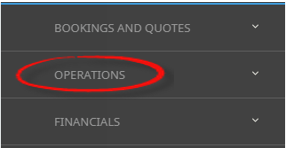
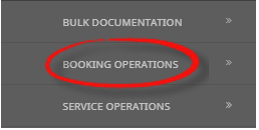
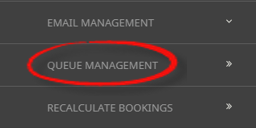
 Home > Operations > Booking Operations > Queue Management.
- Click the Home Menu to expand it:

- Click the Operations menu option to expand it:

- Click Booking Operations menu option to expand it:

- Click Queue Management to open the Queue Management screen:

- Click the Home Menu to expand it:
-
ClickManual.

-
On the blank Queue Management - Manual Selection screen, the Queue Tab will open, select the required filters from the field selections available within the Queue Tab.
View Queue Management Fields to learn more about all the field selections available, or view the individual tab filters; Queue Tab, PCM Tab, Analysis Tab (PCM), Booking Tab, Analysis Tab (Booking and Agent), Service Tab, Analysis Tab (Supplier and Product) or Results Tab
NOTE: The Queue Scope field triggers the Tab selections available.
- Check the completed screens.
- Click on the Results Tab.
-
If you want to save this filter, clickSave Filter.

-
On the emptyNew Selection screen, give the Saved Filter Selections a 'Description'.

-
ClickAdd to add this filter description.

-
ClickExit to discard any changes.

-
NOTE: If Add is selected the New Selection Description will appear in the Header of the Results Tab and the Description will display each time users open Queue Management. If selected for future Queue Management processing - results will be returned based on the saved filters.
- If Add is selected you will return to the results screen, where you can select to Process Queues (following from Step 5 in the previous procedure), or Exit.

NOTE: The selection options for these fields would have been pre-determined at the time of your System Setup and will fit the purpose of your organisation. For more information on creating drop-down selections for Analysis Fields or Check boxes, see the System Setup User Manual.
Copy Queue Management Filters
There maybe times where you have complex filters selected and you want to make a subtle amendment. In this case Manual Filters or Saved Filters can be copied and given a new description from within the Results Tab. Users can copy existing filters by using Copy Filters, make the necessary changes to filter selections and re-save giving the newly copied filters a new description.

Deletion of Queue Management Filters
Deletion of Filter Descriptions is allowed, and a confirmation message will display to ensure that you want to delete the Filter Description. If you select to delete, the filters will not be able to be retrieved again.
