
Recalculation of bookings can occur in bulk instead of booking by booking, selection of different fields will determine the bookings to be recalculated.
Selection can occur for
- All bookings
- FIT bookings
- Group bookings
Closed bookings can be included or excluded.
This can be useful when (e.g.) a decision has been made to update booking level information such as commissions, mark-up or exchange rates. When the recalculate booking function is used the system will apply any amendments made within the system that may be relevant to the booking.
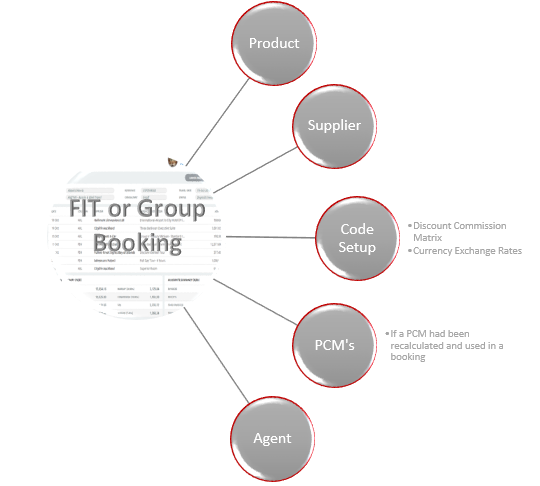
If changes are made to any of the applications noted below, the Bookings selected would be recalculated to reflect the change.
Recalculate Bookings
-
From the Home menu, select
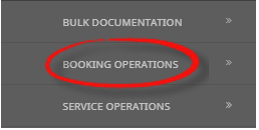
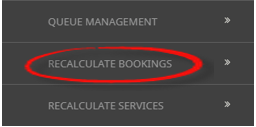
 Home > Operations > Booking Operations > Recalculate Bookings.
- Click the Home Menu to expand it:

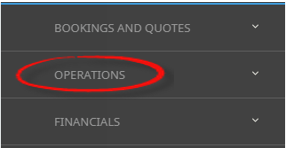
- Click the Operations menu option to expand it:

- Click Booking Operations menu option to expand it:

- Click Recalculate Bookings to open the Recalculate Bookings screen:

- Click the Home Menu to expand it:
-
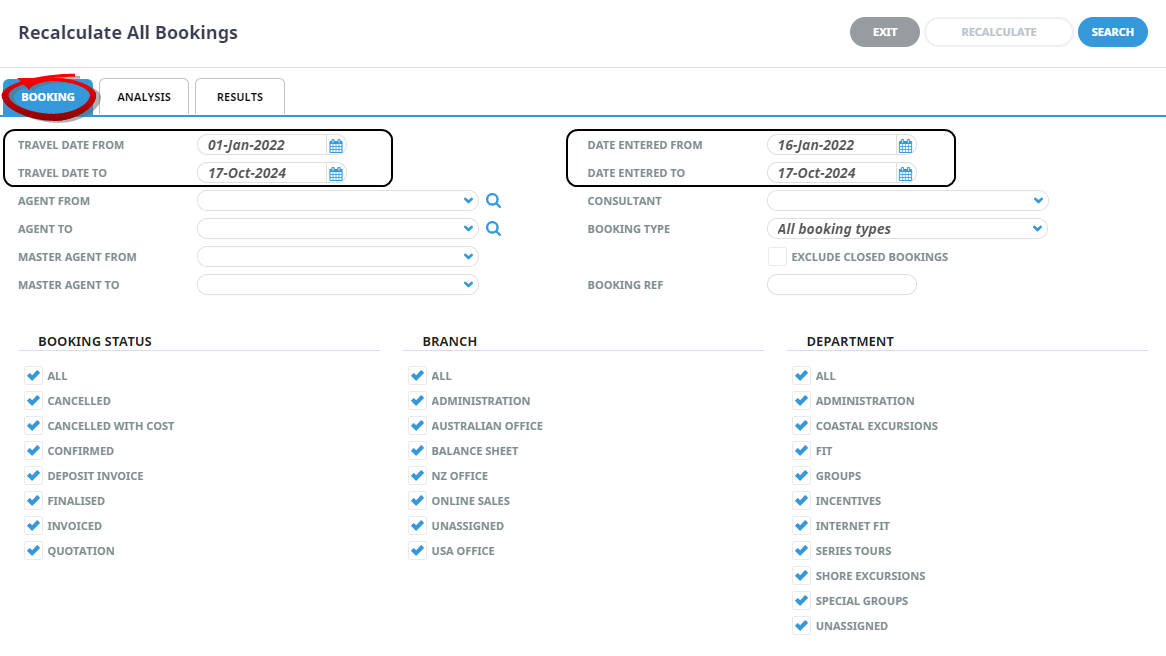
On the blankRecalculate All Bookings screen, the Booking Tab will open, select the required filters from the field selections available within the Booking Tab, and the Analysis Tab. Click on the links to find out more about the fields Booking Tab, Analysis Tab.
NOTE: Travel Date From/To, and Date Entered From/To fields are defaulted to system settings, these fields can be amended to suit recalculation requirements.
Filters used in this screen capture are examples used for Training purposes, Statuses, Branch and Department selection will reflect users own organisational fields.
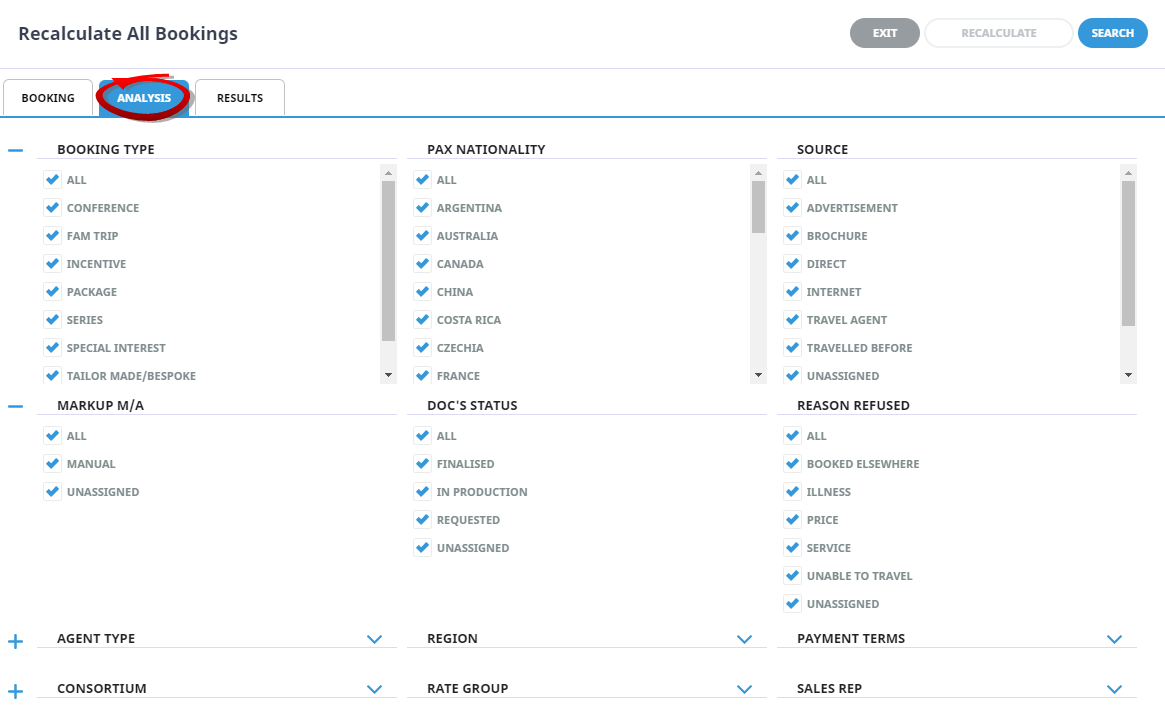
Analysis Codes used in this screen capture are examples used for Training. Analysis field headings and codes will reflect users own organisational fields.

- Check the
-
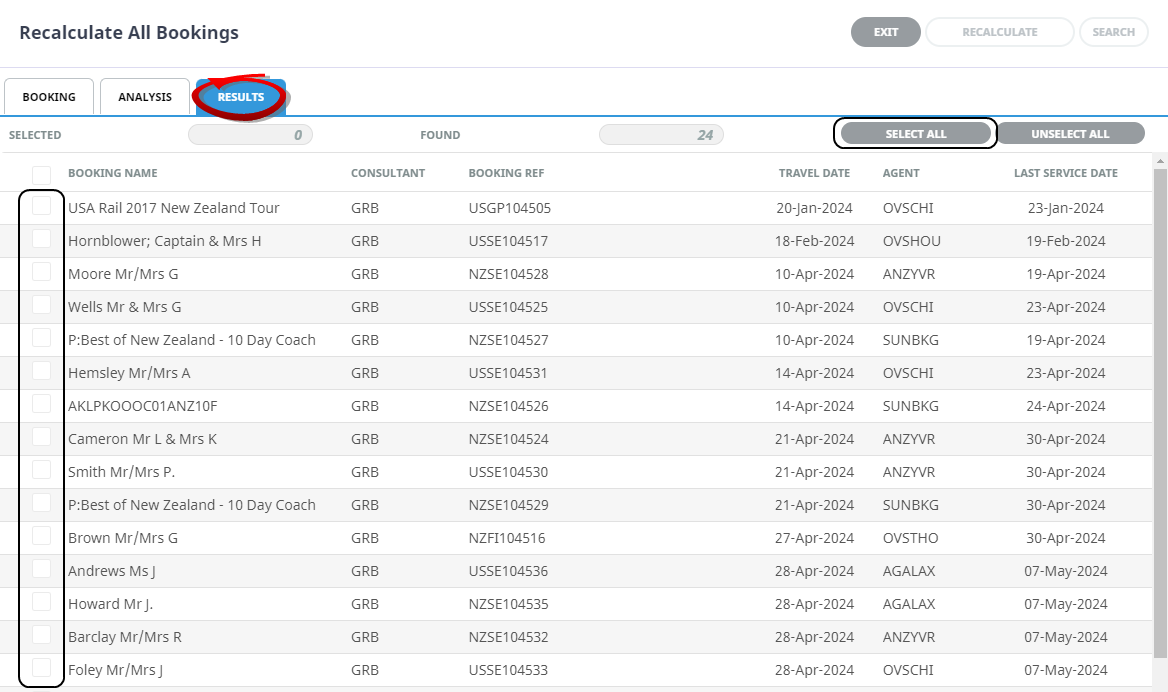
Click on theResults Tab. Select the services using the Select check-boxes next to each service, or use Select All. Click on the link to find out more about the Results fields.
-
If you want to recalculate, clickRecalculate.

-
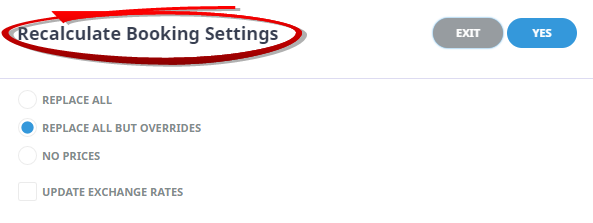
On theRecalculate Booking Settings screen, check the required setting, and select if you want the system to update the exchange rates.
NOTE: The system will default to 'Replace All But Overrides', Click on the link to find out more about the Recalculate Booking Settings.
-
To keep the changes, clickYes.

-
ClickExit to discard any changes.

-
If 'OK' was selected aRecalculation Summary will appear with the number of successful bookings to be recalculated.

-
ClickOK to keep the changes and save or update the entry.

Booking Tab
This screen is in two sections. The top section includes 'Current Service' field selections and 'Booking Filter' selections. The bottom section includes selection for Booking Status, Service Status, Branch and or Department.
Travel Date From/To
Used to select services with a specific, or range of, travel dates of the bookings to be selected.
Agent From/To
Used to select services with a specific, or range of, agent(s) codes in the booking header matching the selection.
Master Agent From/To
Used to select services with a specific, or range of, Master Agent code(s) in the booking header matching the selection.
Date Entered From/To
The booking entered date(s) of the bookings to be selected.
Consultant
The consultant code attached to the bookings whose messages are to be output.
Booking Types
Drop down selection for the type of bookings to be included, selection includes:
- All booking types - bookings from either FIT bookings or Group bookings will be selected.
- FIT's - those bookings that are FIT bookings will be selected.
- Groups - those bookings that are Group bookings will be selected.
Exclude Closed Bookings
Use this check box if closed bookings are to be excluded from search results.
Booking Ref
Used to select a specific booking reference.
Booking Status
By default, all booking statuses are checked and bookings that have those status will be selected. Un-check statuses that are not required.
Branch
By default, all branches are checked and bookings that have those branches will be selected.
Department
By default all departments are checked, bookings that have those branches will be selected.
Analysis Tab (Booking and Agent Analysis)
Booking Analysis
The top two rows of this tab are the 6 Booking Analysis codes. These are booking level selections.
Agent Analysis
The bottom two rows of this tab are the 6 Agent Analysis codes. These are Agent Analysis codes attached to the booking.
Analysis fields can be expanded or minimised by using the + or - function.
NOTE: The label descriptions and analysis selections used within this User Manual will vary and will display what has been setup in each user companys system.
Results Tab
Selected check-boxes
Bookings can be individually selected.
Select All/Unselect All
Select all bookings found, or un-select all bookings selected.
Selected
The cell to the right of this heading will provide you with the number of bookings that have been selected.
Found
The system will provide you with the number of bookings found, matching the filter criteria.
Column Headings
Users can customise their column headings by clicking on the header row, or can amend the order of results by clicking on the field heading, see About Changing Default Column Headings.
To view the available column headings in Recalculate Bookings, see Booking Operations.
NOTE: The data can be sorted by any column by double clicking the column header. The order can then be reversed by double clicking the column header again.
About Recalculation Settings
Replace All
Revisits the Tourplan Database and re-costs all services.
All Except Overrides
Revisits the Tourplan Database however does not re-cost services where the original product rates were manually overridden. Manually overridden values need to be confirmed with 'OK'.
No Prices
Recalculates the totals based on the existing service line values.
Update Exchange Rates
When the booking services are re-costed should Tourplan Continue to use the previous Exchange Rates (unchecked) or use the Exchange Rates from the Tourplan Code Setup Module.