
Some package tours are sold to more than one agent/client. For these types of tours you need the facility to treat the tour as an individual booking towards the agent/client or as a group towards the supplier.
The book-on/roll-up functionality will allow you to handle these types of tours. The client will be booked-on to a Master Groups booking via an FIT or Group booking.
There are two distinct types of packages that Tourplan can handle:
- Copy In Package
A collection of services which have been created in a Tourplan Pre-Costed Module (PCM) and which have a specific package price service option record attached to control the package selling price. In the processing of these Bookings, the client (traveller) will receive one voucher for each service in the booking. In its method of operation, the contents of the PCM are ‘copied’ into the booking, and the selling or retail price of the package is maintained.
The operation of FIT Packages is detailed in the FITs User Manual within the chapter Create New FIT Bookings > Package Insert.
- Book On Package
A Group SIC tour (e.g. ‘Best of NZ 12 Day’) that is being operated by (not just sold by) the Tourplan user company. The tour is created as a Pre-Costed Module (PCM) and has a specific service option attached which contains the package price and links to the allocation module to control the number of seats available on each departure date. The tour is sold only as a 12 day tour and passengers book on to it. Each actual booking made in Tourplan for the package is an FIT booking. The package is entered into the FIT booking as one service line (although the component services of the package are in the background of the FIT Booking so that Itineraries etc. can be produced), and the client (traveller) receives one voucher covering the entire package—in other words, the client gets the voucher as a ‘ticket’ entitling them to board the tour.
The package operates as a Groups booking and this Group booking becomes the operational tour—service vouchers are produced for all pax travelling on the package, and rooming lists can be created from one combined Group Booking.
The Book On function in this section details and assembles the FIT bookings that are traveling on Group packages for a specific date and creates an operational Group Booking.
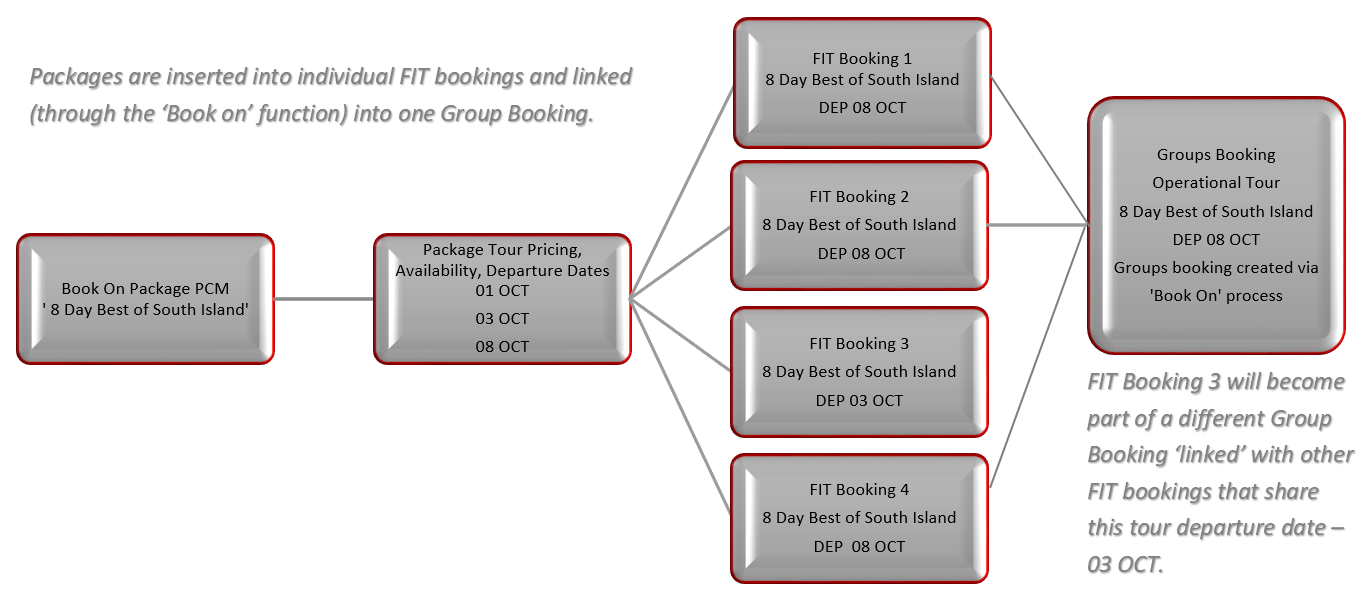
Re-linking can be done by consultants within the Group booking > Operations and Accounts > Re-Link Package.
Book On
-
From the Home menu, select
 Home > Operations > Booking Operations > Book On.
- Click the Home Menu to expand it:

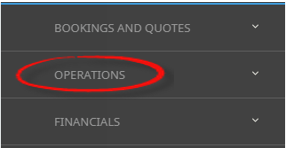
- Click the Operations menu option to expand it:

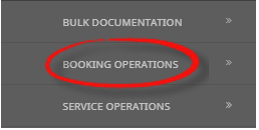
- Click Booking Operations menu option to expand it:

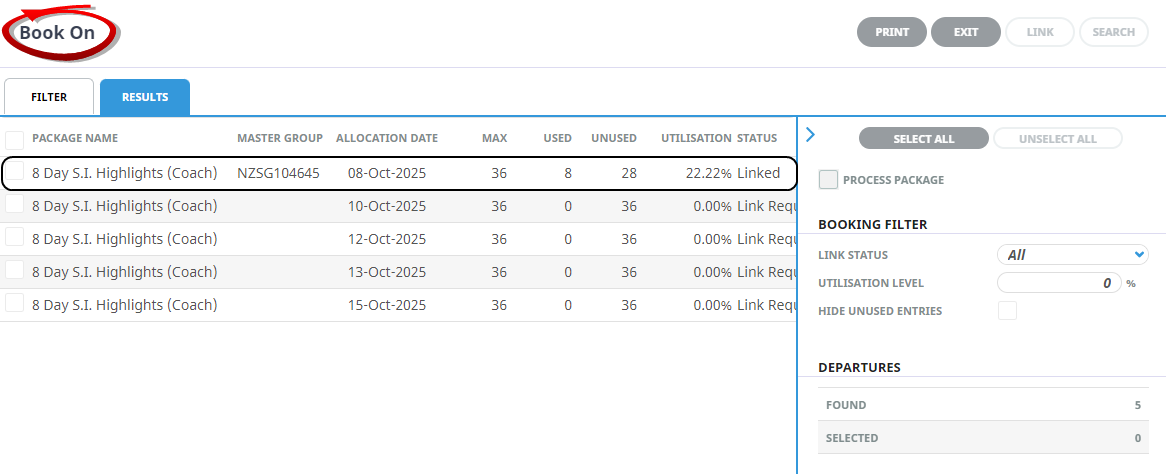
- Click Book On to open the Book On screen:

- Click the Home Menu to expand it:
-
On the blankBook On screen, the Filter Tab will open. Select either the (PCM) Package Name or the (Product Package) Service Location, Service, Supplier, and enter the Service Code. Under the Booking Filter heading, select the required Departures From/To dates.
The Booking Filter Departures From/To (date) fields are mandatory. Selection of specific tour dates or a range of tour dates can be entered.
Either the Package Name (from the PCM), or the Product 'Service' fields are to be completed. Manual entry of the (service) code is required and the Description and Comment fields from the product option will populate if a valid service has been selected.
NOTE: The results tab will not return bookings until either the (PCM) Package Name or the (Product) Service fields are valid, and the Departure From/To fields have dates applied.
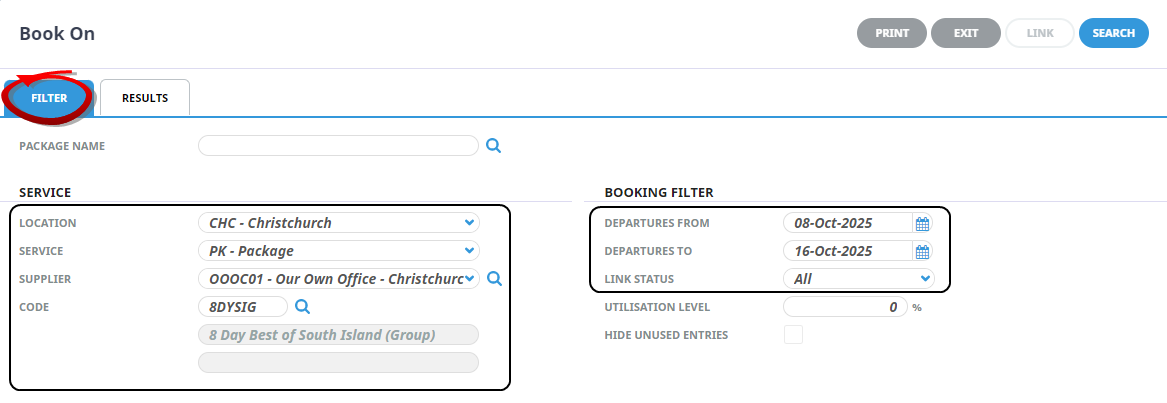
- Check the completed screens.
-
Click on theResults Tab. Select services using the Select check boxes next to each service, or use Select All.
NOTE: The 'Process Package' check box will become active when packages are selected.
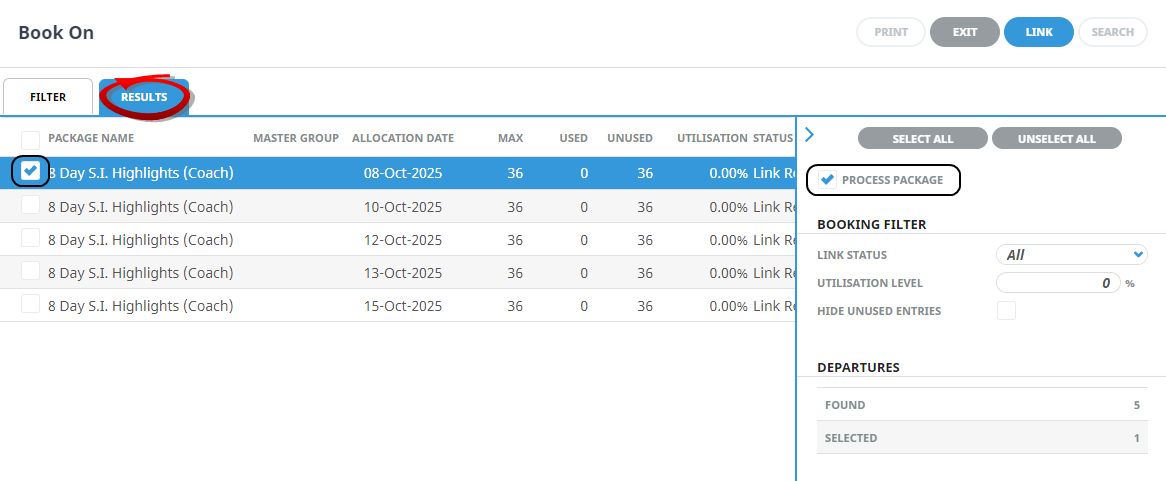
-
ClickLink to roll up FIT bookings into a linked Group booking.

-
On the blankBook On Detail screen, select the (FIT) Source Booking Statuses , and the (New Group Booking) Booking Status, Consultant, Branch and Department.
NOTE: Branch and Department fields are to be completed. Consultant and Booking Status are defaulted and can be selected to suit user requirements.
The Re-calculate Service Line Price check boxes will default to selection of Replace All But Overrides.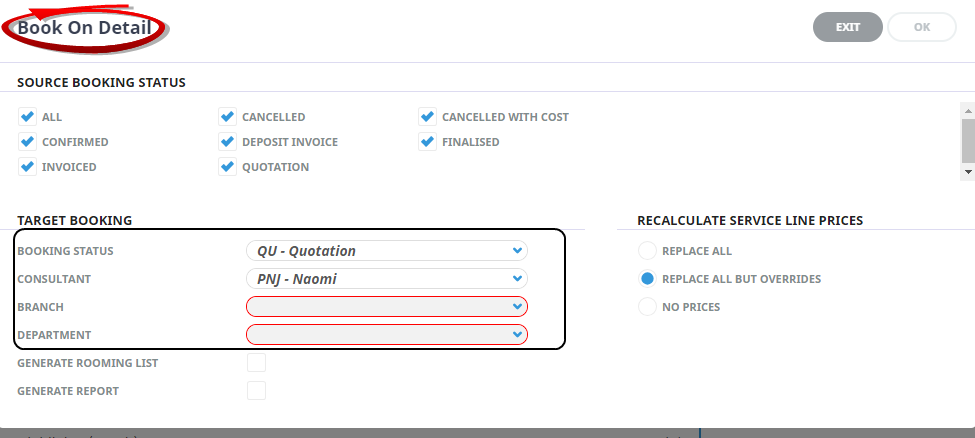
-
ClickOK to keep the changes and save or update the entry.

-
ClickExit to discard any changes.

-
IfOK was selected a Summary will appear with the number of successful packages to be updated.

-
TheBook On Results screen will re-display, the package will have updated the status to 'Linked' select 'Exit' to close.

 OK to keep the changes and save or update the entry.
About Book On Fields
Filter Tab
This screen is in two sections. The top section includes 'Current Service' field selections and 'Booking Filter' selections. The bottom section includes selection for Booking Status, Service Status, Branch and or Department.
Package Name
The name of the PCM that constitutes the package.
NOTE: Users can use the search function to search for the package name or the PCM name can be copied and pasted from the PCM application using the CTRL+C, CTRL+V keys.
Service
In the 'Service' selection, use the drop downs to select the Location, Service, Supplier code of the service to be used.
The (product) Code is to be inserted manually. When a valid service has been selected the grayed fields below the Code will populate with the product Description and Comments (if any) for the service.
NOTE: If data does not display in the fields below the Code then incorrect detail has been entered.
Booking Filter
Departures From/To
A specific or range of departure dates can be entered in these fields. Date selection can be by using the calendar or by entering the date in the following format dd/mm/yy. This date refers to the 'Allocation' Date of the package.
Link Status
The status of the package in relation to the Group booking that will operate the package.
Utilisation Level
When a value is entered into this field, it is a percentage. Packages which have an utilisation of this percentage (or higher) and match any other selection criteria will be displayed.
Hide Unused Entries
When checked, any packages that meet the selection criteria, but have 0% utilisation will not be displayed.
Results Tab
Selected check boxes
Packages can be individually selected.
Select All/Unselect All
Select all packages found, or un-select all packages selected.
Process Package
When a package or all packages are selected this field will auto check.
Booking Filter
Filters such as 'Link Status', 'Utilisation' and 'Hide Unused Entries' can be used to filter bookings within the results screen.
Link Status
The status of the package in relation to the Group booking that will operate the package
Utilisation Level
When a value is entered into this field, it is a percentage. Packages which have an utilisation of this percentage (or higher) and match any other selection criteria will be displayed.
Hide Unused Entries
When checked, any packages that meet the selection criteria, but have 0% utilisation will not be displayed.
Found
The system will provide you with the number of packages found, matching the filter criteria.
Selected
The cell to the right of this heading will provide you with the number of packages that have been selected.
Column Headings
Users can customise their column headings by clicking on the header row, or can amend the order of results by clicking on the field heading, see About Changing Default Column Headings.
To view the available column headings in Book On, see Booking Operations.
NOTE: The data can be sorted by any column by double clicking the column header. The order can then be reversed by double clicking the column header again.
About Book On Detail
Source Bookings Status Section
Statuses
These statuses apply to the source (FIT – bookings). Check the booking statuses that are to be selected.
Target Booking Section
Booking Status
The booking header status that is to be applied to the Groups booking.
Consultant
The Consultant detail to be attached to the Groups booking.
Branch
The Booking Reference Branch to be applied to the Groups booking.
Department
The Booking Reference Department to be applied to the Groups booking.
Generate Rooming List
This checkbox is only available if:
- The INI setting BOOKON_ROOMLIST is set to NOTES, and
- The INI setting BOOKON_ROOMLIST_CAT has a note category set in it.
Generate Report
If checked, this checkbox produces a 'Print - Book On Packages' screen which allows for downloading of the package details as a CSV or PDF.
Recalculate Service Line Prices
Click the recalculation option required.