
Bank Charge in Debtors
How do I enter a bank charge in Debtors?
Bank charges and fees are recorded separately when receipting a debtor transaction. This ensures bank fees are recorded as an expense, and the bank balance reconciles accurately, allowing debtor receipts to remain matched to the original customer payment amounts.
If this is not in place for your organisation, your Tourplan administrator or finance manager can configure your system to receipt bank fees. The setup involves creating a General Ledger account for Bank Fees, adding a dedicated Receipt Type in Code Setup.
Admin Setup:
-
Create a Receipt Type for Bank Fees
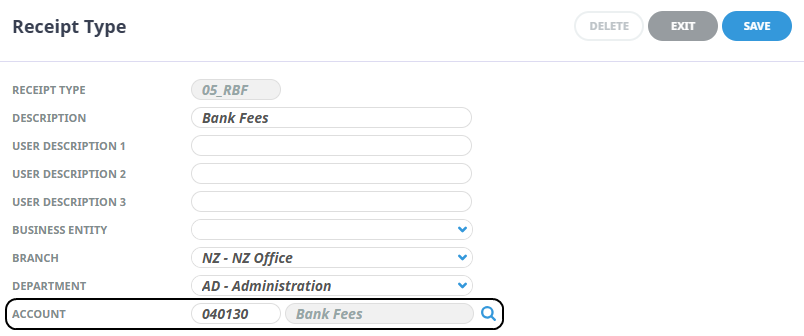
NOTE: Make sure the Receipt Type points to a dedicated account within your General Ledger.
Enter a Debtor Receipt With Bank Fees
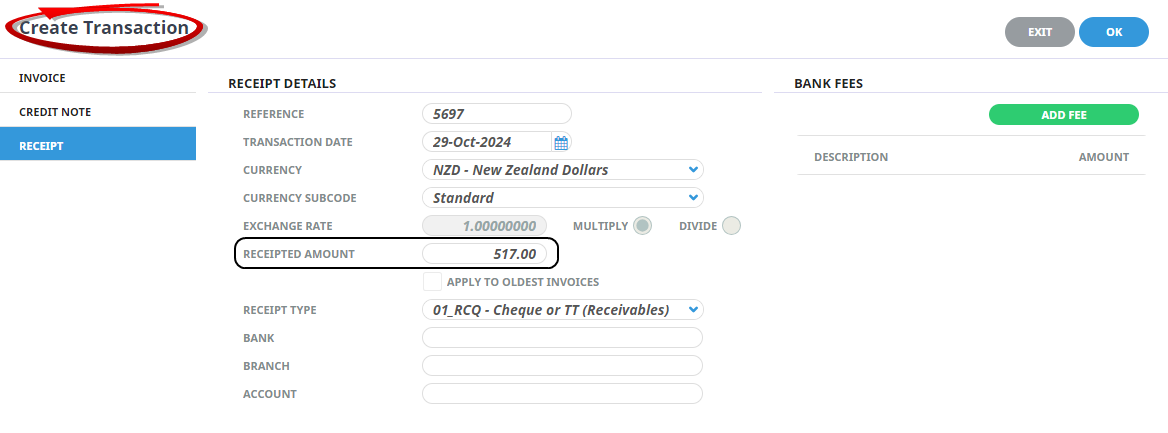
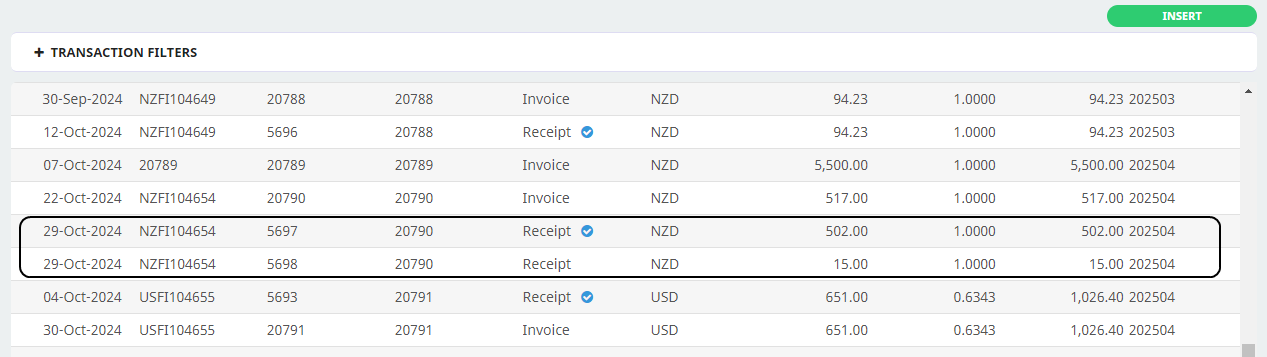
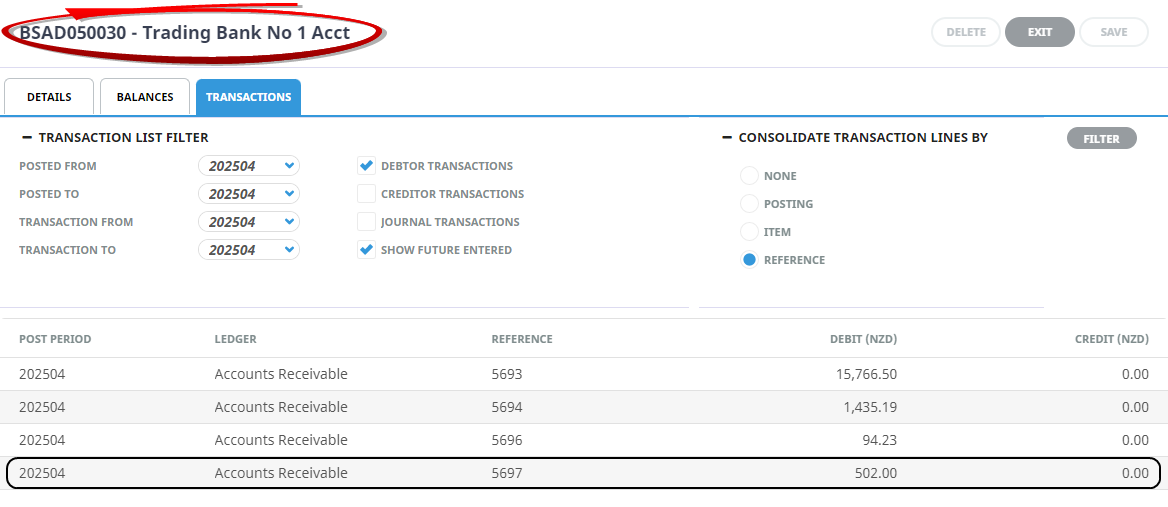
In this example, the agent has remitted the full value of $517.00, but the bank has charged a $15.00 fee. This means that as only $502.00 has been credited to the bank account, $15.00 needs to be posted to the Bank Fees expense account.
-
Complete the
 receipt header as per a normal receipt and enter the full amount received i.e. $517.00.
-
When the Receipt Details have been completed, clickAdd Fee.

-
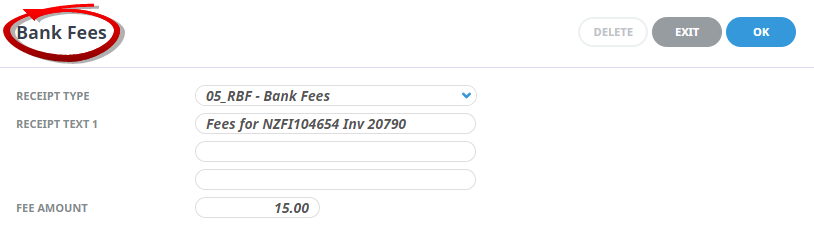
Select the correct Receipt Type for the bank fees from the drop-down, and enter theFee Amount
-
ClickOK to keep the changes and save or update the entry.

-
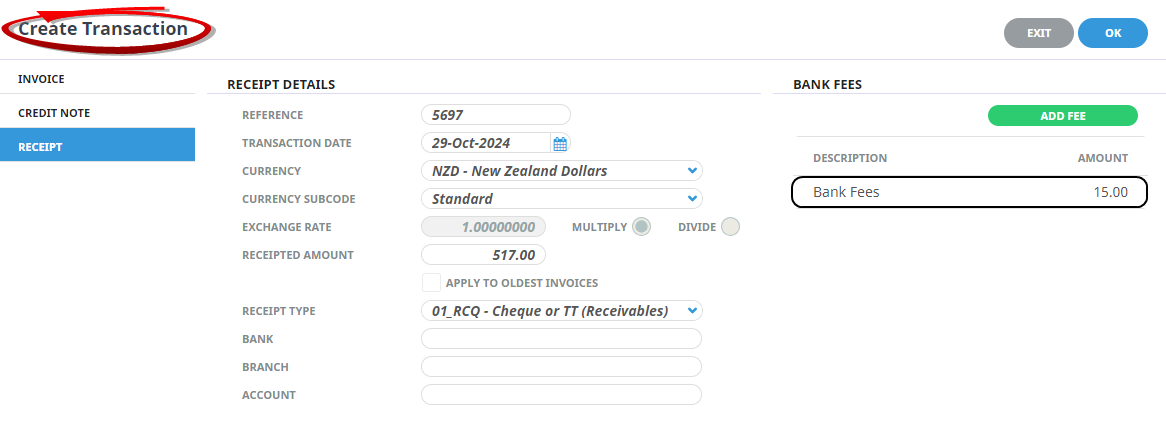
Review the details on theCreate Transaction screen.
-
ClickOK to keep the changes and save or update the entry.
-
ClickExit to discard any changes.

-
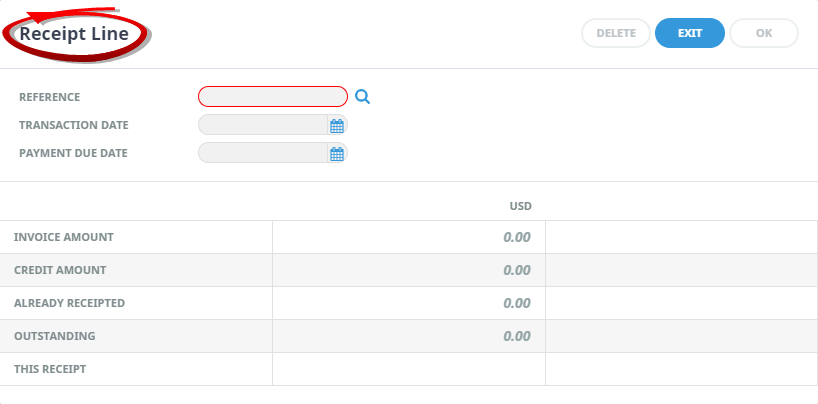
As per standard receipting, theReceipt Line screen will display to search for the invoice that will be receipted. Enter the reference (invoice number) and click OK, or use the search icon to find the transaction.
-
When using the search icon, theSelect Invoices screen will display. Use filters on the Selection tab to filter results displayed on the Results tab and select the invoice that the receipts are to be applied against.
.png) NOTE: The Invoice Details section of the screen shows the Invoice and Outstanding Amount as $517.00
NOTE: The Invoice Details section of the screen shows the Invoice and Outstanding Amount as $517.00 - Override the receipt total in the This Receipt field less the bank fee amount. The Unallocated Amount of $15.00 will appear after entering the receipt amount.
-
ClickOK to keep the changes and save or update the entry.
-
ClickExit to discard any changes.
-
TheInsert Receipt screen displays and the transaction line can be clicked and edited if required.
.png)
-
ClickSave to keep the changes.

-
ClickExit to discard any changes.

-
The Unallocated Cash overlay will display. Select the Unallocate Cash option.
-
You will be prompted to output a receipt document. Click OK to generate the receipt or Exit to cancel.
-
The Receipt Line screen will open to search for the invoice against which to apply the bank fee charge of $15.00. Select the same invoice number as before showing the $15.00 as an unallocated amount.
-
TheInvoice Details section of the screen shows the Invoice Amount as the original $517.00, the Outstanding Amount as $15.00 and this Receipt amount as $15.00.
-BankFee.png)
-
ClickOK to keep the changes and save or update the entry.
-
ClickExit to discard any changes.
-
TheInsert Receipt screen will open.
-BankFee.png)
-
ClickSave to keep the changes.
-
ClickExit to discard any changes.
- You will be prompted to output a receipt document. Click OK to generate the receipt or Exit to cancel.
.png)