
Apply Tax To Sell
How do I apply tax exclusively to the sell amount?
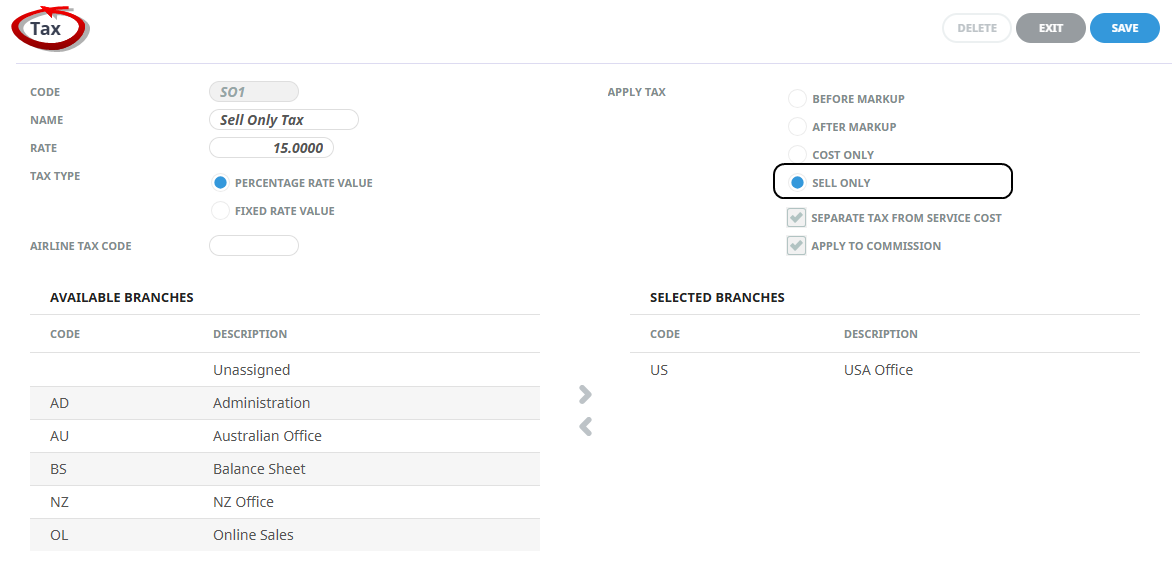
By creating a new Tax Code in System > Code Setup > Product > Tax and set the Apply Tax option to Sell Only.
This article will help you to:
-
Create a 'Sell Only' tax code
-
Setup the tax code for the non-tax registered supplier and supplier products
Overview
A 'Sell Only' tax code can be applied to services provided by non-tax registered suppliers. The tax is applied only to the sell price and not the cost price as the supplier is not registered for tax.
A sell only Tax Code example:
Create a New 'Sell Only' Tax Code
-
Select menu
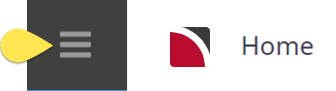
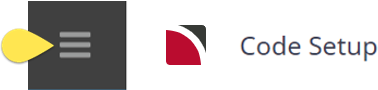
 Home > System > Code Setup.
- Click the Home menu to expand it:
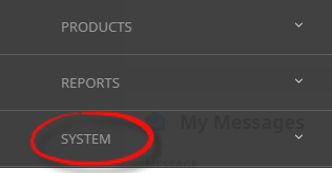
- Click the System menu option to expand it:

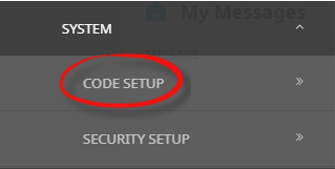
- Click Code Setup to go to the Code Setup menu:

- Click the Home menu to expand it:
-
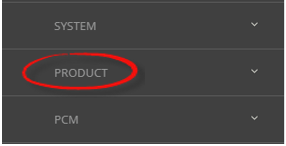
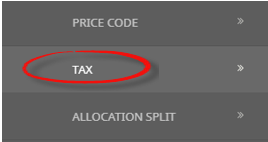
Select menuCode Setup > Product > Tax.
- Click the Code Setup Menu to expand it:
- Click the Product menu option to expand it:

- Click Tax to open the Tax screen:

- Click the Code Setup Menu to expand it:
-
On theTax screen, if the code required is not already in the list, click Insert.

-
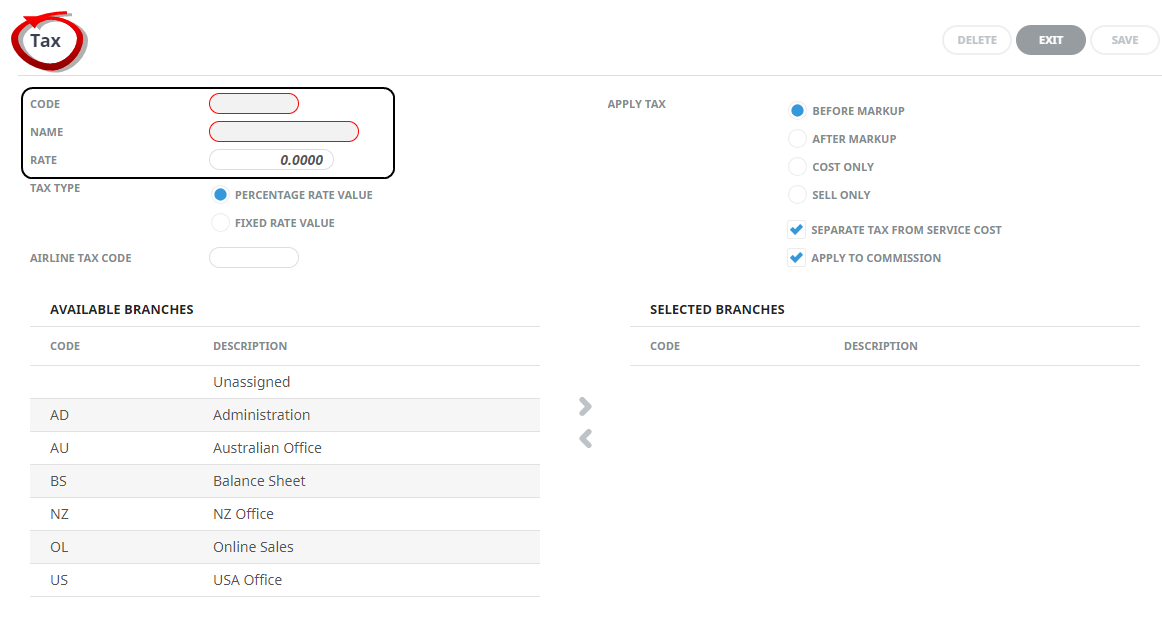
On theTax screen, enter a Code and a Name (Description) for the tax, and enter the Tax Rate.
-
Continuing on theTax screen, select the Tax Type, how to Apply Tax, if that tax is to be Separated from the service cost, and if that tax should Apply to Commission.
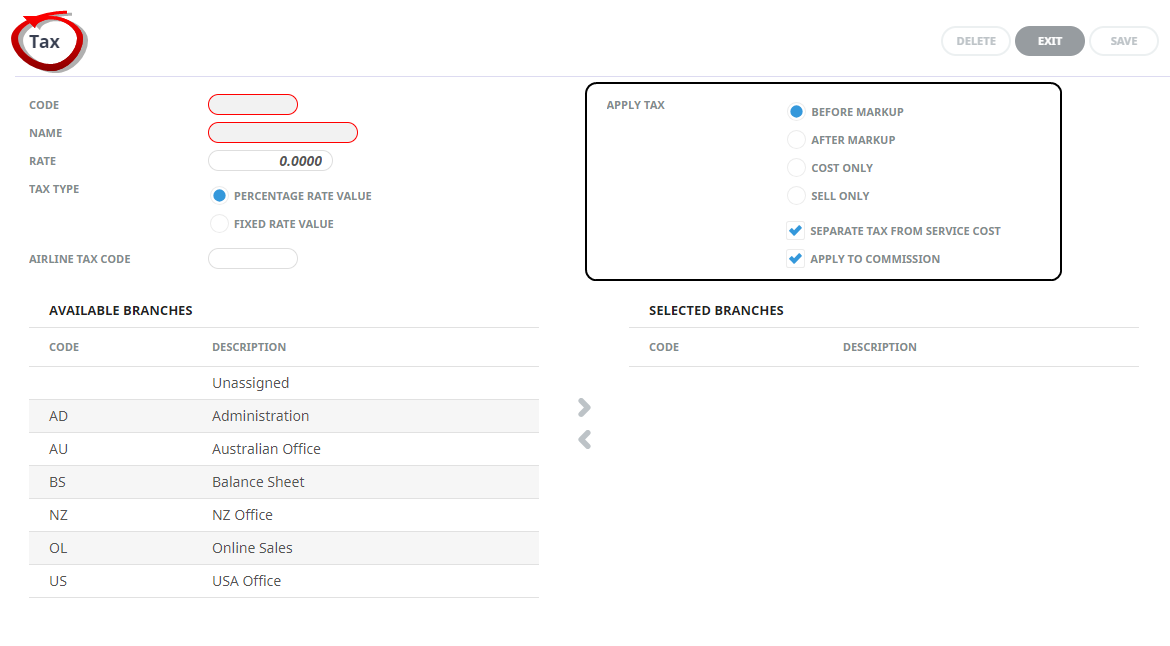
- Review the completed screen.
-
ClickSave to keep the changes.

-
ClickExit to discard any changes.

NOTE: After clicking Save, the screen clears, ready for another Tax - continue adding Taxes or click Exit to close the screen.
Assign Tax Code to Supplier
Assign 'Tax Code' To Non-tax Registered Supplier
-
Open the non-tax registered Creditor.
-
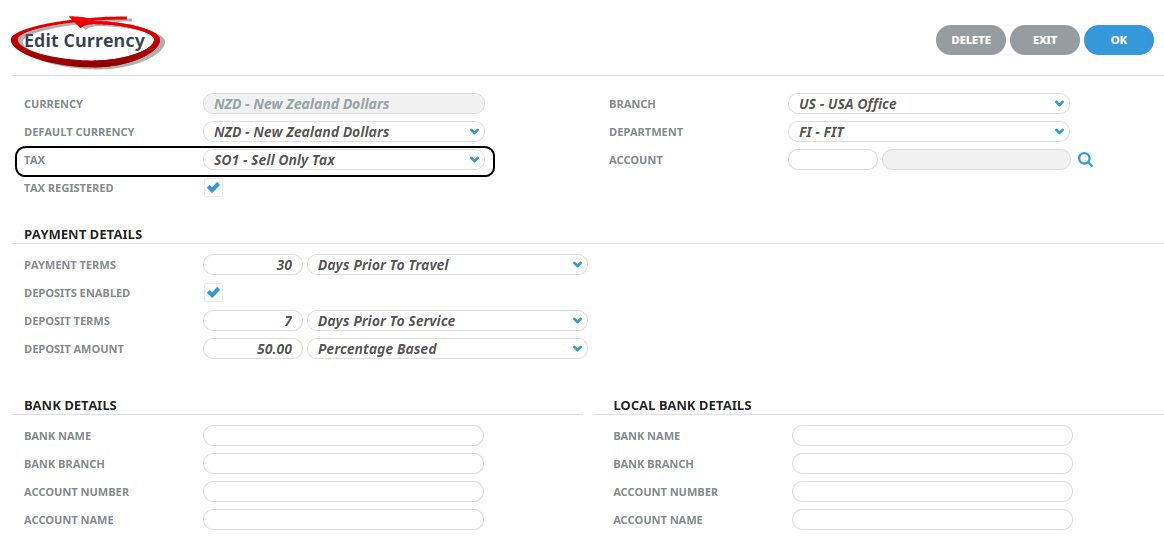
On the Currencies tab, insert a new currency or click an existing one to edit.
-
Select the new tax code from the Tax dropdown.
NOTE: the Tax Registered flag does not have to be unchecked
-
Click OK
-
Click Save
Add Tax To Product
Include Tax In Product
Products created for this supplier will automatically have the new tax code visible in Tax Settings Product > Date Range > Tax Settings. Move the tax code to Taxes Included.
-
Open the non-tax registered Product.
-
From the Product menu, click Rates.
-
Create a Rate Period or select an existing Rate Period.
-
Click on the Date Range Tab, and move the Tax from Taxes Defined to Taxes Included using the arrow.
-
Click OK.
-
Click Save.
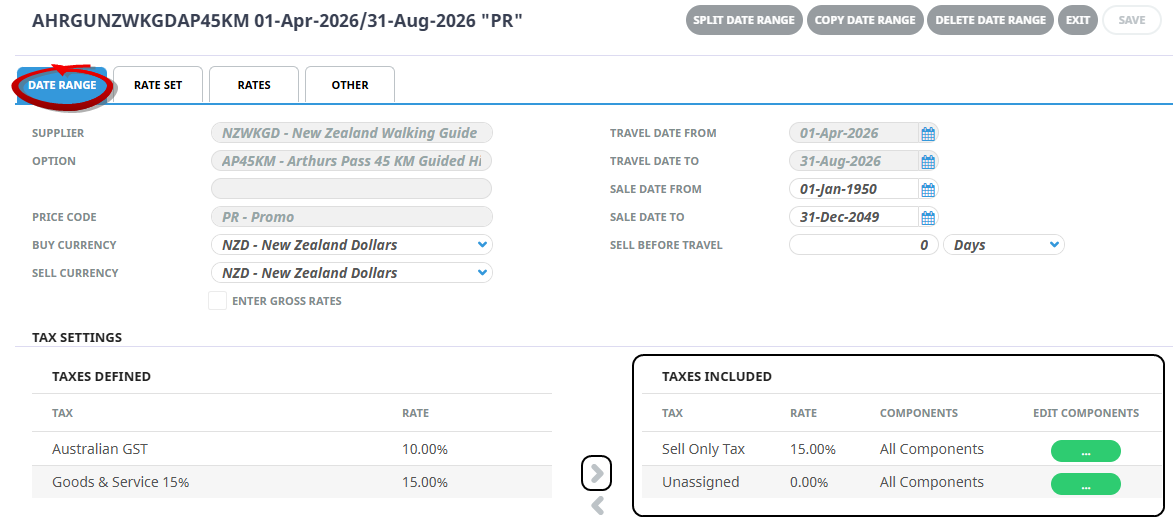
When the product is inserted into a booking, the tax is only applied to the sell amount.
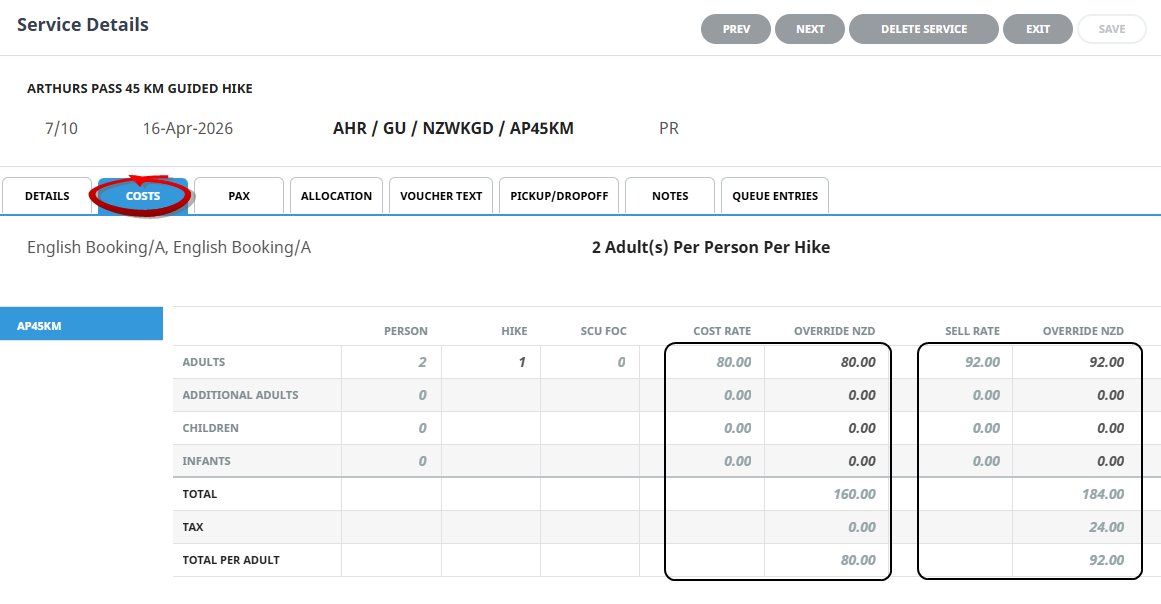
When the agent's invoice is generated, the tax is shown as with any other taxable service.