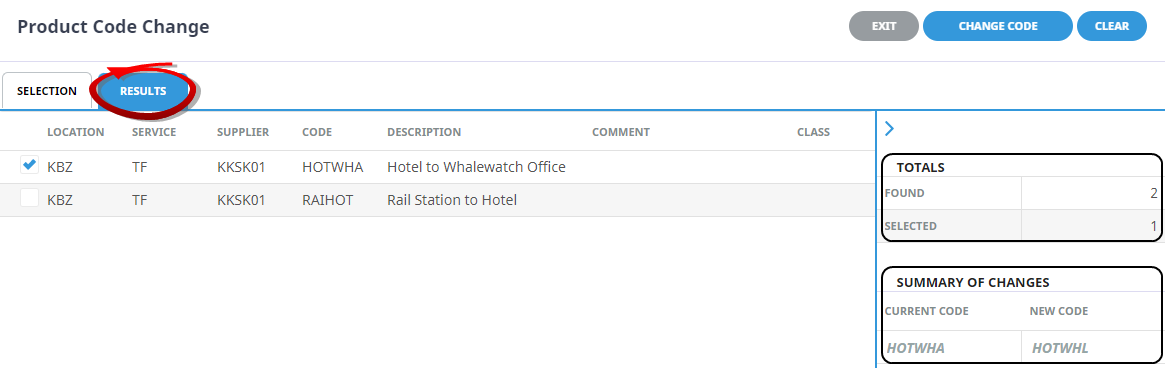
This utility can be used to amend a product code.
Change Product Code/s
-
Select menu
 Home > Product > Product Utilities > Code Change > Products
- From Products click the Product Utilities menu to expand it:

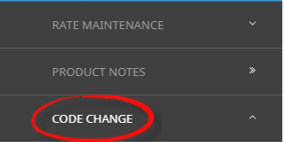
- Select the Code Change menu to expand it:

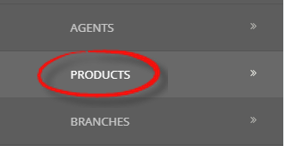
- Select the Products option to filter selection and display results on screen:

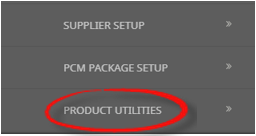
- From Products click the Product Utilities menu to expand it:
-
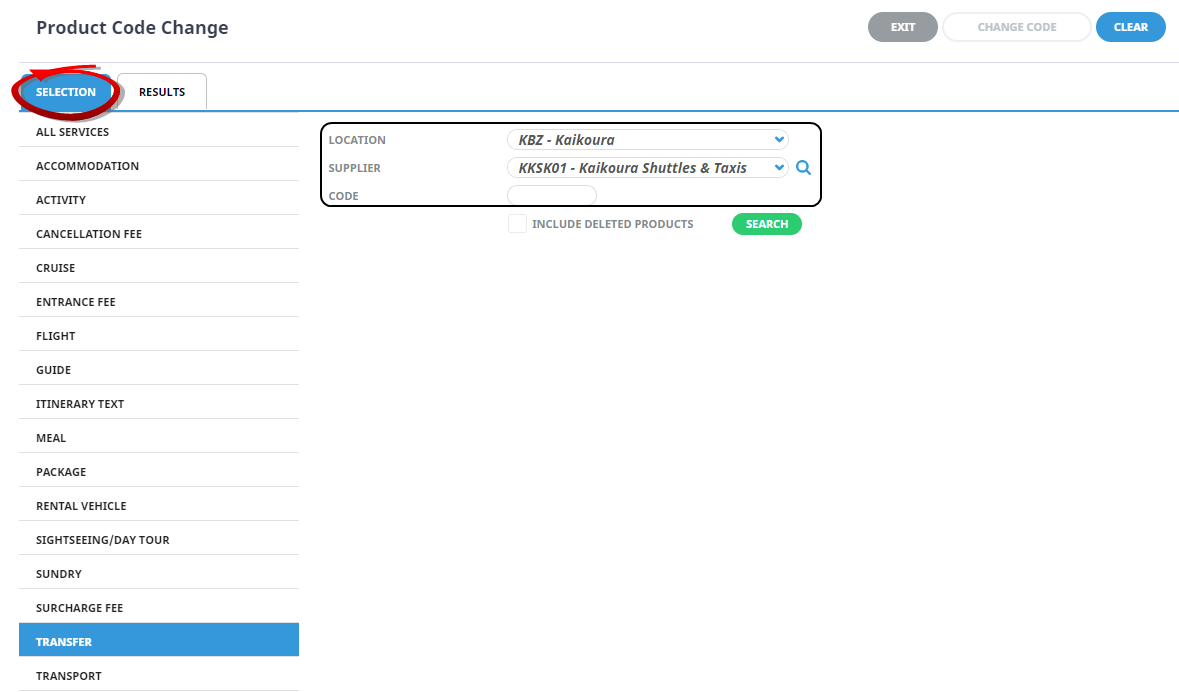
On the Product Code Change screen theSelection Tab will open, search for the Product using one of the search methods.
NOTE: When data is inserted into one/all of the fields; Location, Supplier or (Product) Code, the search button will become active.
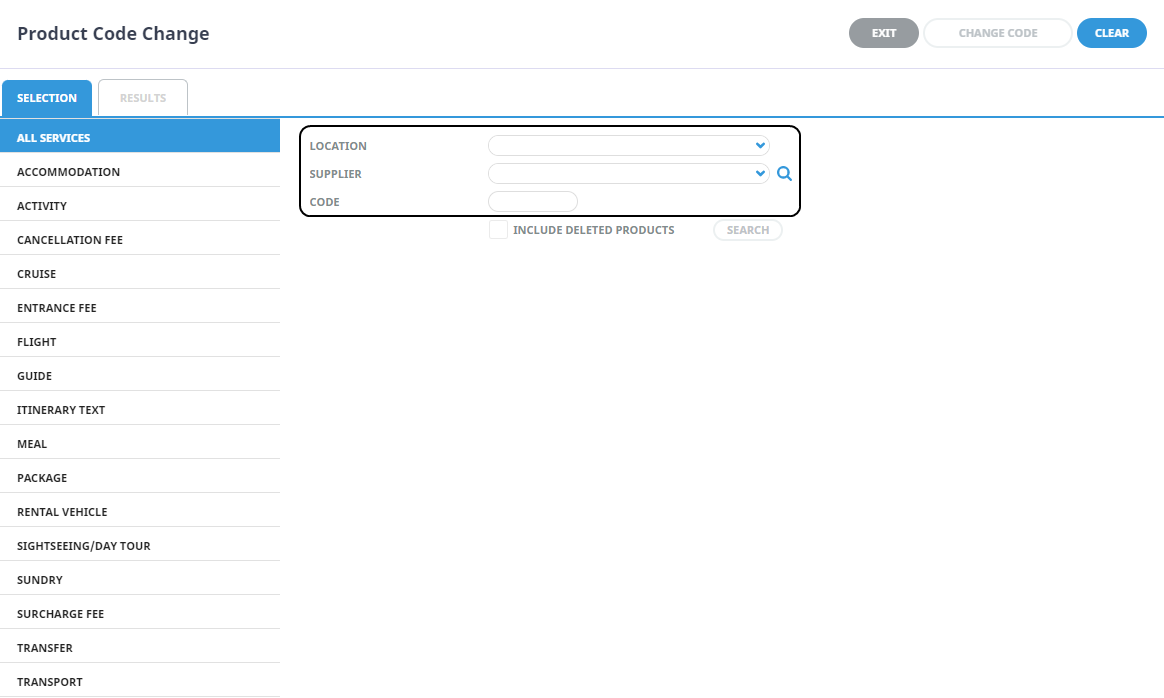
- Select the Results Tab or click Search.
-
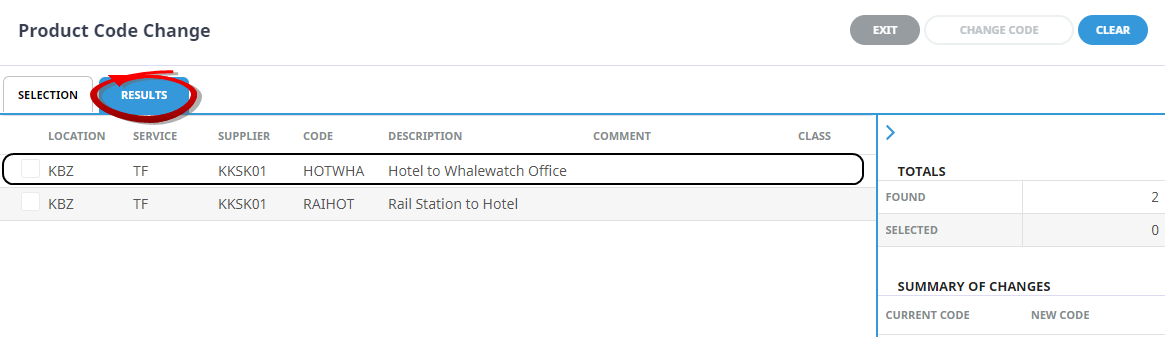
Select theProduct.
-
On theEnter Code Change screen, enter the New Code.
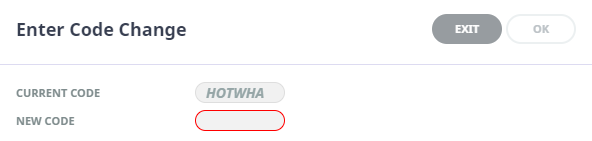
- Check the completed screen.
-
ClickOK to keep the changes and save or update the entry.

-
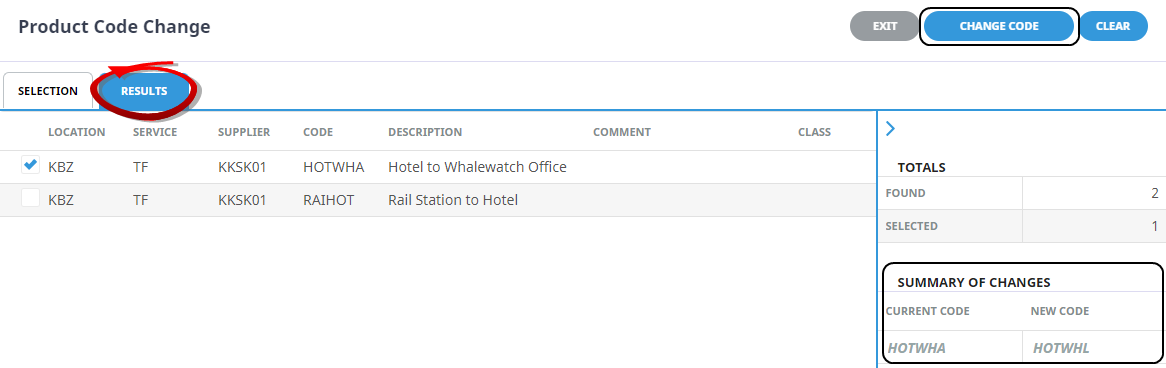
TheResults Tab will re-display, a summary of changes will display the Current Code and the New Code. To accept the change/s, select Change Code.
-
ClickOK to keep the changes and save or update the entry.
About Product Code Change Fields
Selection Fields
Enter information in any of the available fields to refine search criteria (i.e. reduce the number of Products returned).
Results Tab
All products matching the search criteria will be returned in the Results Tab. Click a product to open the Enter Code Change New Code field.
Checkbox
The checkbox next to a product will be ticked when the product code has been noted for change, the new code will not apply until the change code button is selected.
Supplier Name
Full name of the supplier.
Code
The code of the product.
Description
The description of the product.
Comment
If the comment field is used for the product, the column will have the comment field information displaying.
Class
If the class of the product has been defined it will appear here.
Locality
If localities are being used and the products location is linked to a locality it will appear here.
Rate Period
The rate period dates defined for the products rates will show in this column.
Arrow above totals
The arrow  located above the Totals heading, when selected, will collapse the Totals pannel to allow more colums to display on screen. Selecting the
  will revert the pannel to display again.
Totals
This section of the results screen, shows the number of results that were found to match the selected filters, and the number of products selected.
Summary of changes
This field will remain blank until a product has been selected and a new code has been assigned to change. The summary of changes will show data from the agents current code and the new code for the agent.
NOTE: The new code will not be applied until the change code button is selected and the code change has been confirmed.