
This utility can be used to amend a Booking Branch and/or Department code.
Change Booking Branch and Department Code/s
-
Select menu
 Home > Product > Product Utilities > Code Change > Bookings
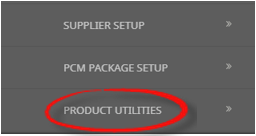
- From Products click the Product Utilities menu to expand it:

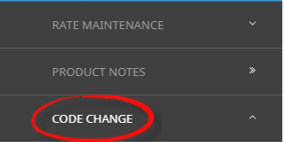
- Select the Code Change menu to expand it:

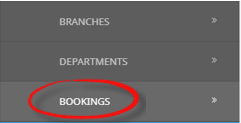
- Select the Bookings option to filter selection and display results on screen:

- From Products click the Product Utilities menu to expand it:
-
On theBooking Branch and Department Change screen the Selection Tab will open, search for the Booking using one of the search methods.
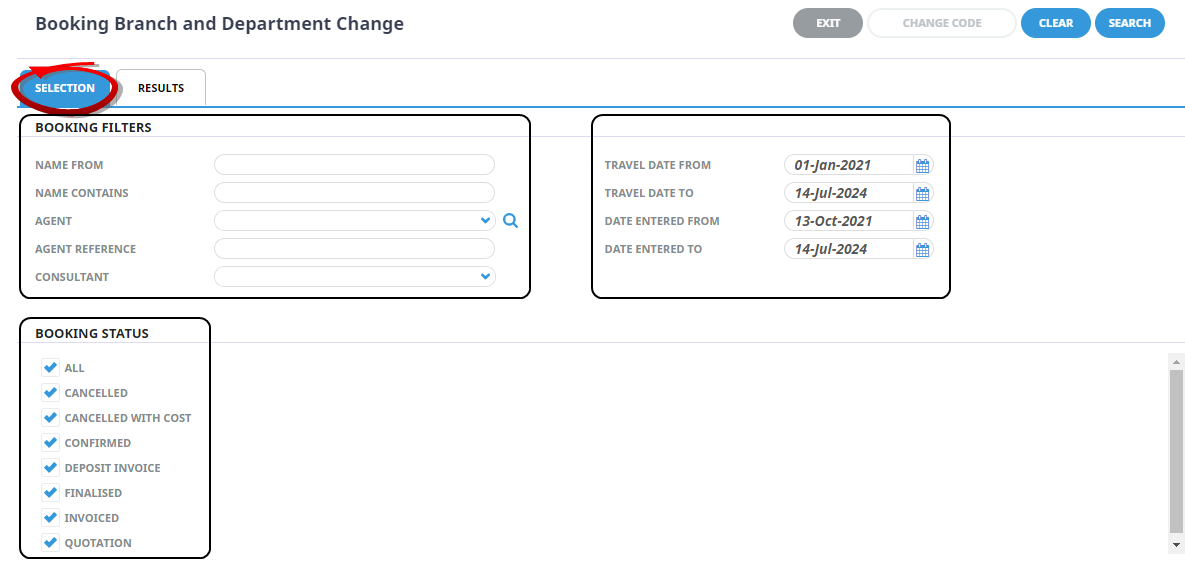
- Select the Results Tab or click Search.
-
Select theBooking.
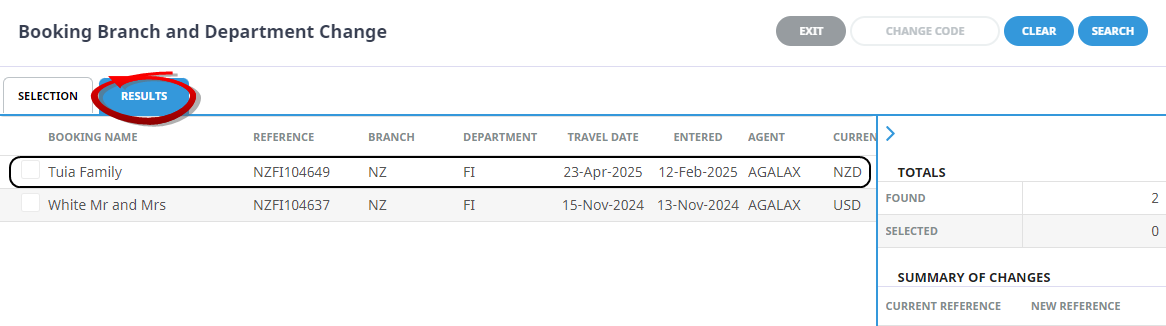
-
On theEnter New Branch and Department screen, select the New Branch and New Department.
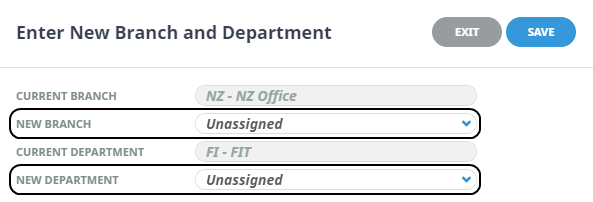
- Check the completed screen.
-
ClickSave to keep the changes.

-
TheResults Tab will re-display, a summary of changes will display the Current Reference and the New Reference. To accept the change/s, select Change Code.
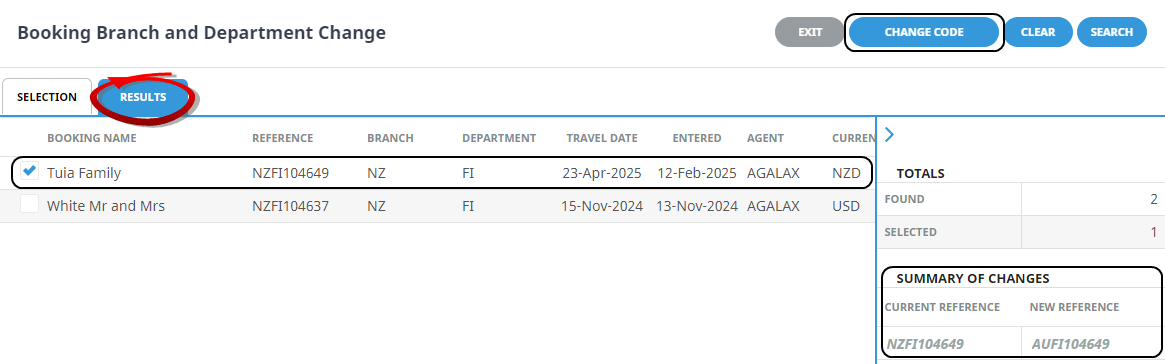
-
ClickOK to keep the changes and save or update the entry.

About Booking Branch or Department Code Change Fields
Selection Fields
Enter information in any of the available fields to refine search criteria (i.e. reduce the number of bookings returned).
- The capitalisation or case is irrelevant in the Booking header search; 'BROW' will return the same results as 'brow'.
- The results returned are also filtered based on the default Booking Travel Date From/To and Booking Date Entered From/To fields which display in the Results tab when multiple records are found. These default From/To date fields are controlled by the System INI settings DEF_BKG_TD_FROM_DATE (travel date filter) and DEF_BKG_FIND_FROM_DATE (Date Entered filter).
NOTE: These INI settings apply to both PCMs and Bookings.
Name From
This field will be empty. Enter a search string - search is done on the Booking name beginning with the entered search string.
Date Entered From/To
This filter will list only Bookings with a Booking entered date between the specified dates. The default settings are 1 year prior to system date and 2 years after system date.
Agent
Selecting an agent will limit the search to only Bookings for that agent.
Date Entered From/To
This filter will list only Bookings with a Booking entered date between the specified dates. The default settings are 1 year prior to system date and 2 years after system date
Booking Status
Bookings can be filtered by selecting / deselecting the required Booking status code in the Multi-Select List Box.
- Multiple search criteria can be used at the same time e.g. search for all Bookings entered this month and travelling over the next two months and starting with the letters “har” for consultant GRB and Agent NZTSYD.
- The sort order of the resulting list of Bookings can be by any of the columns. The data can be sorted by double-clicking the column heading.
Results Tab
Results Filter
All products matching the search criteria will be returned in the Results Tab. Click a booking to open the Enter Code Change New Code field.
Booking Name
The name assigned to the Booking Header of the booking.
Reference
The full booking Reference including Branch, Department and system generated Reference number assigned to the booking.
Travel Date
The Travel Date assigned to the booking header (usually the first day of service).
Date Entered
The date the booking was first entered into the system.
Agent
The Agent code of the booking Agent.
Currency
The Currency assigned to the booking.
Consultant
The initials of the Consultant assigned to the booking.
Status
The current status of the booking Status
Branch/Department
The Branch and Department assigned to the booking
Arrow Above Totals
The arrow  located above the Totals heading, when selected, will collapse the Totals pannel to allow more colums to display on screen. Selecting the
  will revert the pannel to display again.
Totals
This section of the Results Screen, shows the number of results that were found to match the selected filters, and the number of bookings selected.
Summary of Changes
This field will remain blank until a Booking has been selected and a new code has been assigned to change. The summary of changes will show data from the Current Reference code and the new Reference code for the booking.
NOTE: The new code will not be applied until the Change Code button is selected and the code change has been confirmed.