
Amenities or facilities offered by suppliers can be set up and attached at both supplier level and/or product level.
This caters for the situation where a supplier e.g. a hotel may have amenities that are availble for all room types (at a supplier level) e.g., 24 Hr. Reception, Heated Pool, Baby Sitting Available etc., and product amenities would be attached to specific room types - e.g. Cooking Facilities or a Spa Bath.
Attaching Amenities
- If the product to which amenities are to be added does not exist, create the product first (see Creating Products)
- If the product does exist, search for and retrieve it, so that product details are displayed on the screen (see Searching for Suppliers and/or Products)
-
When product details are displayed on screen, select menu
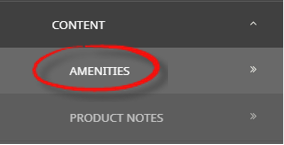
 Content > Amenities (if amenities are attached a list will display on this screen).
- Click the Product Setup menu to expand it:
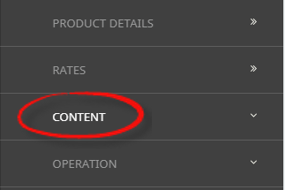
- Click the Content menu option to expand it:

- Click Amenities to go to the Amenities screen:

- Click the Product Setup menu to expand it:
-
ClickInsert to add a new entry.

-
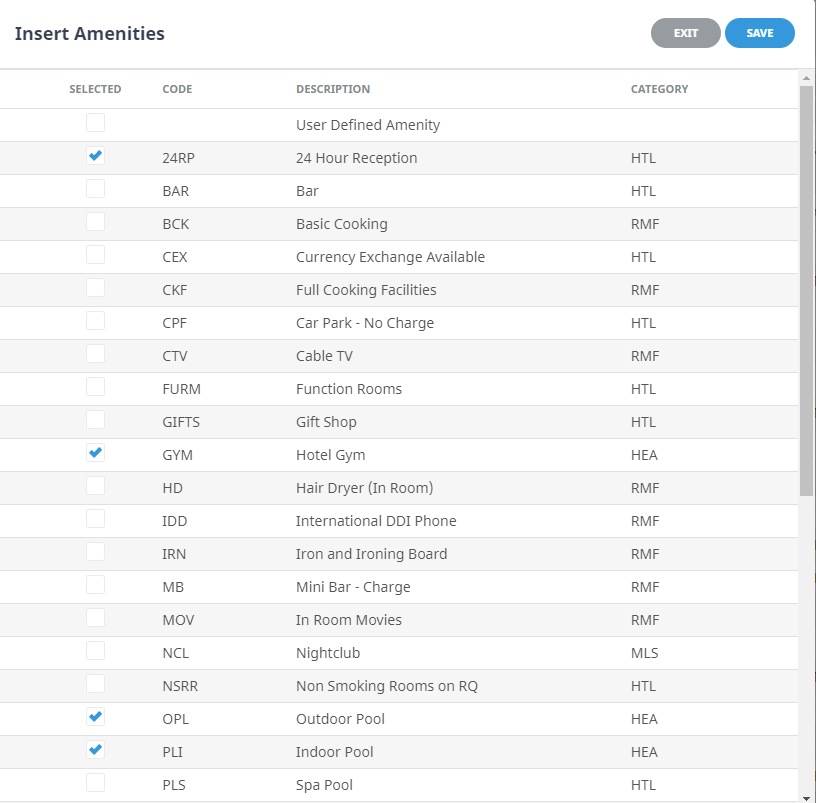
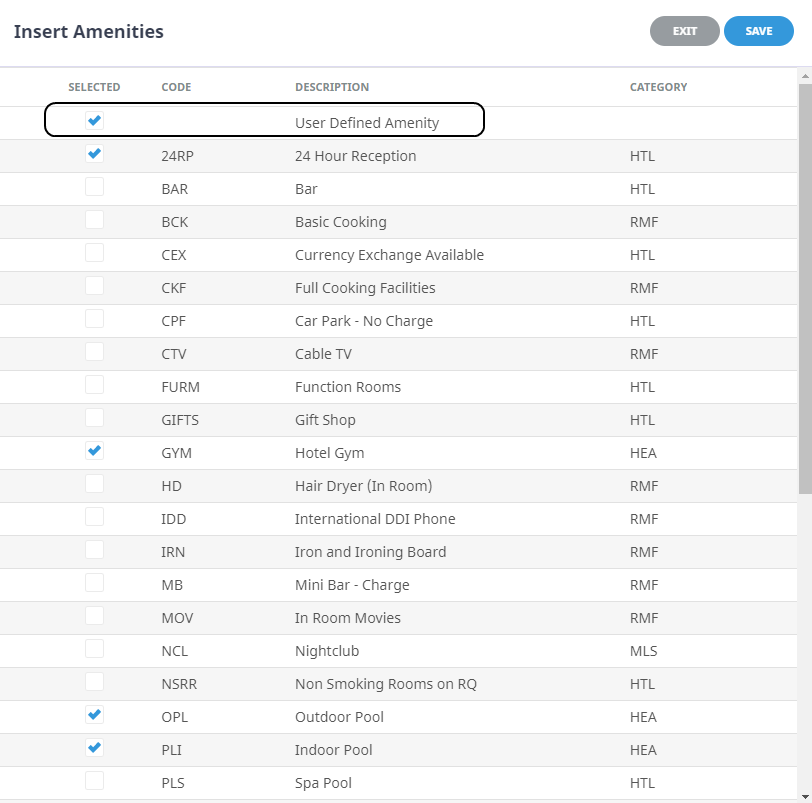
On theInsert Amenities screen, select the required Amenities.
-
ClickSave to keep the changes.

-
ClickExit to discard any changes.

NOTE: A list of all amenities loaded via Code Setup will display in the Insert Amenities Screen.
User Defined Amenity
There is an entry at the very top of the insert amenities list named User Defined Amenity. This can be used to add a one off amenity if necessary. For example, if there is an item of 'Circular Bed' and this affects only one product, then rather than adding this once only item via code setup, it can be added as an extra to the product only.
To add additional amenities that have not been included in the list, select the check box for the User Defined Amenity and then type in the description required. Then select the category from the drop-down to the right of the description.
Adding a One Off Amenity - User Defined Amenity
-
On theInsert Amenities screen, select the User Defined Amenity.
- Enter a Description.
- Select a Category.
-
ClickSave to keep the changes.
-
ClickExit to discard any changes.
Removing Amenities
At anytime amenities can be removed if they no longer apply.
Remove an Amenity
- Search for and retrieve the product, so that product details are displayed on the screen (see Searching for Suppliers and/or Products).
-
When supplier details are displayed on screen, select menuHome > Product Setup > Content > Amenities (if amenities are attached a list will display on this screen).
- Click the Product Setup menu to expand it:
- Click the Content menu option to expand it:
- Click Amenities to go to the Amenities screen:
- Click the Product Setup menu to expand it:
- Select the required Amenity.
-
On the Amenity screen, clickDelete.

-
Alternatively, open the Insert Amenities screen, unselect the check box next to the Amenity to remove it, and Save.