
This screen enables contacts to be added, changed and deleted for individual products. Contacts are used in Tourplan’s messaging system to provide an automated phonebook when messages are sent by email to a supplier, or to provide contact information to your clients in their documentation.
NOTE: It may not be necessary to insert contact details for individual products, most organisations will require the correspondence to be sent to suppliers through the contact information stored at the supplier level.
Prior to the set-up of a contact, a list of standard contact types must be set up in the Code Setup application.
If contacts have already been inserted a full list of contacts are available to view when selecting menu Product Setup > Operation > Contacts.
Add Product Contacts
- If the product to which contacts are to be added does not exist, create the supplier first (see Create a Supplier).
- If the product does exist, search for and retrieve it, so that product details are displayed on the screen (see Searching for Products or Suppliers).
-
When Product details are displayed on screen, select menu
 Operation > Contacts (if contacts are attached a list will display on screen).
- Click the Product menu to expand it and search for a product:
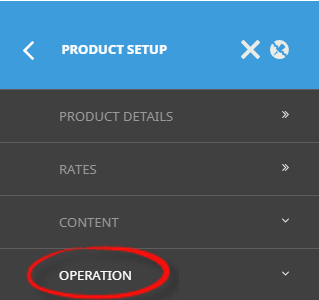
- Click the Operation menu option to expand it:

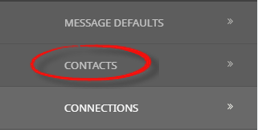
- Click Contacts to go to the Contacts screen:

- Click the Product menu to expand it and search for a product:
-
ClickInsert to add a new entry.

-
On theInsert Product Contact screen, select contact type from the dropdown.
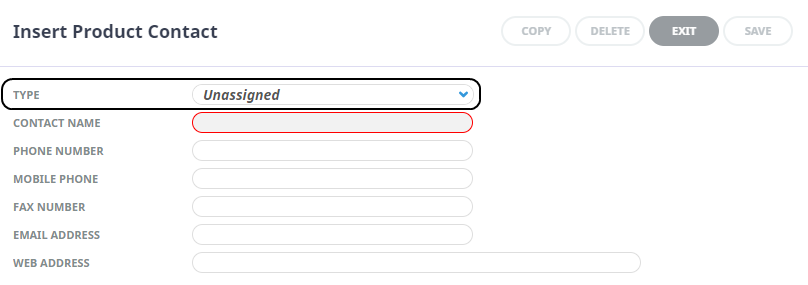
- Enter a Contact Name and relevant contact details required.
- Check the completed screen.
-
ClickSave to keep the changes.

-
ClickExit to discard any changes.

NOTE: At least one field from phone number, mobile number, fax number, email address, or web address is required to save the entry.
About Insert Product Contact Fields
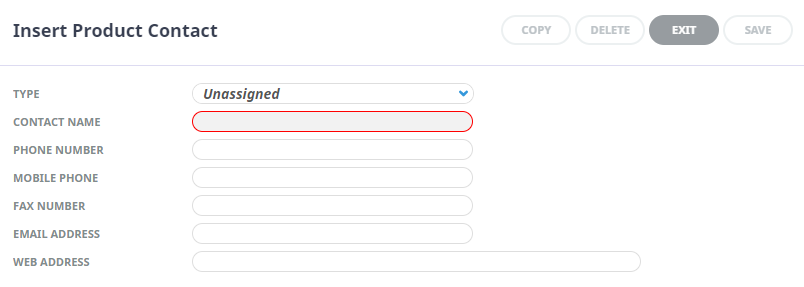
Contact Type - of the Product
The type of contact.
Examples are: AC – Accounts; SA – Sales; RS – Reservations; AD – Administration etc. These must first be set up in Code Setup > Messaging > Contact Types.
NOTE: Contact Types can be used multiple times in this screen - e.g., there can be more than one contact with a Contact Type of 'RS' (Reservations), provided the Contact Name is different for each contact.
Contact Name
The name of the contact. E.g. Alec Brown. Generic names can also be used—e.g. Reservations, Accounts etc.
Phone Number
The phone number for this contact.
Mobile Phone Number
The mobile phone number for this contact.
Fax Number
The fax number for this contact.
Email Address
The email address for this contact.
Web Address
The web address for the supplier/product (optional).