
A supplier’s details can be copied to another supplier. For example, if there are other Citylife properties in the area, whose details match very closely, the already-created supplier can be used as a template.
Copy a Supplier
-
If the supplier to be copied does not exist, create it instead (see Create a Supplier).
-
If the supplier does exist, search for and retrieve it, so that creditor details are displayed on the screen (see Searching for Products or Suppliers).
-
When the details of the supplier to be copied are loaded on screen, click
 Copy Creditor.

-
On theCopy Creditor screen, enter a Code for the new supplier and update the Creditor name.
NOTE: The new supplier being created must have a different code to any other supplier that exists in the system.
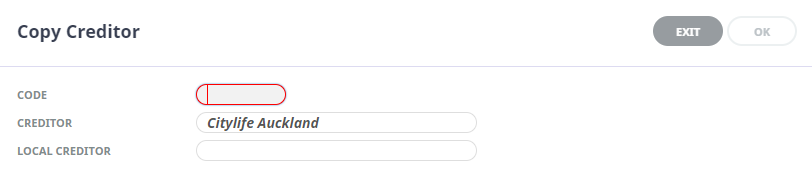
NOTE: The Local Creditor field should only be used if there is a requirement to display an alternative local name.
-
Click Ok.
Updating Details for a New Supplier
Any detail that needs to be modified can be accessed via tabs or the Creditors menu. Note that some menu items are not "live" until a supplier is selected.

The following table lists the supplier details and the menu paths to where they are found. Any that require a supplier to be selected are indicated as an intermediate step in the path selection.
| Detail to Modify | Where Found (path) |
|---|---|
| Details and Miscellaneous Details | Tabs > Details |
| Analysis | Tabs > Analysis |
| Currencies | Tabs > Currencies |
| Notes | Menu > Creditors (Select Supplier) Menu > Details > Notes |
| The following information is available for editing from the Products > Supplier Menu | |
|
Supplier Policies
Selling Channels (if used)
External Access (if used) |
Menu > Products > Product Setup Menu > Supplier > Supplier Policies > Selling Channels
Menu > Supplier > Supplier Policies > External Access |
| Cancellation Rules (if used) | Menu > Products > Product Setup (Select Supplier) Menu > Supplier > Cancellation Rules |
| Amenities (if used) | Menu > Products > Product Setup (Select Supplier) Menu > Supplier > Amenities |
| Replicated Locations (if used) | Menu > Products > Product Setup (Select Supplier) Menu > Supplier > Replicated Locations |
| Supplier FYI Messages (if used) | Menu > Products > Product Setup (Select Supplier) Menu > Supplier > Supplier FYI |
| Contacts | Menu > Products > Product Setup (Select Supplier) Menu > Supplier > Contacts |