
Bulk Service Status Update allows Statuses to be updated in a bulk process, across multiple bookings concurrently.
NOTE: This Bulk Service Status Updates feature is designed for companies that manage a high volume of bookings and require a streamlined way to update service statuses in large batches. Instead of updating each booking individually, this function allows users or dedicated teams to apply status changes across multiple bookings at once — ideal for larger organizations with centralized operations or end-of-day processing routines. Please note that this feature may not be suitable for all businesses, particularly those managing bookings on a case-by-case basis.
The selection criteria of bulk update setting can be saved and recalled. If saved, a list will display when the Service Status Update menu is selected. Frequently used filters can be copied and saved from within the Bulk Service Status Update screen.
For example, with this Service status update we want to filter for a selection of bookings that have a Service Status of 'RQ' On Request, and Wait Listed of 'WL', for accommodation Service Types. The system has filtered the bookings that meet the requirements of Service Status and Service Type. Now individual selection of services or select all can be chosen.
NOTE: The Service Status used in this example may differ from your company's Service Status and booking codes.
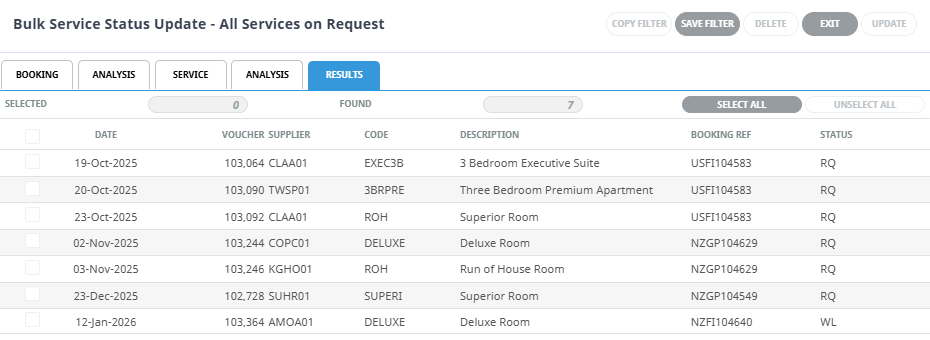
After the user selects the services to be updated, a bulk service status update is performed, changing the status of all selected services at once.

Create Bulk Service Status Update
-
From the Home menu, select
 Home > Operations > Service Operations > Bulk Service Status Update.
- Click the Home Menu to expand it:

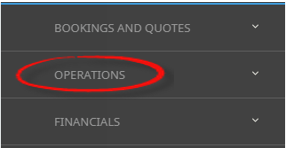
- Click the Operations menu option to expand it:

-
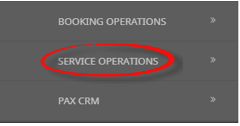
Click Service Operations menu option to expand it:

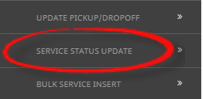
- Click Service Status Update to open the Service Status Update screen:

- Click the Home Menu to expand it:
-
ClickManual.

- On the blank Bulk Supplier Messaging - Manual Selection screen, the Service Tab will open, select the required filters from the field selections available within the Booking Tab, Analysis Tab (Booking and Agent), Service Tab and the Analysis Tab (Supplier and Product).
View Service Status Update Filter Selections to learn more about all the field selections available, or view the individual tab filters: Booking Tab, Analysis (Booking and Agent), Service, Analysis (Supplier and Product), Results.
NOTE: There are two tabs with the heading Analysis, the Analysis Tab on the left refers to the Booking or Agent Analysis field selections, whereas the Analysis Tab on the right refers to Supplier and Service Analysis field selections.
-
Check thecompleted screens.
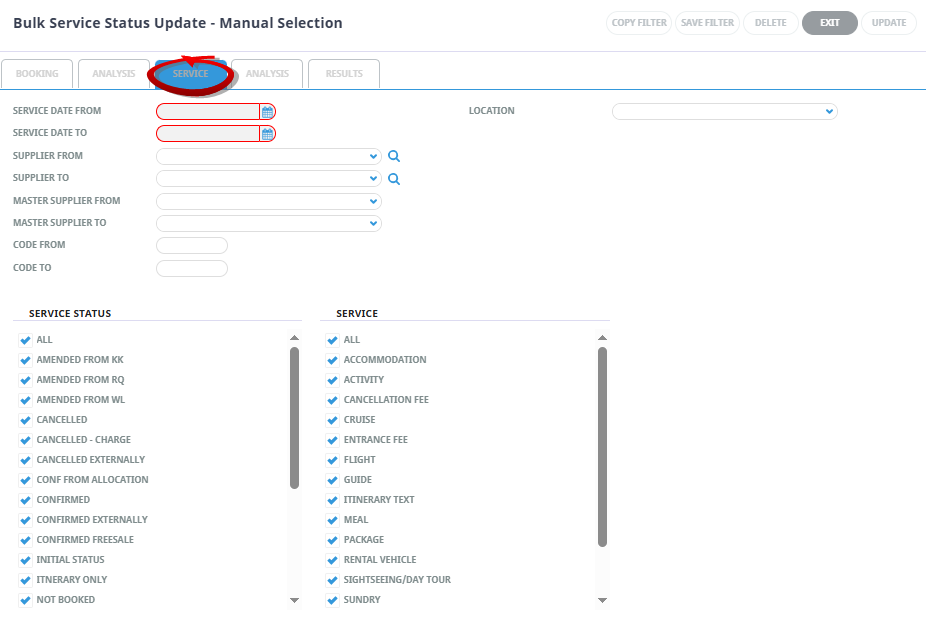
Service Tab
Entering dates into the 'Service Date To' and 'Service Date From' fields will activate the buttons and the other Tabs to narrow the filtered results.
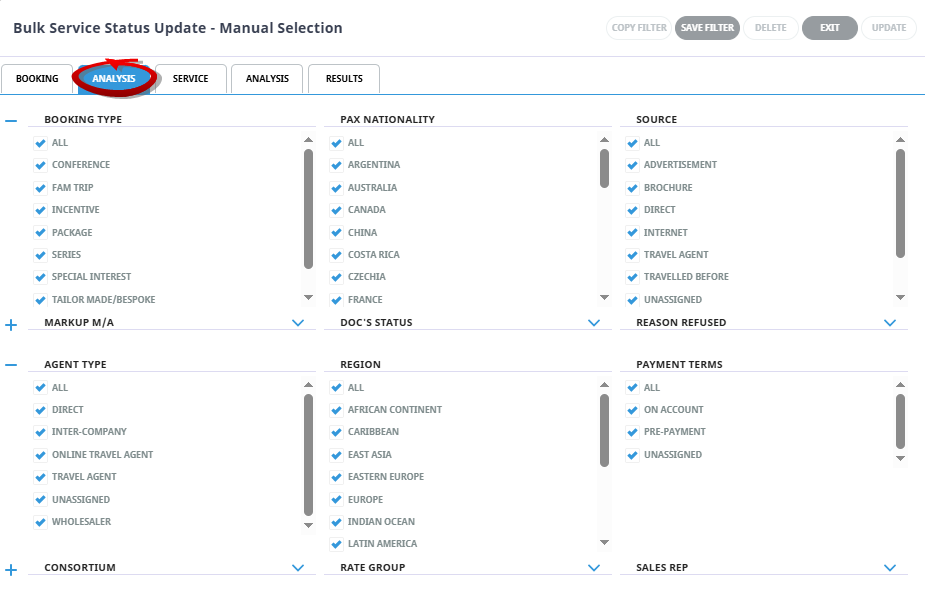
Analysis Tab (Booking and Agent Analysis)
In this example the 3 Booking Analysis fields have been expanded using +. and 3 Agent Analysis fields. Whereas the remaining Booking Analysis fields and Agent Analysis fields have been left minimised. Your company's Analysis Fields and codes will be different to those shown in this User Manual and will reflect your organisations analysis requirements.
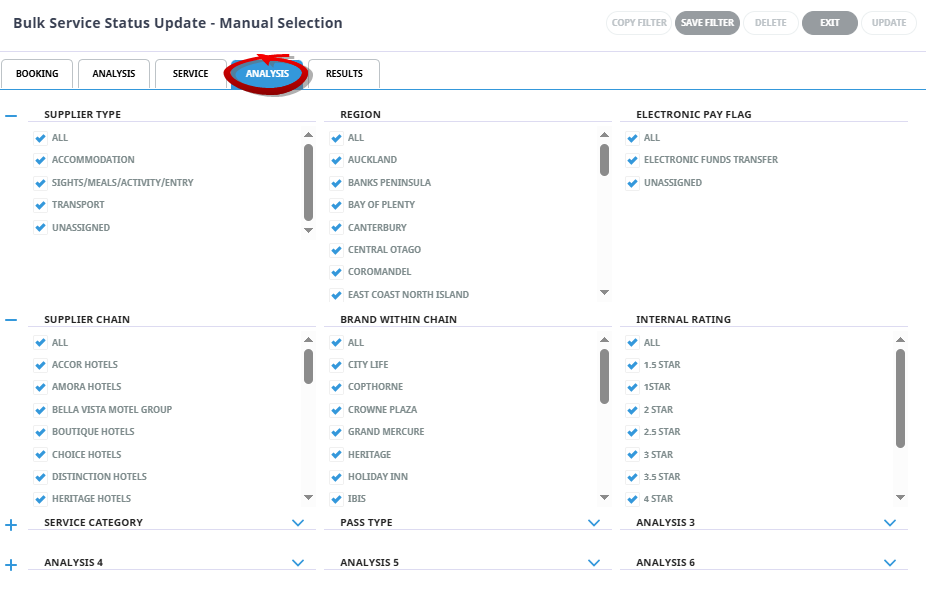
Analysis Tab (Supplier and Service Analysis)
In this example the Supplier Analysis fields have been expanded using +. Where as the Product Analysis fields have been left minimised. Your company's Analysis Fields and codes will be different to those shown in this User Manual and will reflect your organisations analysis requirements.
-
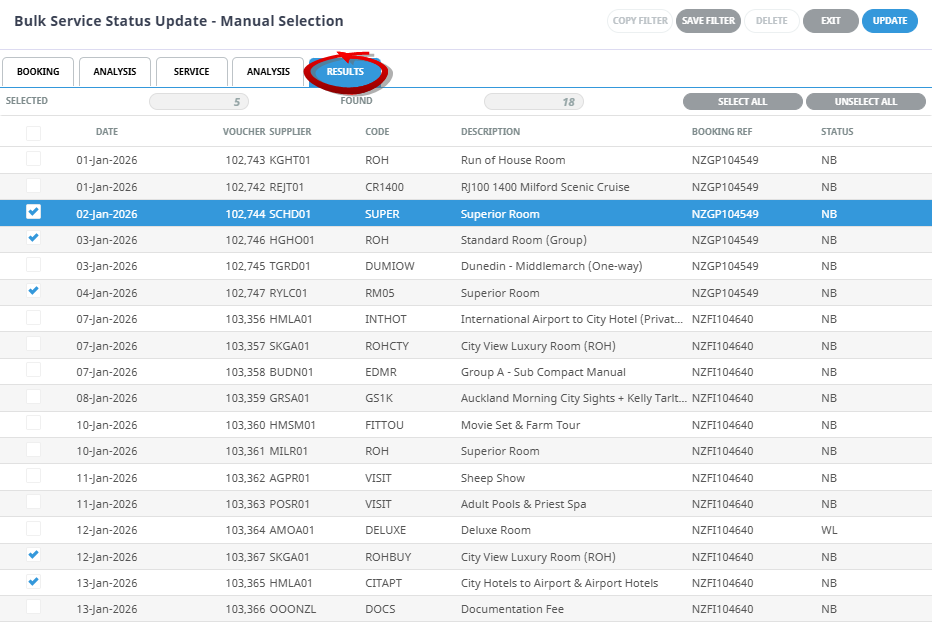
Click on theResults Tab. Select the services using the Selected check boxes next to each service, or use Select All.
-
To change the status, clickUpdate.

-
ClickExit to discard any changes.

-
If Update button is clicked, theBulk Service Status Update screen will display. Select the Service Status to update to.
-
ClickOK to keep the changes and save or update the entry.

-
A Summary screen will display the number of 'Successfull Operations' (updates) and the status of each updated service.
-
Click Ok to clear the screen.
-
You will return to the Results Tab where you can select to Exit, or continue adjusting filters to update further services.

About Bulk Service Status Update Filters
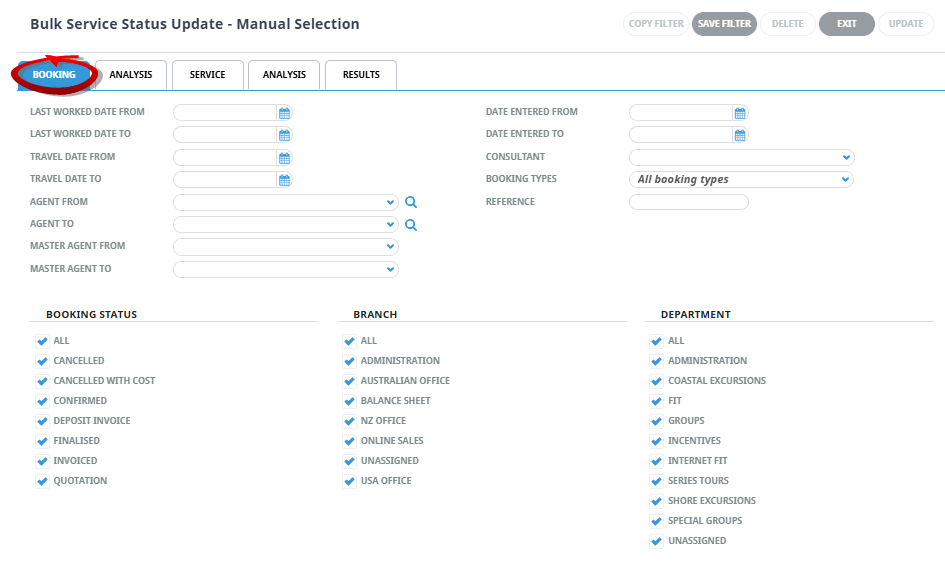
Filter selection combinations are dependent on user's company's requirements. Selection of any filter combinations will return results in the Results Tab.
There are 4 Tabs that include field filter selections:
- Booking Tab.
- Analysis Tab (Booking and Agent).
- Service Tab. (Opens by default on entry)
- Analysis Tab (Supplier and Product).
Booking Tab
Last Worked Date From/To
The last worked date(s) of the services to be selected.
Travel Date From/To
Used to select services with a specific, or range of, travel dates of the services to be selected.
Agent From/To
Used to select services with a specific, or range of, agent(s) codes in the booking header matching the selection.
Master Agent From/To
Used to select services with a specific, or range of, Master Agent code(s) in the booking header matching the selection.
NOTE: When a Master Agent (or range of Master Agents) is entered in these fields, Tourplan will find services in those bookings where the Agent(s) have the Master Agents attached to them. When searching on the Master Agent field, the Agent field should be left blank.
Date Entered From/To
The booking entered date(s) of the services to be selected.
Consultant
The consultant code attached to the bookings whose services are to be output.
Booking Types
The type of bookings that services are to be output from.
Booking Type selection includes:
- All Booking Types - services from FIT bookings and Group bookings will be selected.
- FIT's - those services that are attached to FIT bookings will be selected.
- Groups - those services that are attached to Group bookings will be selected.
Reference
The reference attached to the booking that services are to be output from. This field will only accept the actual reference number if the Branch/Department components of the booking reference are selected from the Booking Branch and Booking Department multi select boxes.
Booking Status
By default, all booking statuses are checked and services in bookings that have that status will be selected. Un-check statuses that are not required.
Branch
By default, all branches are checked and services in bookings that have those branches will be selected.
Department
By default all departments are checked, services in bookings that have those branches will be selected.
Analysis Tab (Booking and Agent Analysis)
Booking Analysis
The top two rows of this tab are the 6 Booking Analysis codes. These are booking level selections.
Agent Analysis
The bottom two rows of this tab are the 6 Agent Analysis codes. These are Agent Analysis codes attached to the booking.
Analysis fields can be expanded or minimised by using the + or - function.
NOTE: The label descriptions and analysis selections used within this User Manual will vary and will display what has been setup in each user's company's system.
Service Tab
Service Date From/To
The service date(s) of the services to be selected. (These fields must be selected )
Supplier From/To
Used to select services with a specific, or range of, supplier code(s) matching the selection.
Master Suppler From/To
Used to select services with a specific, (or range of ) Master Supplier code(s) matching the selection.
NOTE: When a Master Supplier (or range of) Master Suppliers is entered in these fields, Tourplan will find those services whose supplier(s) have the Master Suppliers attached to them. When searching on the Master Supplier fields, the Supplier fields should be left blank.
Code From/To (Service)
Used to select services with a specific, (or range of) service code(s) matching the selection.
Location
Used to select services in a specific location.
Service Status
By default, all service statuses are checked and services that are this status will be selected. Un-check those statuses that are not required.
Analysis Tab (Supplier and Product Analysis)
Supplier Analysis
The top two rows of this tab are the 6 Supplier Analysis codes. These are Supplier level selections attached to the service.
Product Analysis
The bottom two rows of this tab are the 6 Product Analysis codes. These are Product Analysis codes attached to the booking services.
Analysis fields can be expanded or minimised by using the + or - function.
NOTE: The label descriptions and analysis selections used within this User Manual will vary and will display what has been setup in each user company's system.
Results Tab
Selected
The cell to the right of this heading will provide you with the number of services that have been selected.
Found
The system will provide you with the number of services found, matching the filter criteria.
Select All/Unselect All
Select all services found, or un-select all services selected.
Column Headings
Users can customise their column headings by clicking on the header row, or can amend the order of results by clicking on the field heading, see About Changing Default Column Headings.
NOTE: The data can be sorted by any column by double clicking the column header. The order can then be reversed by double clicking the column header again.
Selected check boxes
Services can be individually selected.