
Locate and open the original
Within the Bulk Copy screen, you can enter new
All details from the original
If a rooming list and pax names exist in the original booking, the correct procedure to copy a booking for a different group requires the creation of a new booking and the use of the 'Insert Booking' function to insert the old booking into the new booking. Click on the link for more information on the Insert Booking procedure.
Copy a Booking
- Search for and retrieve a booking to work with. If you haven't done this already, see Retrieve an Existing Group Booking.
-
Select menu
 Groups > Operations and Accounts > Bulk Copy.
- Click the Groups hamburger menu to open it:

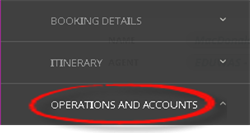
- Click the Operations and Accounts menu option to expand it:

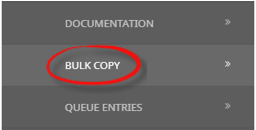
- Click Bulk Copy to view Bulk Copy Booking screen:

- Click the Groups hamburger menu to open it:
-
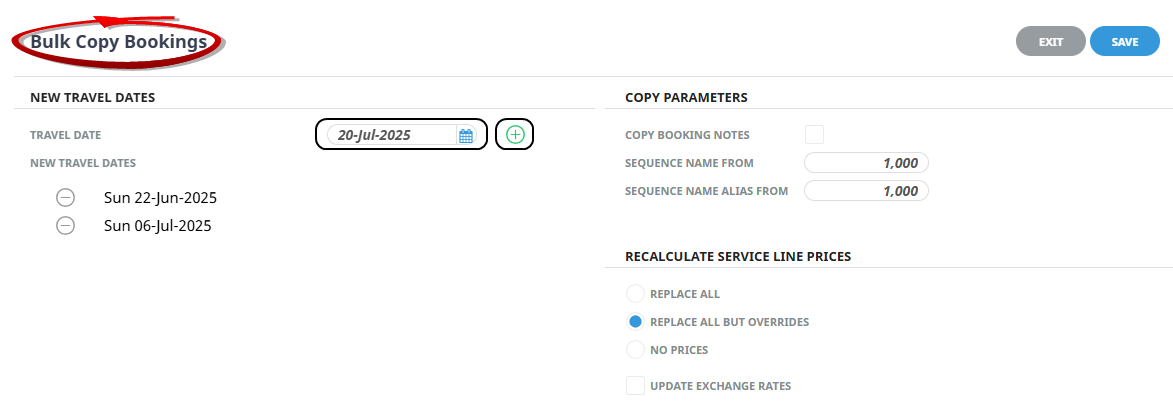
On theBulk Copy Bookings screen, add new Travel Dates using the calendar selection, or manually entering a date, then select +, continue adding required Travel Dates.
-
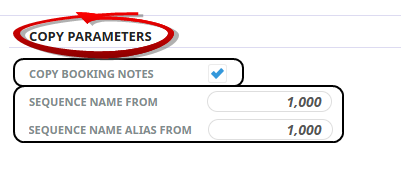
Complete theCopy Parameters: To copy notes from the source booking tick the Copy Booking Notes check box.
NOTE: The Sequence Name From, and Sequence Name Alias From fields default to a value of 1,000. If a different sequence number is required you can update to a preferred number.
-
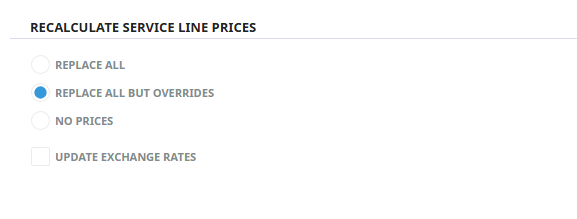
Select a method toRecalculate Service Line Prices. Click About the Recalculate Booking Fields to learn more.
-
ClickSave to keep the changes.

-
ClickExit to discard any changes.

- To view copied bookings, use the booking search feature. The newly created bookings will have a sequence number appended to the booking name. See Retrieve an Existing Group Booking.

About the Bulk Copy Booking Fields
New Travel Dates
Travel Date
Enter or select a travel date from the calendar selection, the green plus button is used to form a list of 'New Travel Dates' below.
New Travel Dates
Each Travel Date listed will create a new booking in the Bulk Copy process, and the services will update in the booking to match the New Travel Date.
Copy Parameters
Copy Booking Notes
All Booking notes will be copied to the new bookings if the checkbox is selected.
Sequence Name From
When a new booking is created from the copied booking in a bulk copy process, all booking details are copied including the Booking Name. This numerical setting is appended to the copied booking, and when multiple bookings are created the number will append sequentially starting with the value inserted here.
NOTE: If a Booking Name and sequence number already exist for a Booking, the system assigns the next available sequence number.
Sequence Name Alias From
When a new booking is created from the copied booking in a bulk copy process, all booking details are copied including the Booking Alias Name. This numerical setting is appended to the copied booking, and when multiple bookings are created the number will append sequentially starting with the value inserted here.
NOTE: If a Booking Name Alias and sequence number already exist for a Booking, the system assigns the next available sequence number.
Recalculate Service Line Prices
Replace All - Revisits the Tourplan Product Database and re-costs all services
All Except Overrides - Revisits the Tourplan Product Database however does not re-cost services where the original product rates were manually overridden. Manually overridden values to be confirmed with the OK Button.
No Prices - Recalculates the totals based on the existing service line values.
Updating Exchange Rates - When the booking services are re-costed should Tourplan continue to use the previous exchange rates (unchecked) or use the exchange rates from the Tourplan Code Setup Module.