This is the second of three tasks in this section of the user manual that describe communications-related functions under the Debtors > Communication menu.
The list is:
- Debtor Contacts
- Debtor Documentation (this task)
- Debtor Queue Entries
The Documentation screen displays a list of documents and messages previously generated for a Debtor and allows the creation of new documentation.
NOTE: The setting up of message templates and the technical aspects of messaging are not discussed here. This section simply describes generating and outputting messages. The assumption is that message formats have been defined. The Messaging sub-system is covered in the System Setup User Manual.
View and/or Generate Documentation Messages
- Make sure the required Debtor/Agent is displayed. (See Create a New Debtor or Retrieve an Existing Debtor).
-
Select Menu
 Debtors > Communication > Documentation.
- Click the Debtors hamburger menu to expand it:
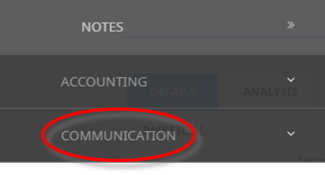
- Click Communication to expand the Debtors Communication menu:

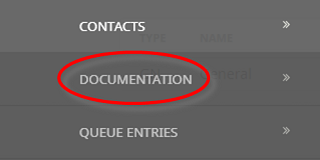
- Select Documentation to open the Debtors documentation screen:

- Click the Debtors hamburger menu to expand it:
- Any documentation already generated from Bookings or from within the Debtor will display, subject to the Message History settings in the message template. (See Message History).
- The documents display in Date Sent (descending) order and show the Date Sent, the Message Template Code, the Message Status, the Sent To destination and who Sent it.
About View Documentation Message Screen
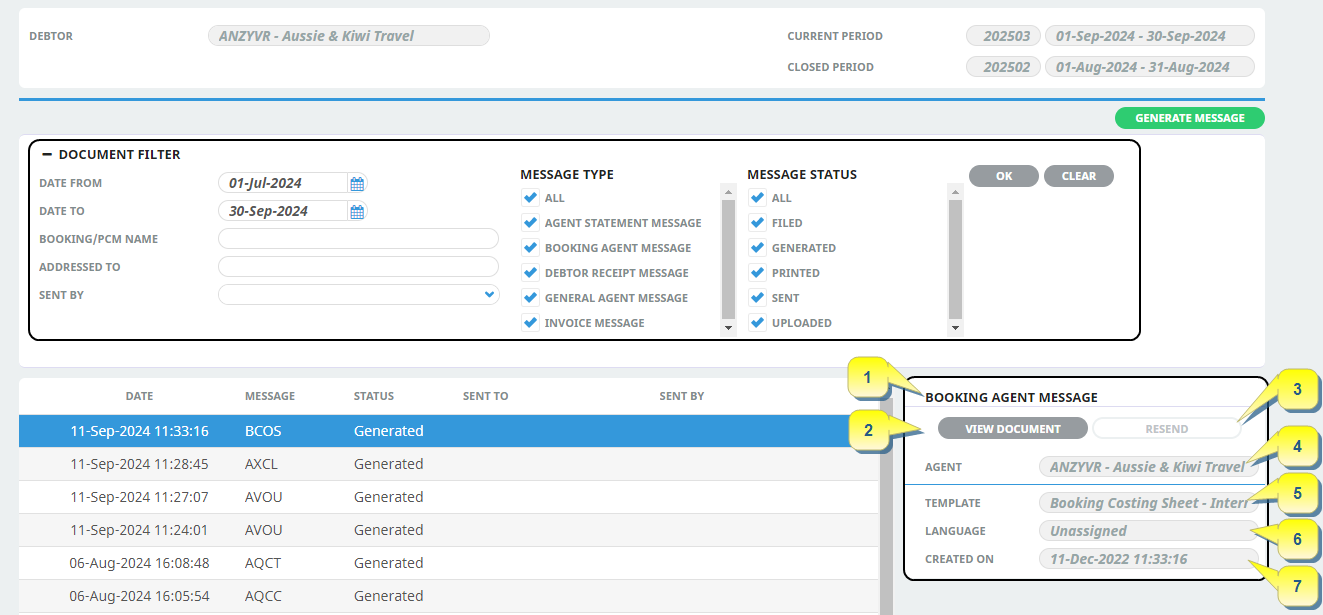
Document Filters
Messages can be filtered allowing users to search for specific criteria to return messages previously sent.
List of Messages Previously Sent
NOTE: In the detail area to the right of the list, the detail shown relates only to the message currently highlighted in the list:
- The type of message - e.g., Booking Agent, Agent General etc. (See for the list of valid Message Types).
- The document action button. Although View Document is displayed in this example, the button can display a different option - e.g. Edit Document - depending the template history settings..
- The document resend button. Again, this button is only active based on message history and status settings.
- The Agent name related to the message.
- The language associated with the message.
- The date the message was created.
Generate Debtor General Message
NOTE: The only message types that can be created and sent in Debtors Communications are General Agent Messages. These are not booking related. A General Agent message format simply holds addressing information and allows a message to be created and typed (either in Word or directly in NX depending on the Template setup) and sent to the debtor.
Sending a Message from a Debtor
-
ClickGenerate Message. The New Document dialogue will display.

-
Select the Document Template from theDocument Format drop-down.

-
ClickOK to keep the changes and save or update the entry.

-
ClickExit to discard any changes.

-
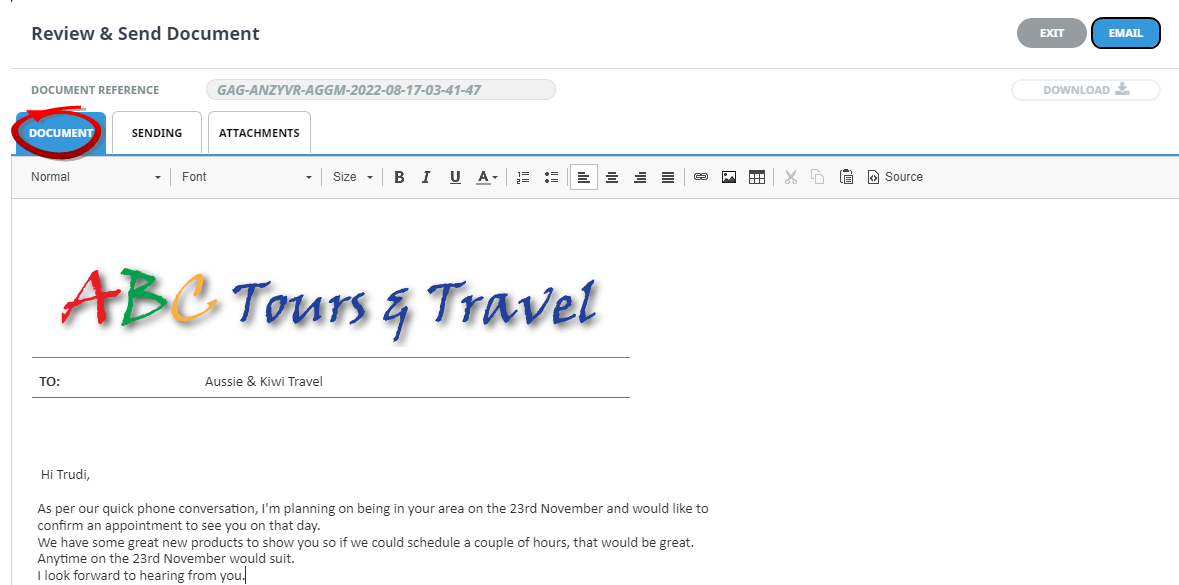
TheReview & Send Document screen will display. There are three tabs in this screen and the entry default tab is the Sending tab. The Message subject has been entered into the Subject field and the correct recipient has been selected from the Contact Name drop-down.
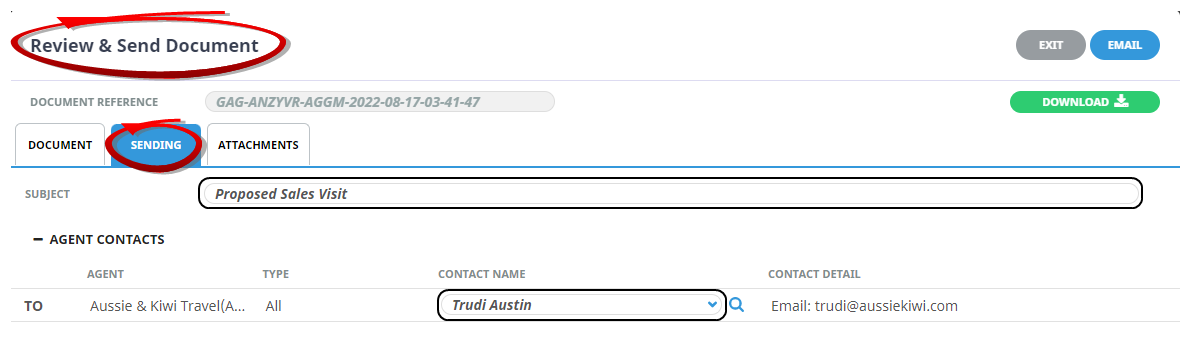
NOTE: That email enables because an Email Address is present in the Contact Detail field.

-
The document tab displays depending on whether the template has been set up to allow editing Internally (using the NX Editor), or Externally (using Microsoft Word), there are choices within this screen.
In this example, the template is set up for Internal editing, so the message is typed directly into the document tab.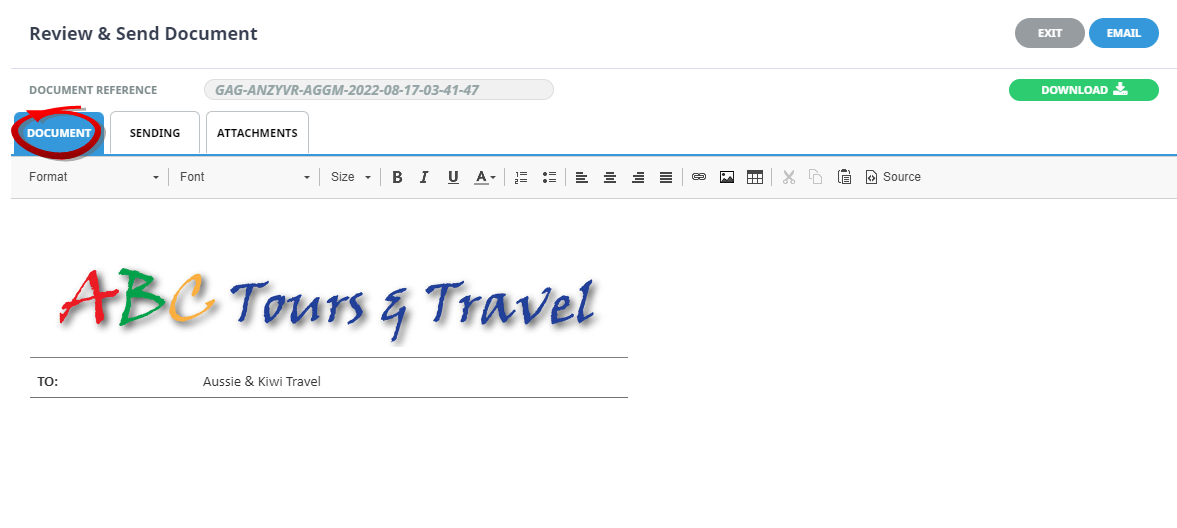
NOTE: An example of External editing is given in Creditor Documentation.
-
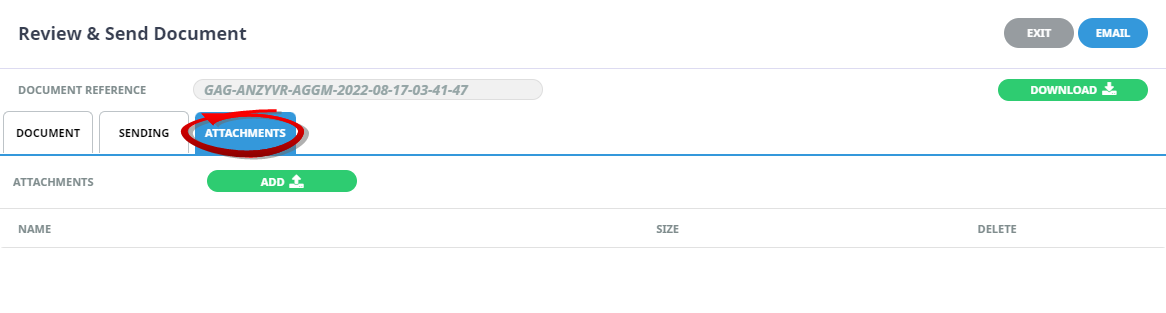
If an attachment is to be sent with the document, select theAttachments Tab and click Add.
-
When the message has been completed, clickemail to send the message.