This is the first of three tasks in this section of the user manual that describe communications-related functions under the
The list is:
-
- Debtor Documentation
- Debtor Queue Entries
The Contacts screen displays all contacts for a
Add Debtor Contact Details
- Make sure the required debtor / agent is displayed (see Insert a Debtor / Agent or Retrieve an Existing Debtor).
-
From the Debtors menu, select
 Communication > Contacts.
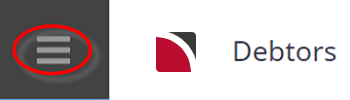
- Click the Debtors hamburger menu to expand it:
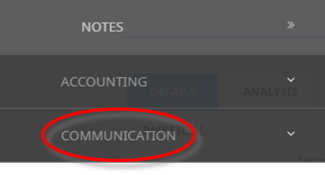
- Click Communication to expand the Debtors Communication menu:

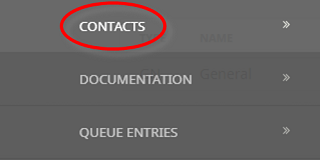
- Select Contacts to open the Debtors contacts list screen:

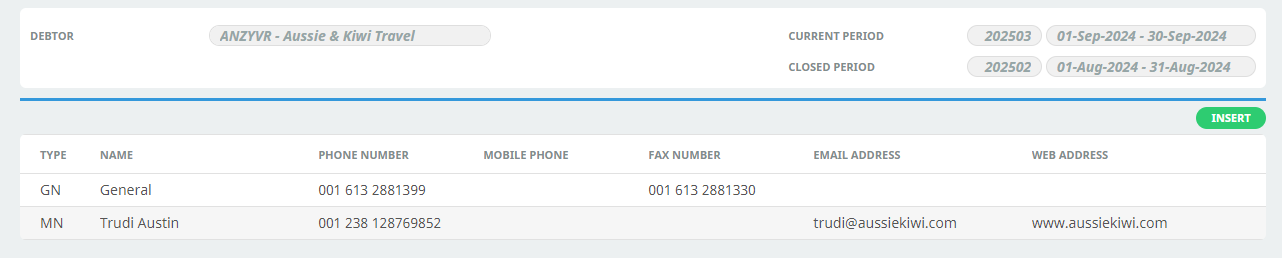
For example, the contacts list screen for ANZYVR - Aussie & Kiwi Travel (one contact only):

- Click the Debtors hamburger menu to expand it:
-
ClickInsert to add a new entry.

-
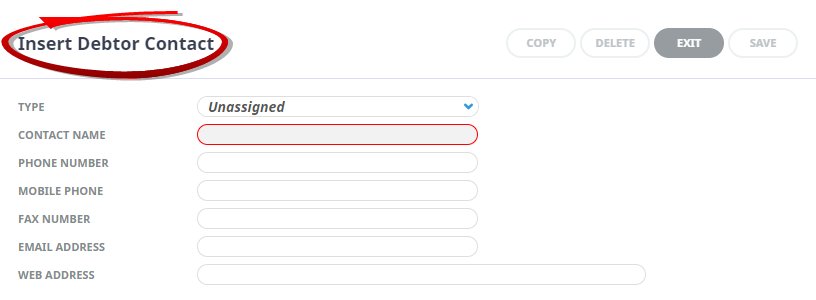
On theInsert Debtor Contact screen, select a Contact Type, enter a Contact Name and fill-in any other contact details required.
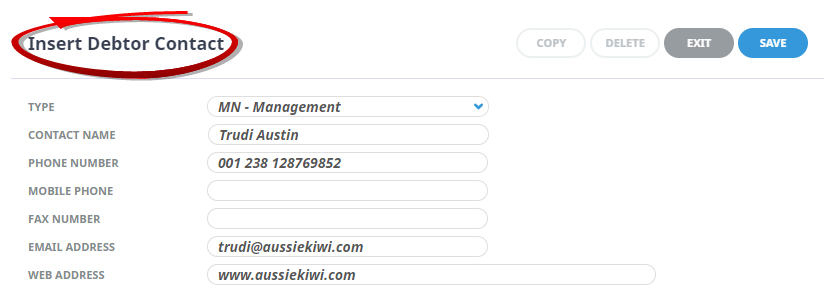
For example: A Managers Contact has been entered.
-
ClickSave to keep the changes.

If Save is clicked, the Insert
-
ClickExit to discard any changes.

-
When Save is clicked (followed by Exit to close the Insert Debtor Contact dialogue), the contact is saved and appears in thelist of contacts on the Debtors screen.
Insert Debtor Contact Fields
Contact Type
The type of contact.
Examples are: AC – Accounts; SA – Sales; RS – Reservations; AD – Administration etc. These must first be set up in Code setup > Messaging > Contact Types.
Contact Name
The name of the contact. E.g. Ms Catherine Watson. Generic names can also be used—e.g. Reservations, Accounts etc.
Phone Number
The phone number for this contact. The number may be different to other contacts at this
Mobile Phone Number
The mobile phone number for this contact. The number may be different to other contacts at this
Fax Number
The fax number for this contact. The number may be different to other contacts at this
Email Address
The email address for this contact.
Web Address
The web address for this
NOTE:
-
When the above entries have been completed, click the OK button to save the contact details. The Contact Name field will be cleared and details of the next contact can be entered. Phone, fax, email and web details are retained, but can be overridden if necessary.
- If the
- When entries of all contacts for this
Updating Contact Details
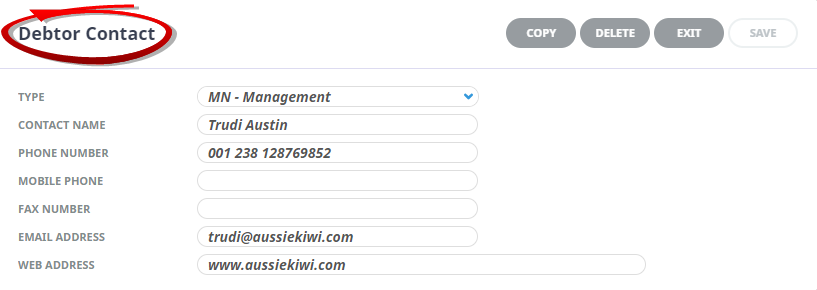
To change the details of a contact, single-click the contact to open the Debtor Contact screen and edit the fields as required. Click Save when done.
Deleting Contact Details
To delete a contact from the list, single-click the contact to open the Debtor Contact screen and click Delete