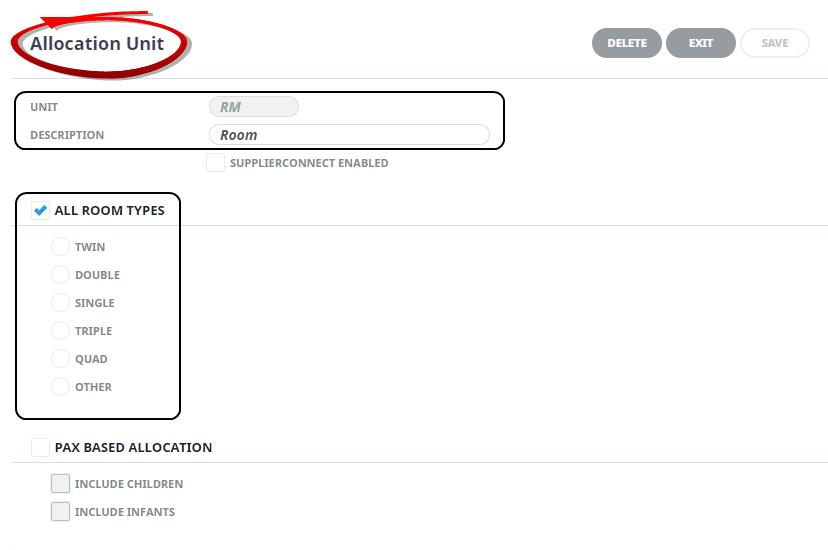
Prior to setting up allocations, the codes and names of any allocation units must be set up. Typically allocation units are used to divide allocations into room types. If an accommodation supplier offers allocations of specific room types e.g. 'singles', 'doubles', 'twins', these can be set up. For coach, rail, airline, theatre tickets etc,services, define a 'seat' unit
Create an Allocation Unit
-
Select menu
 Home > System > Code Setup.
- Click the Home menu to expand it:
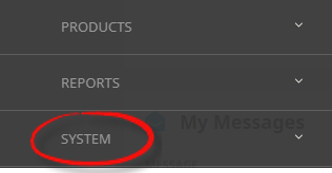
- Click the System menu option to expand it:

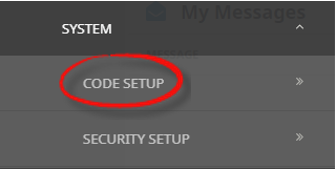
- Click Code Setup to go to the Code Setup menu:

- Click the Home menu to expand it:
-
Select menuCode Setup > Product > Allocation Unit.
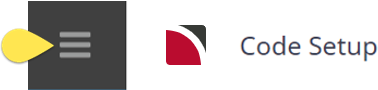
- Click the Code Setup hamburger menu to open it:
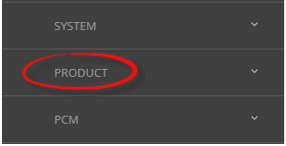
- Click the Product menu option to expand it:

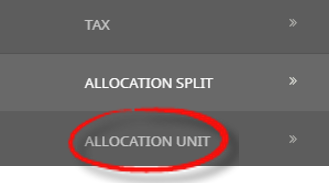
- Click Allocation Unit to open the Allocation Unit screen:

- Click the Code Setup hamburger menu to open it:
-
ClickInsert to add a new entry.

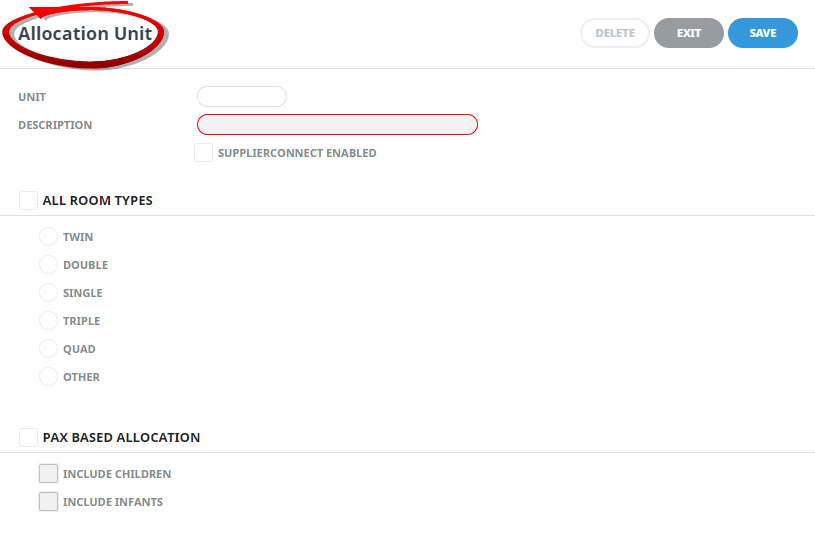
- Enter a Code and Description for the allocation unit.
- If room allocation unit is being created, decide if all room types apply or if individual rooms apply. If the Allocation unit is a pax based allocation, select the pax based allocation check box, and if children or infants are to be included in the pax count.
-
ClickSave to keep the changes.

-
ClickExit to discard any changes.

NOTE: After clicking Save, the screen clears, ready for another Allocation Unit – continue adding Allocation Units or click Exit to close the screen.
About Allocation Unit Fields
Unit
Unit is the code used to distinguish the Allocation Unit.
Description
Is any meaningful name for the Allocation Unit to be known by.
Supplier Connect Enabled
This feature is only available to user sites who have Supplier Connect (aka Supplier Extranet). If the box is checked, then Suppliers who maintain their own allocations on a user site have maintenance access to their allocations.
All Room Types
If the Allocation Unit applies to all room types (including Apartments), check this checkbox. .
Specific Room Type Allocation Unit
Select the room type that the Allocation Unit is for.
If entering an Allocation Unit of e.g. DB - Doubles only, then just check the Double check box. This then limits any other room type from holding this allocation within an FIT or Groups booking. This logic also applies to Singles, Twins, Triples and Quads Allocation Unit setup.
Pax Based Allocation
Check the box to indicate that this Allocation Unit applies to non-accommodation allocations. For seat allocations for example, a train or aircraft, check the Pax Based Allocation check box only. Check the Children and Infants boxes if children and/or infants are to be included in the allocation count.
NOTE: For seat allocations, only one Pax Count allocation needs to be created - it can be used for all seat-based allocations.
This example shows an allocation unit called 'Room' with "All Room Types" selected. Allocations can be setup using this Allocation Unit and the allocation will allow all room types to be sold from the allocation.