
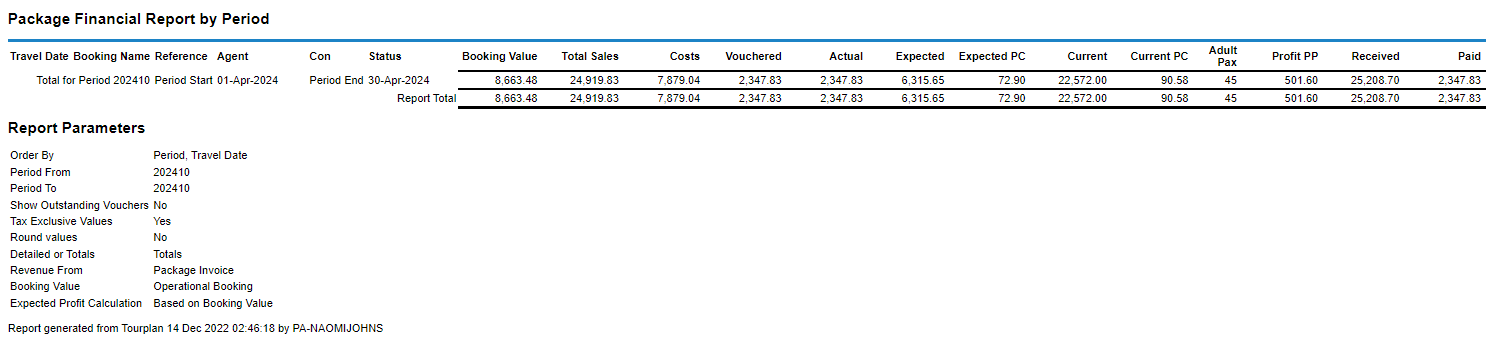
The Package Financial Summary (PFS) reports key financial parameters, one line per booking, for a variety of purposes, but particularly detection of problems with book on tours or master group tours of package tours (e.g. by department by consultant etc.) in the areas of:
- Under or Non-Invoiced bookings.
- Cost overruns.
- Margins outside acceptable range.
- Cash collection.
- Outstanding liabilities.
NOTE: The Package Financial Summary report is a special financial summary which reports the revenue from the participating FIT Bookings and the Expenses from the Component Group Bookings. If the book on feature is used the Package Financial Summary is used to report the revenue from the booked-on booking and expenses from the rolled up group booking.
NOTE: When the report is output to View, PDF or CSV file the information available within the report is:
- (Booking) Travel Date (Book on booking travel date).
- (Booking) Name (Book on booking name).
- (Booking) Reference (Book on group booking reference).
- Agent (Code) (Book on booking agent code).
- Con(sultant) (Book on booking consultant initials).
- (Book on booking) Status.
- Booking Value (Book on Agent Value - i.e. nett of any agent commission).
- Total Sales (From the booked on booking).
- Costs (From the Master booking).
- Vouchered (Value from the Master booking).
- Actual (Paid to Suppliers date).
- Expected (Booking Profit, Booking Value less Vouchered Value).
- Expected PC (Expected Profit %).
- Current (Profit -Total Sales less Actual Paid plus Outstanding Vouchers).
- Current PC (Current Profit %).
- (Number of) Adult Pax.
- Profit PP (Per Person = Current Profit/Adult Pax).
- Received (Cash Received).
- Paid (Cash Paid).
- Balance (Cash Balance).
This report offers flexibility for organisations to output data specific to individual business needs. Variations such as where your organisation records revenue can be reported on by selecting report parameters from within the 'Other' tab.
NOTE: Users can select to report on booking values from either the rolled up group booking or from individual booked-on bookings.
Generating a Package Financial Summary Report
-
From the Home menu, select
 Home > Reports > Financial Reports > Package Financial Summary.
- Click the Reports menu to expand it:

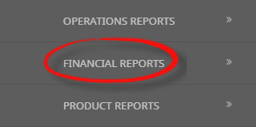
- Click the Financial Reports menu option to expand it:

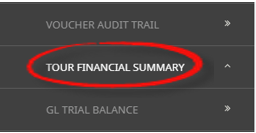
- Click Package Financial Summary to go to the Package Financial Summary Parameters screen:

- Click the Reports menu to expand it:
-
On the blank Package Financial Summary Parameters screen, the Booking Tab will open, select the required parameters for the Package Financial Summary Report.
NOTE: There are 2 tabs available to select parameters from. They are the Booking Tab and the Analysis Tab (Booking & Agent).
- Check the completed screens.
- Click on the Other Tab. Select how the results are to be ordered and filtered in the report from the dropdown selections or checkboxes available.
- Select how the report is to display.
-
To view the report, clickView.

-
To Download the report to a PDF file, clickDownload PDF.

-
To Download the report to a CSV file, clickDownload CSV.


About Package Financial Summary Parameter Fields
Booking Tab
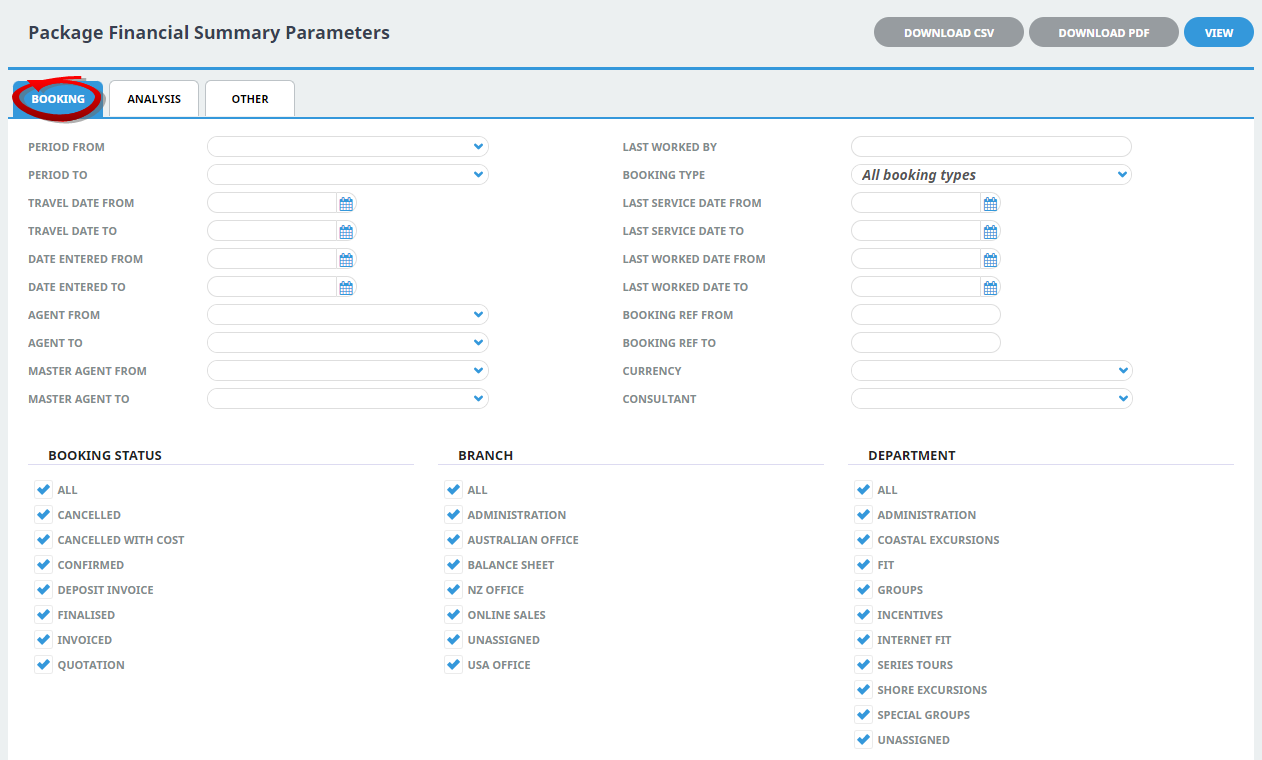
Period From/To
Travel date within financial accounting period (or range of).
Travel Date From/To
Booking header travel date (or range of).
Date Entered From/To
Booking date entered date (or range of).
Agent From/To
Booking agent range, available from the dropdown selection.
Master Agent From/To
(Debtor) Master Agent range, available from the dropdown selection.
Last worked by
Service last worked by - type the full name (correctly spelt) of the Tourplan user.
Booking Type
Dropdown selection available for:
- All booking types (default).
- FITS.
- Groups.
Last Service Date From/To
Booking header last service date (or range of).
Last Worked Date From/To
Booking header last worked date (or range of).
Booking Ref From/To
Booking Reference (or range of).
NOTE: If booking reference is selected as a filter the branch and department selection checkboxes will need to reflect the booking reference branch and department or have 'All' selected.
Currency
Dropdown selection of available currencies.
Consultant
Dropdown selection for booking consultants name and initials.
Booking Status
Multi select options for available booking header statuses.
Branch
Multi select options for available (booking reference) branches.
Department
Multi select options for available (booking reference) departments.
NOTE: Service Status, and Branch and Departments showing in the screen captures above are for training purposes. Users company systems will reflect users organisational requirements.
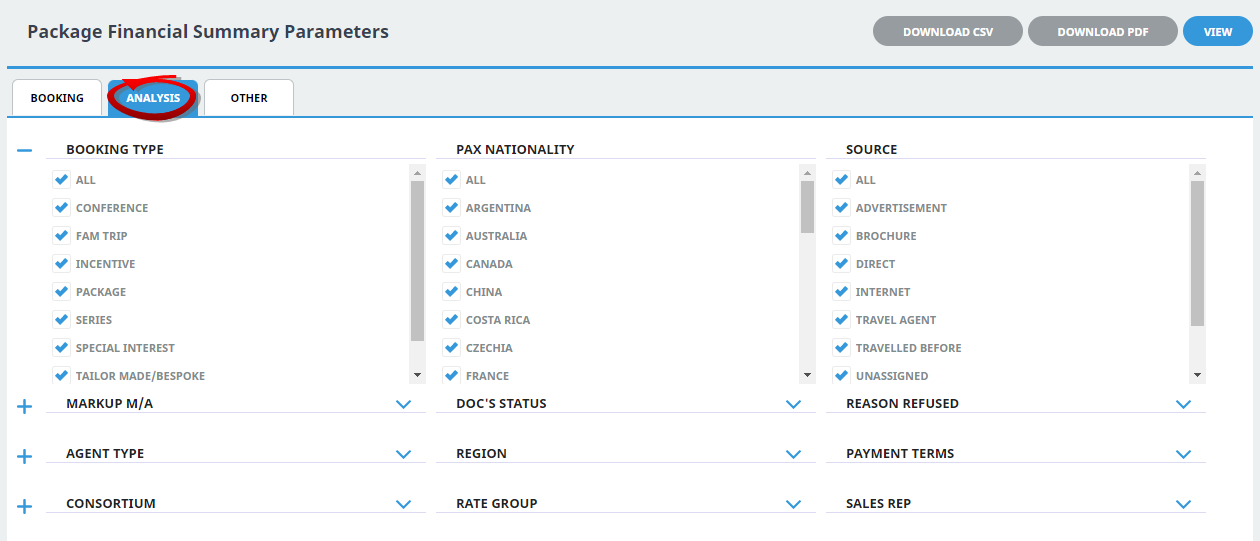
Booking Analysis Codes 1-6
The top 6 Analysis fields are the Booking Analysis codes.
Agent Analysis Codes 1-6
The bottom 6 Analysis fields are the Agent Analysis codes.
Multi select list of Analysis codes can be used to refine the report if necessary. To expand the fields use the +, and to minimise the analysis list use the -.
NOTE: Analysis codes in the above screen capture are used for training purposes. Users company systems will have analysis fields and codes unique to their organisational requirements.
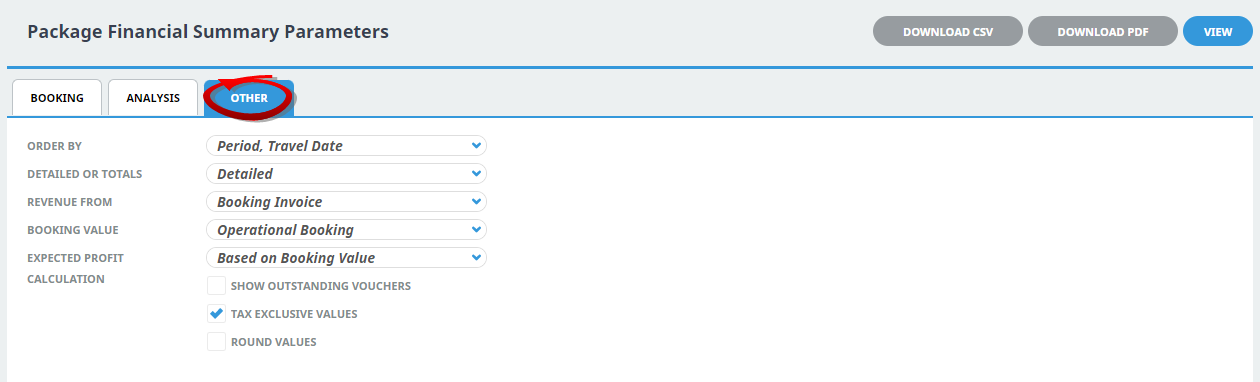
Order By
Report data can be selected by using the dropdown to order by:
- Period, Travel Date (Default).
- Branch, Department, Period, Travel Date.
- Consultant, Period, Travel Date.
- Agent, Period, Travel Date.
Detailed or Totals
Selection of detailed or totals.
Revenue From
Revenue from either:
- Booking Invoice - this selection will provide a report with the total value from the individual (FITS) invoiced bookings (including added pre-post service lines which may have been entered).
- Booking Agent - this selection will provide a report on the revenue from the individual FIT Agent values as total sales (including added pre-post service lines which may have been entered).
- Package Agent - this selection will provide a report on the revenue from the individual FIT Agent values as total sales for the package only.
- Package Invoice - this selection will provide a report with the total value from the individual (FITS) invoiced bookings for the package only.
Booking Value
Select the value for the report to show either:
- Operational Booking value (the value from the rolled up booking).
- Booked on Bookings value (the value from the individual bookings).
Expected Profit Calculation
Report data can be selected to show:
- Based on Booking value.
- Based on Invoice value.
Show Outstanding Vouchers
Checkbox to show outstanding vouchers.
Tax Exclusive Values
Checkbox to show values as tax exclusive (checked default).
Round Values
Checkbox to round all report values.