The service category 'Package Non-Accommodation' allows a per group package price to be entered, such as a per vehicle instead of the traditional package which is used as a per person/twin share pricing.
Non Accommodation packages are designed to provide a per vehicle price which can be split between a group of passengers.
Services saved within the non accommodation package use the First Charge Unit allowing minimum pax counts with a per person (FCU) based pricing. Non room based packages can make use of the min/pax count settings.
Package Non Accommodation - Screen Overview
| Transport – Package Non Accommodation | |
|---|---|
|
Product Setup > Product Details > General > Product Tab |
|
|
Service Category |
Package Non Accommodation |
|
Product Setup > Product Details > General > Price Rules Tab |
|
|
Costs Charged Per |
Example: Per 'Vehicle' Per 'Package' |
|
Maximum persons per Vehicle |
Max pax per vehicle |
|
How many 24 Periods in a SCU |
Number of days in package |
| Product Setup > Product Details > General > Product Tab | |
|
Product Setup/FOC Details Tab |
|
|
FOC Quantities |
May apply to Escort and/or Guide |
|
Product Setup > Product Details > General > Pax Breaks Tab |
Insert Pax Breaks 1- XX XX-999 etc |
|
Include Children/Infants |
Should be checked to include in seat count |
|
Product Setup > Product Details > General > Voucher Tab |
|
|
Print Voucher |
As required |
|
Voucher Creation |
As required |
|
Product Setup > Product Details > Policies > Policies Tab |
N/A |
|
Product Setup > Rates/Rates Tab |
|
|
Rates |
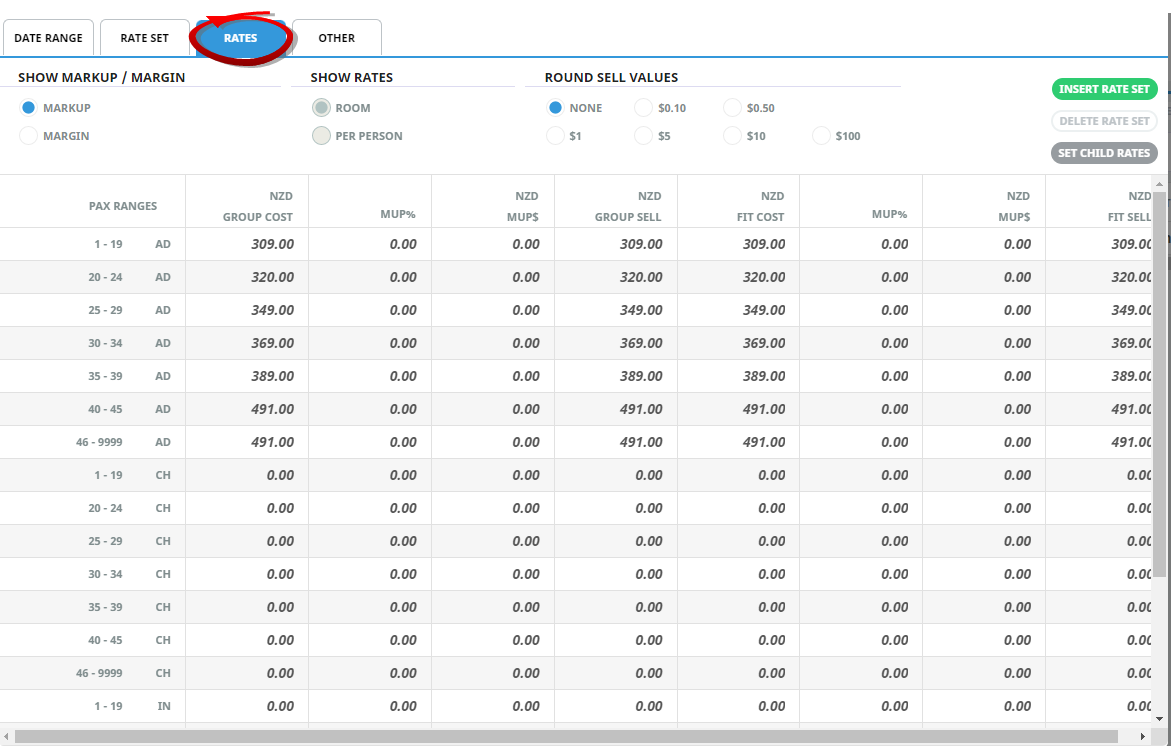
Applicable Per vehicle per pax break pricing |
|
Product Setup > Rates/Other Tab |
|
|
Service Voucher Text 1 - 10 |
As required |
|
Product Setup > Content |
|
|
Amenities |
As required |
|
Product Notes |
As required |
|
Itinerary/Descriptive Text |
As required |
|
Product Setup > Operation |
|
|
Message Defaults/Details Tab |
Select appropriate code |
Example: Non Accommodation Package
Once the PCM package has a list of non accommodation services inserted, the package price can be attached to the PCM.
Price Rules Tab
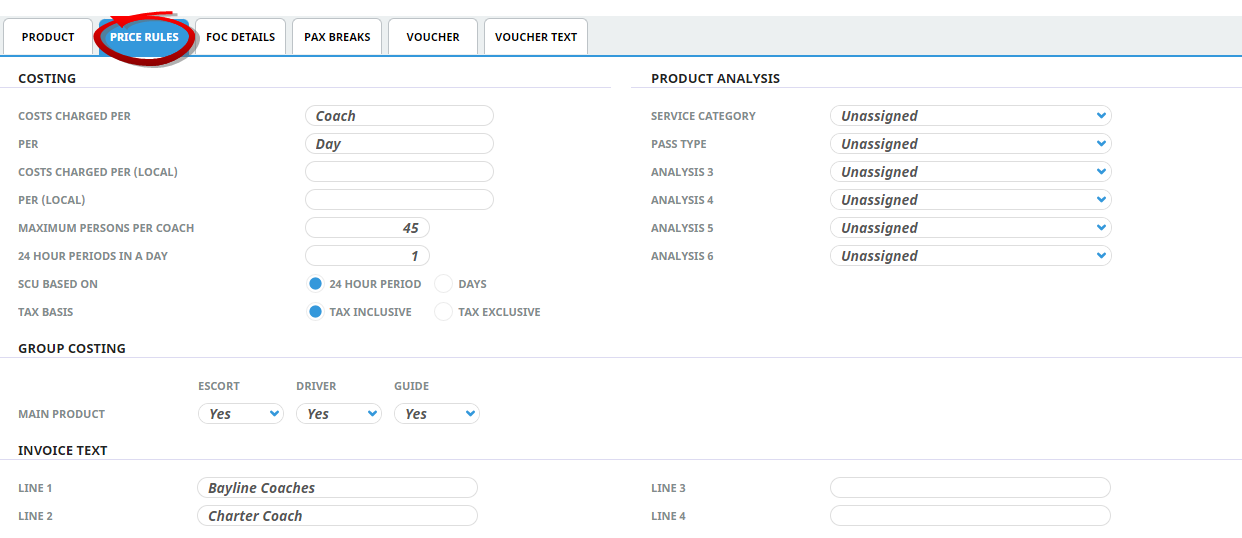
The Price Rules for the Transport service hold the First & Second Charge Units (Per Vehicle, Per Package) and the maximum persons per vehicle includes the total number of pax.
Create Package Non-Accommodation Product
The first step to inserting product is to create the shell of the product into the database, the procedures which follow on from this procedure allow further details to be inserted for this product.
Insert a Package Non-Accommodation Product
-
Select menu
 Home > Products > Product Setup.
- Click the Home Menu to expand it:

- Click the Products menu option to expand it:

- Click Product Setup to go to the Product Setup menu:

- Click the Home Menu to expand it:
-
ClickCreate New Product.

-
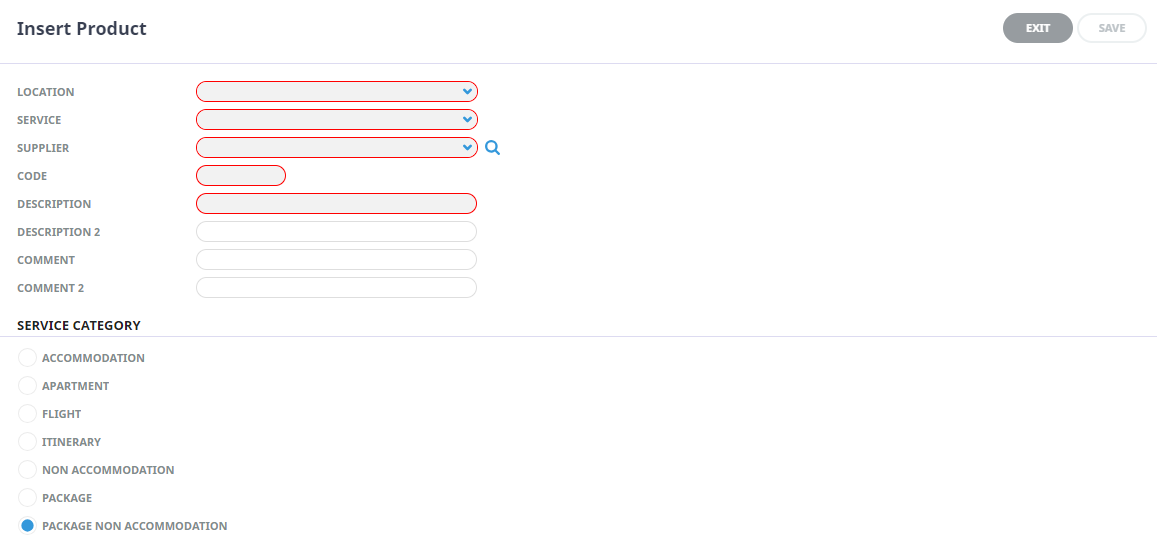
On theInsert Product screen, enter data into fields (the top three are drop-down selection fields - entries must already exist before you can select them).
-
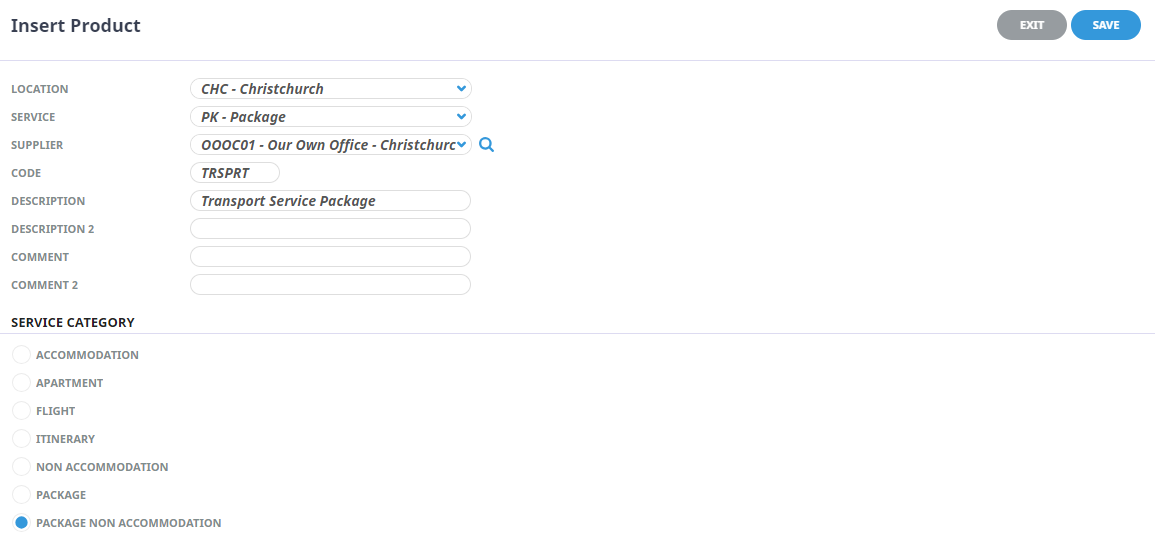
Check thecompleted screen.
-
ClickSave to keep the changes.

-
ClickExit to discard any changes.




Location
Select a location code from the drop-down list, or type the location code. Location codes must already be setup in the Code Setup application, Create a Product Location.
Service Type
Select a service code from the drop-down list or type the Service Code. Service codes must already have been setup in the Code Setup application, Create a Product Service Type.
Supplier
Select a supplier from the drop-down list, or type the Supplier Code. Suppliers must already be setup in the Creditors application, Create a Supplier.
 ) to the right of the Supplier fields can be used to search based on primary search criteria of Supplier Code; Name contains; Supplier chain, plus the additional criteria of Language code; Post Code; and any of the 6 available Analysis Codes that can be attached to the supplier.
Code (Autocaps)
Service Category
The product must have one of these radio buttons checked. The service category determines what data pre-populates some of the setup fields and enables the system to use logic specific to the category to correctly generate pricing.
| Radio Button | Definition |
|---|---|
| Package Non-Accommodation | A package of non-accommodation based services including Meals, Transfers, Sightseeing, Coach Transport, Rental Cars etc. |
Price Rules
Price Rules settings identify how the service is to be sold, for example per 'coach' per 'package', per 'vehicle' per 'package'.
NOTE: A service using a daily rate or weekly rate would have the 'How many 24 hour periods in a ___' set to the number of 24 hour periods. For example a per vehicle per package service would have 'How many 24 hour periods in a package' set to number of days.
Maximum Person Per
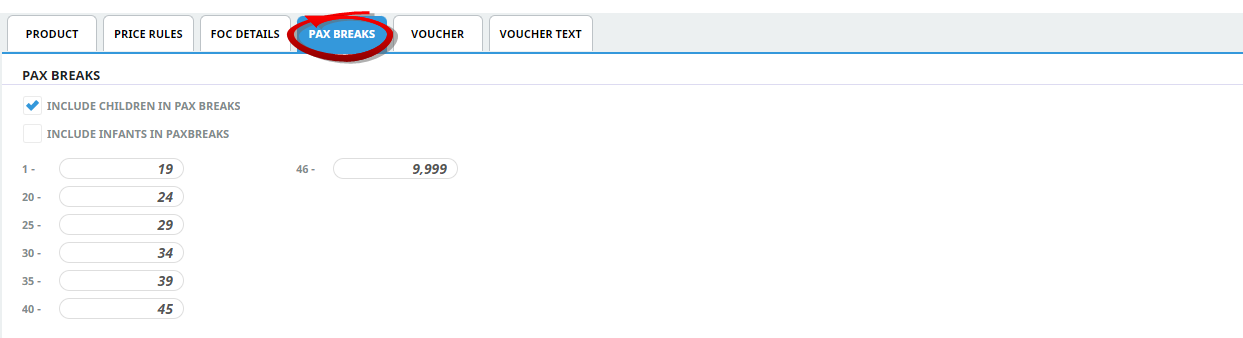
This field identifies a maximum capacity of passengers for this service. If the supplier offers a fleet of vehicles with differing passenger numbers per vehicle - a break down of passenger numbers would be inserted into the Pax Break Tab.
Pax Break Tab
Consideration for supplier transportation policies is provided within the Pax Break Tab. The main purpose for Non-accommodation packaged services is to understand if children or infants require a seat when purchasing this service. If they do require a seat and need to be included in the total booking count - the check box to 'Include Children (and/or Infants) in Pax Breaks' will need to be selected.
The other fields options in the Pax Break screen are used to provide different passenger numbers per vehicle - allowing a different rate to be inserted per vehicle size. At the time of booking or quoting, the system would look to the number of passengers booked on this service and calculate the cost using the correct vehicle size and/or number of vehicles required.
Insert Pax Breaks
- Make sure the product has already been created (see Insert an Accommodation Product).
- If the product is not already displayed, retrieve it (see Searching for Products or Suppliers).
- Identify the tab containing the fields you need to modify for the product. For this example, click the Pax Breaks Tab.
-
Add details to thePax Breaks Tab fields.
-
To keep the changes, clickSave.

-
ClickDiscard to discard all changes.

Policies Tab
Age Policy
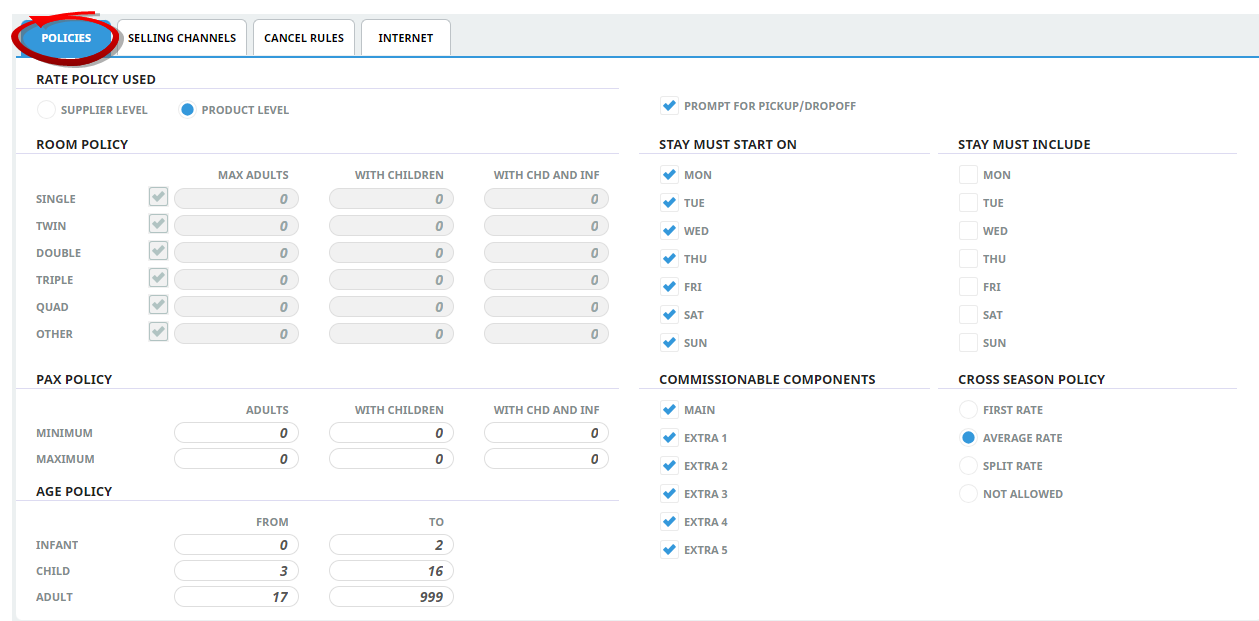
If age policies for children and infants were the same for every service offered by the supplier, we would recommend defining age policies at a supplier level. However, if the supplier offers distinct age differences for individual services then it would be preferable to set the age policies at a product level.
Pax Policy
Non-Accommodation services allow Pax Policy rules if the supplier has conditions of sale based on the number of passengers travelling. Product policies can define minimum and/or maximum pax requirements for non-accommodation services.
NOTE: If Pax Policy fields are 0, there will be no pax number restrictions.
Insert Product Policies (or View Supplier Policies)
- Make sure the product has already been created (see Insert an Accommodation Product).
- If the product is not already displayed, retrieve it (see Searching for Products or Suppliers).
- Identify the tab containing the fields you need to modify for the product. For this example, click the Policies Tab.
-
Add details to thePolicies Tab fields.
-
To keep the changes, clickSave.
-
ClickDiscard to discard all changes.
Rates
There are 4 Tabs which allow specific rate information to be stored per date range.
- Date Range - How the rate is sold? Are there specific sales periods? Will the rate be a gross rate or a nett rate? Are there any taxes which need to be defined against the rate?
- Rate Set - Are there any stay length (minimum/maximum stay) requirements? Does the rate apply for specific days? Is the rate a confirmed rate?
- Rates - The rates tab is where the rates are defined. Pax breaks used have defined pricing based on (in this example) coach size.
- Other - Allows accommodation services to include specific stay pay rules (not required for this service).
Row Headings - Non Accommodation Products (Display Only)
For non accommodation products - using pax breaks, the first row will always display 'the first pax break value'.