
NOTE: There are a number of items to consider before enabling this functionality. Please consult with your local Tourplan Support Office if you are interested in learning more about this feature.
This is an additional selection which can be enabled and would become the second task available in the Utilities Menu. The procedure described in this document allows users to view:
- A change history user interface itemising various changes which have occurred within the product.
- Further drill-downs are available to show:
- The Tourplan User who made the change
- The time the change was made
- Change Detail columns showing New and Old product data
There are two options available when viewing the change history, the first allows users to view changes from one change history line, and the system automatically compares the changes from the previous dated row. The second allows users to compare all changes between a selection of two change history lines.
View Change History
- Search for and retrieve a product to work with. If you haven't done this already, see Searching for Products or Suppliers
-
Select menu
 Product > Utilities > Change History.
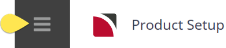
- Click the Product Setup menu to expand it:
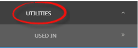
- Click the Utilities menu to expand it:
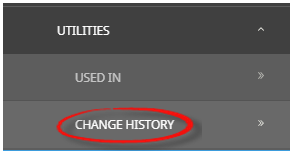
- Select the Change History menu option to open the Change History Summary screen:

- Click the Product Setup menu to expand it:
-
On theChange History screen, examine the list of changes from the table.
NOTE: Changes will display in date order most recent first.

-
To view specific change data, click on theaction line to drill-down further.

-
Or to compare all change data between two action lines, select two.
-
-
ClickView.

-
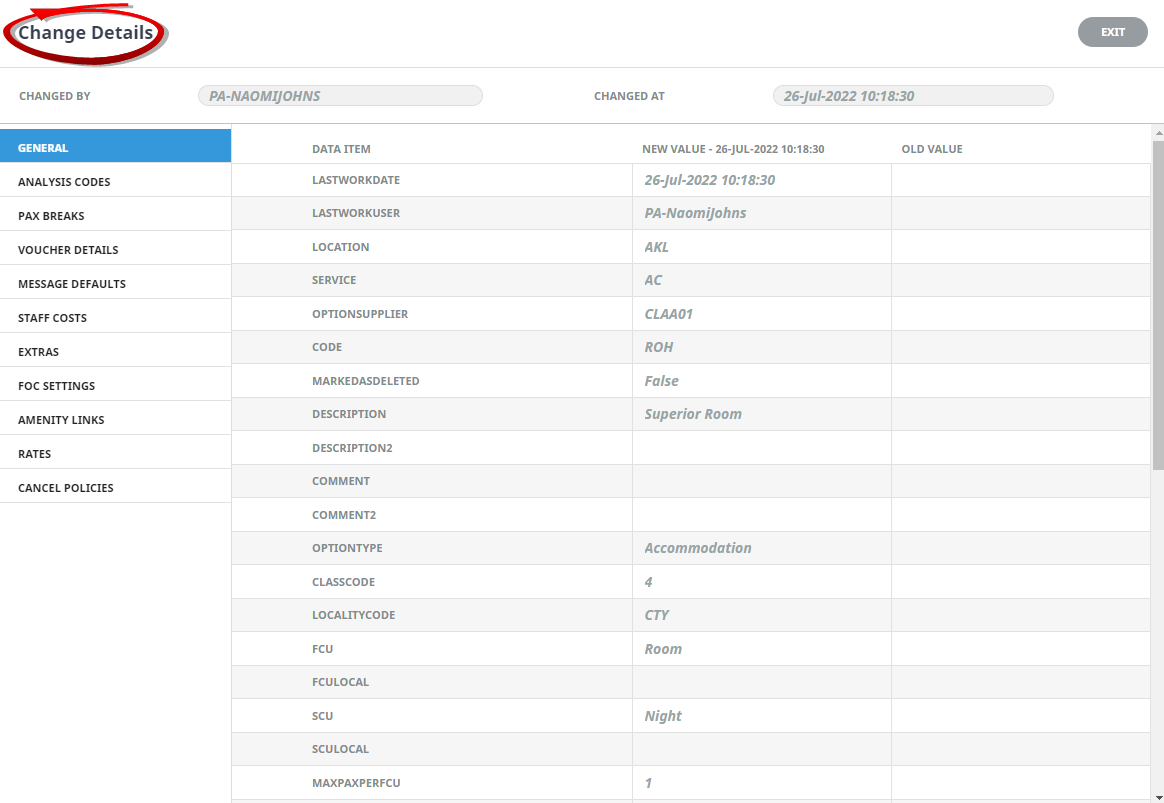
TheChange Details screen will open, the header of the screen identifies the; user; date and time the change was made. A list of Product change categories will display in the column to the left. Drilling down on these categories will allow users to view the value of the field after the change was saved and the value that field had before the change was saved.
-
ClickExit to Exit the Change Details View.

-
ClickExit to Exit the Change History.


About the Change Details Fields
Product data has been categorised into the following headings providing users with the data which may have changed. The Change History data does not attempt to display the changed data in a normal product structure. Instead the fields have been categorised into product data headings.
Data Items
Each category menu (noted below) will then display a change summary grid for each change.
New Value / Old Value
Each Change category selected allows users to see the value of the field prior to the change and the field value after the change was made.
Change Category Menu
General
The General view identifies changes which have occurred within the product from fields located in the tabs when the Product Details menu has been accessed. Product level Cancellation Policies are also made available through the General view.
Analysis Codes
The Analysis Code category display identifies changes to the Product Analysis codes attached to the product.
Pax Breaks
This category itemises changes to the pax break data. The details of the change are made available by the pax breakdown range specified in the product. E.g. 0-10, 11-15 etc
(Product) Voucher Details
The Voucher Details category provides a list of changes from the product level voucher text view, including address and edit fields.
Staff Costs
There are three expandable headings with in the Staff Costs category view identifying changes to the Driver Costs, Escort Costs and Guide Costs.
Extras
Any changes to Extras are visible from this selection. Fields including Extra Name, Extra Description, Charge Basis and if the Extra is hidden from the internet can be viewed.
FOC Settings
There are three sub categories linked to the FOC Settings changes. Users can view amendments made to the FOC data by Supplier, Agent and/or Recipients.
Amenity Links
This view allows users to see any changes to the Amenity links attached to the Product. Further drill-down options are presented per amenity category.
Rates
The Rates view is complex due to the number of fields which can be amended. Identified changes will display grouped by rate date range and price code. Each date range provides further drill-down fields help to identify the changes made to the product rate fields.
- The General and Taxes drill-down selections detail the changes made to fields seen in the Date Range tab within the Product.
Rate Set changes have been further categorised into the following headings.
- General View - displays general data about the rate group such as rate status, rate text.
- Applies On - the days of the week the rate applies to
- Stay Pay Deals - changes to stay values and pay values are displayed here
- (Rate) Voucher Details - details about the (rate) voucher text changes
- Costs - users can view changes to the product costs for each field
Cancel Policies
Identified changes will display grouped by Cancel Policy date range. Each date range provides further drill-down fields which identify if any changes were made to the Cancellation Policy fields.
Cancel Policy changes have been further categorised into the following headings.
- General View - displays general data about the cancellation policy and details noted changes to fields seen in the Service tab within the Cancellation Rules.
- Analysis - identifies changes made to the analysis fields seen in the Cancellation Rules > Service Tab.
- Rule for Market (and Price Code) - lists the cancellation rules for each policy, each rule can be expanded to view if changes were made to the Cancellation Rules > Fees Tab (Cancel Rule) data.