
This button enables all information to be copied from an existing product to a new product. The menu options in the product can then be used to edit only the details that vary; e.g. some or all of the rates.
Copy a Product
- Make sure the product has already been created (see Insert an Accommodation Product).
- If the product is not already displayed, retrieve it (see Searching for Products or Suppliers).
-
From the Product Detail screen, click
 Copy Product.

-
Most fields will be pre-populated from the product record. On theCopy Product screen, in the Code field, enter a code for the new product.
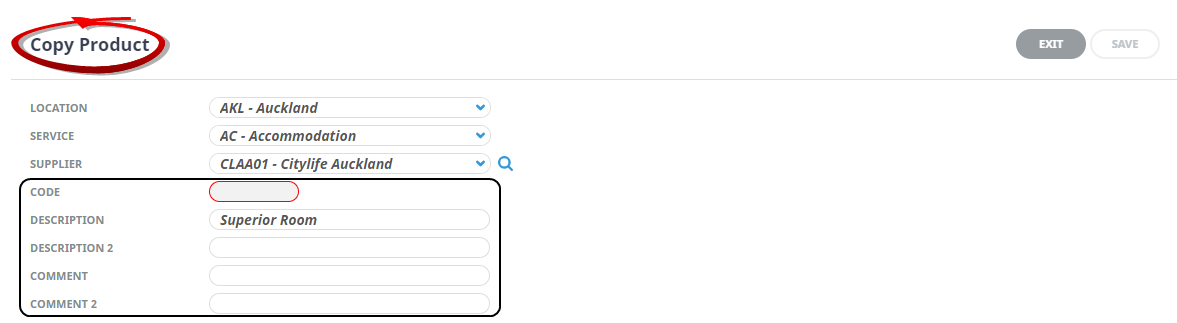
NOTE: You can also enter Descriptions and Comments in the relevant fields on the Copy Product screen.
-
ClickSave to keep the changes.

-
ClickExit to discard any changes.

About the Copy Product Fields
The Location, Service and Supplier fields will be pre-populated with the Location, Service and Supplier fields of the product being copied.
Location
The location can be altered using the drop-down list.
Service
The product type can be altered using the drop-down list.
Supplier
The Supplier can also be changed using the drop down list or search button.
Code
Type the code for the new product.
Description & Description 2 Fields
Type the description for the new product. This is optional, but you should review the copied description and amend text if required.
Comment & Comment 2 Fields
Optionally, coments fields can be used to provide extra information about the product. If these fields are used by your organisation, enter the required text before saving.