
Within an Allocation, you can:
- View and Edit Allocations and identify which bookings are using them on a day-by-day basis (see View or Edit Existing Allocations).
- Remove or attach products that can use the allocation (see Remove or Attach Subscribing Products).
- Extend or add additional date(s) (see Extending or Adding to Allocations).
- If the supplier advises close outs or unavailability, or changes to release periods, this function can be used to change the values (see Change Allocation Quantities / Release Period).
- Move allocations and sub allocations (see Move Allocations Between Allocations and Sub-Allocations).
- Remove one or more allocations (see Delete Allocations).
All allocation functions are accessed from the list of allocations currently available from a supplier/product combination, so the first task is to retrieve a list of existing allocations.
Retrieve an Allocation
- Make sure at least one allocation exists for the supplier/product combination (see Add a New Allocation).
-
From the
 list of allocations, click the one you want to work with to open it.
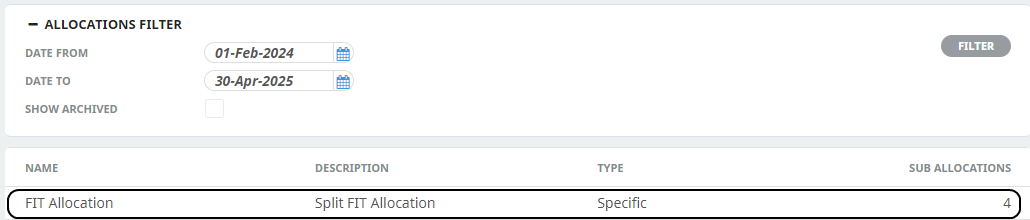
A highlighted row identifies the last allocation worked on.
View or Edit Existing Allocations
- Retrieve an Allocation
-
Expand the Allocations Filter, enter the affected date range in the Date From/Date To fields and clickFilter.

The records for the filtered dates will display or the default filter dates are set at from today's date to the same date next month.
- The Allocation Detail screen with the Days tab will open, view or edit the Max, Release and RQ columns, per Split Code, per day as in Add a New Allocation.
NOTE: If specific non-consecutive days need to have the values altered, this is the most practical way of doing it.
In addition, two buttons at the top of the screen allow a range of days to be Deleted or Altered.
NOTE: Individual dates can be deleted by clicking the X alongside each date within the Days Tab. Deletion confirmation is required.
Delete a Range of Dates
- Retrieve an Allocation
-
Enter the affected date range in the Date From/Date To fields and clickFilter.

The records for the filtered dates will display.
-
The Days tab will open to delete the allocation for a particular day, click the blueX to the left of the Date column. Click as many lines as needed to delete a range of days.

-
Alternatively, clickDelete Days to specify a Date From and Date To range of days.

-
On theDelete Days screen, specify dates in the Date From and Date To fields, and make any other relevant selections in the Apply To and Sub-Allocation checkbox fields.
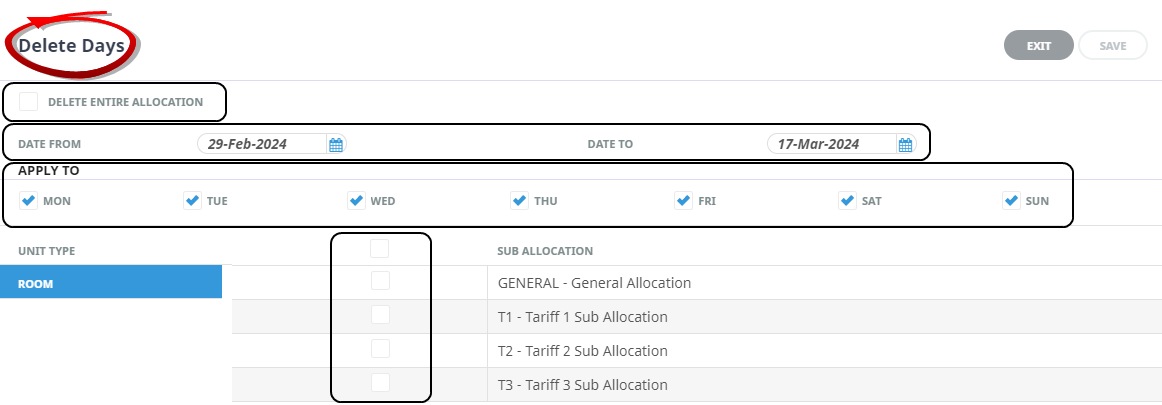
The only fields that can be altered in this screen are the From/To Dates, Day of Week check boxes and the Sub-Allocation check boxes to select/de-select the Days/Sub Allocations to be deleted. Two types of deletion can be done: Days can be deleted for all, or specific, days of the week; for all, or specific, sub allocations, within the filtered date range. The entire allocation can be deleted by checking the Delete Entire Allocation check box. The Delete Entire Allocation check box ignores the dates selected and deletes the entire allocation. Allocations which have been used inside the deletion period dates are retained.
Alter a Range of Days
- Retrieve an Allocation
-
To Alter the range of days, clickAlter Days.

-
On theAlter Days screen, specify dates in the Date From and Date To fields, and make any other relevant selections in the Apply To and Sub-Allocation check box fields.
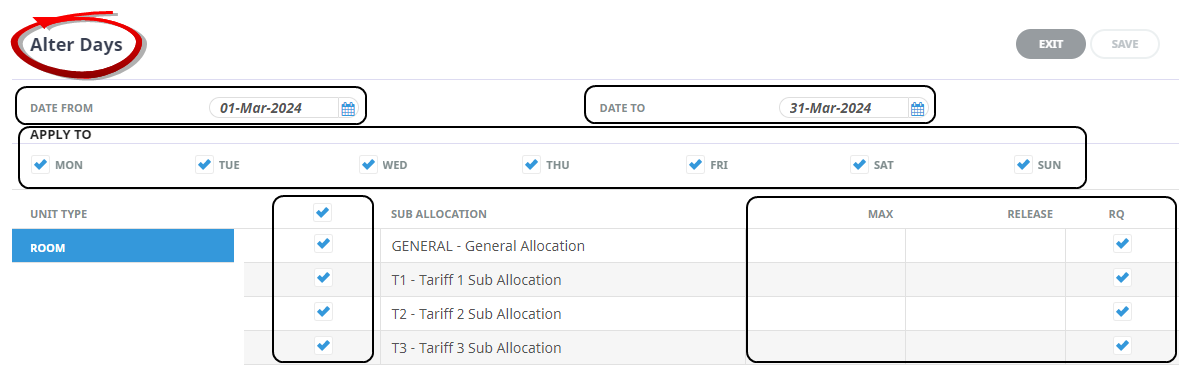
The fields that can be altered in this screen are:
- The From/To Dates
- Day of Week checkboxes
- The Sub-Allocation checkboxes (used to select/de-select the days/Sub Allocations to be deleted)
- Max, Release and RQ fields
-
ClickSave to keep the changes.

-
ClickExit to discard any changes.

View Used Allocation Details
-
Scroll to the required Dates and click the
 alongside the Allocation Date. The Allocation Usage screen will display.
 -
The booking name and reference, day and sequence of the service, In Date and quantity of units used are displayed.
In the setup of the allocation for CLAA01, Fit Allocation, four Allocation Splits were set up – General (9 Rooms), T1 (2 Rooms), T2 (2 Rooms) and T3 (1 Room) for a total of 14 Rooms. The dates of 04 - 07 April are highlighted to show the display of Used and Available rooms etc. Rooms have been taken across the allocation, and the three columns next to the date are the Max number of rooms, used rooms, and available number of rooms remaining.
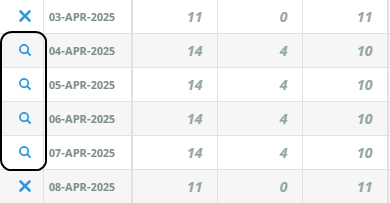
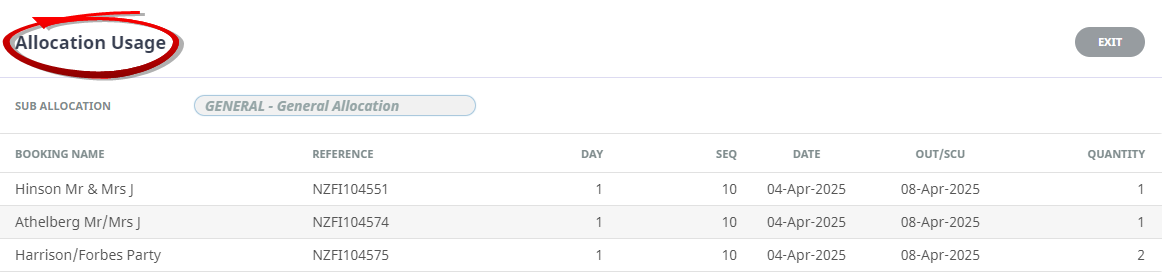
NOTE: All data in this screen is view only and can not be edited. However, the booking reference can be copied and then pasted into a bookings application to retrieve the physical booking.
Remove or Attach Subscribing Products
- To remove or add Products that are able to use the allocation, select the Allocation from the suppliers allocation list. See Retrieve an Allocation
- The Allocation will open with the Daystab displaying.
- Click the Setup tab.
- The Allocation Description, Allocation Type and Services Included or Excluded can all be edited in this screen.
- To remove a product that is in the Services Included column, highlight it by clicking it and then click the left arrow

-
NOTE: If a service is removed and no longer able to be used for the allocation, any existing allocations applying to that service will not be affected.
-
ClickSave to keep the changes.
-
ClickExit to discard any changes.
Extending or Adding to Allocations
An Allocation can have it's dates extended. To do this, the ‘Alter Days’ function can be used.
NOTE: If allocations are offered on an annual basis, do not create a new allocation per year – simply extend the existing allocation.
Extend or Add to Allocations
-
Select the allocation to be extended and enter the dates it is to be extended From/To in the Date From/Date To fields and click theFilter button.
-
Click theAlter Days button.
The procedure for extending the allocation from this point on is exactly the same as setting up a new allocation. The Allocation Splits used in the original allocation default into the Alter Days screen.
Follow the steps shown in Add a New Allocation.
NOTE: If the extended allocation does not appear in the scroll, check the Date From/Date To fields in the Allocation Header or Alter Dates screen to ensure that the newly extended dates are in the date range displayed.
Change Allocation Quantities / Release Period
There are two methods of making changes to quantities:
- Edit the cells individually.
- Use the ‘Alter Days’ button.
Which method is used will depend on the scope of the changes required. If relatively minor changes are required – e.g., an occasional night closed out, then method 1 would probably be easier. If wholesale changes are required, then method 2 would be appropriate.
Example 1 – Edit Individual Cells
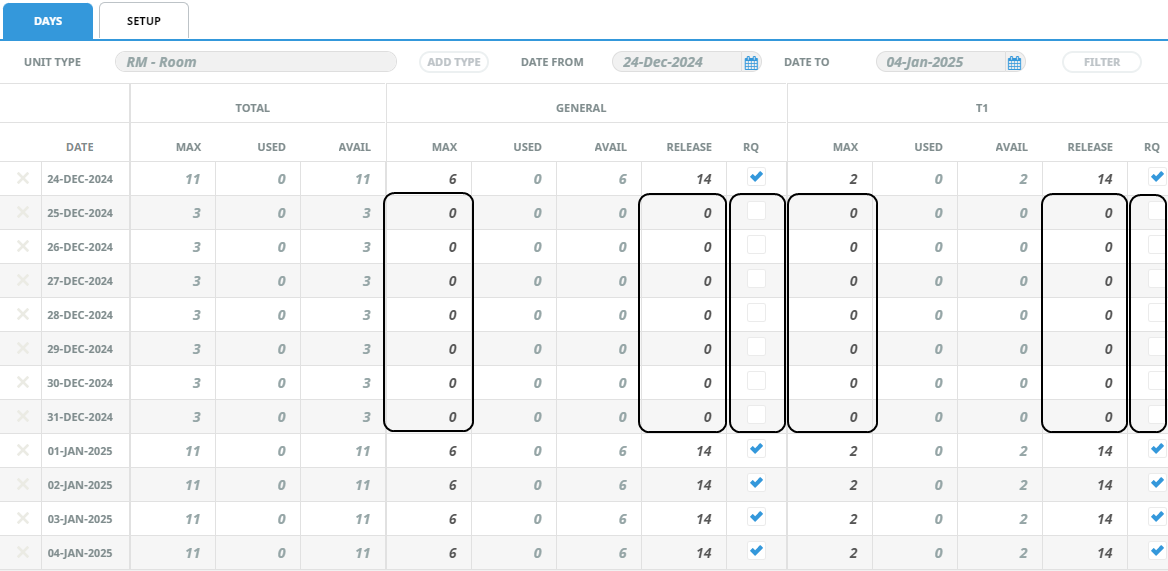
For the purposes of this example, the hotel has advised the allocation is closed out between 24 December and 04 January, and rooms will be available on request for some nights within that period.
There are two choices of method to achieve this
- Set the values in the cells to 0
- Delete the lines for 25 Dec–31 Dec
Setting Values in the Cells to 0
-
Method a. has been used and the allocation has been changed by editing the'Max' fields so that all sub allocations will be 0; the Release Days have been set to 0 and the RQ check boxes have been unchecked.
-
ClickSave to keep the changes.
-
ClickDiscard to discard all changes.

NOTE: The cells in the ‘Total’ column cannot be edited – only the sub-allocation cells are editable, and within those columns, only the ‘Max’ and ‘Release’ and 'RQ' cells can be edited. The Total column values do not update until the changes have been saved.
If the initial set up of Allocation Details has 'Show Release As Date' selected, the release information is entered / maintained as a 'Date'. If a Date heading is displaying with a calendar icon edit the Release Date information with the calendar selector.
If the 'Show Release As Date' is not selected, the column heading will show as 'Release' for you to enter or edit the number of days.
.
Delete Allocation by Individual Date
For method b. above, an individual allocation date can be deleted completely by clicking on the  button next to the date to be deleted.
NOTE: Dates can only be individually deleted - multiples can not be marked and then deleted. All sub allocations - GENERAL, T1, T2 etc are deleted for each date.
Amending Release Periods
The set up of Allocation Details with Show Release As Date selected, determines if the release information is entered as a Date or Number of days. Edit the Release Date with the calendar selector.
Move Allocations Between Allocations and Sub-Allocations
Again, there are 2 methods to do this.
NOTE: If only one allocation is set up on the system for a supplier with different Allocation Splits and a few individual days need to be moved around between sub allocations, then it is easier to reduce the amount on the sub-allocation and then increase the one being moved to. This is done by changing the Max column values in the split being taken from/given to. This is the same procedure as covered in Change Allocation Quantities/Release Period, Example 1 – Edit Individual Cells.
- To move more than one date at a time between Sub Allocations within the same allocation, use the ‘Move Allocation’ button.
- To move numbers from one Allocation to another Allocation, click the Move Allocation button
NOTE: The same screen is used for both methods

Moving Allocations from One Allocation to Another
-
The exact number to be moved needs to be known – from which Allocation Split, to which Allocation Split. In the example, for the period 04/08 April, there are 6 rooms loaded against GENERAL Split (of which 4 have been used). The rooms being held against the T1, T2 & T3 splits, are going to be retained, because those rooms are likely to be used. 3 rooms are going to be moved from Small Grps QP allocation the FIT Allocation GENERAL split.
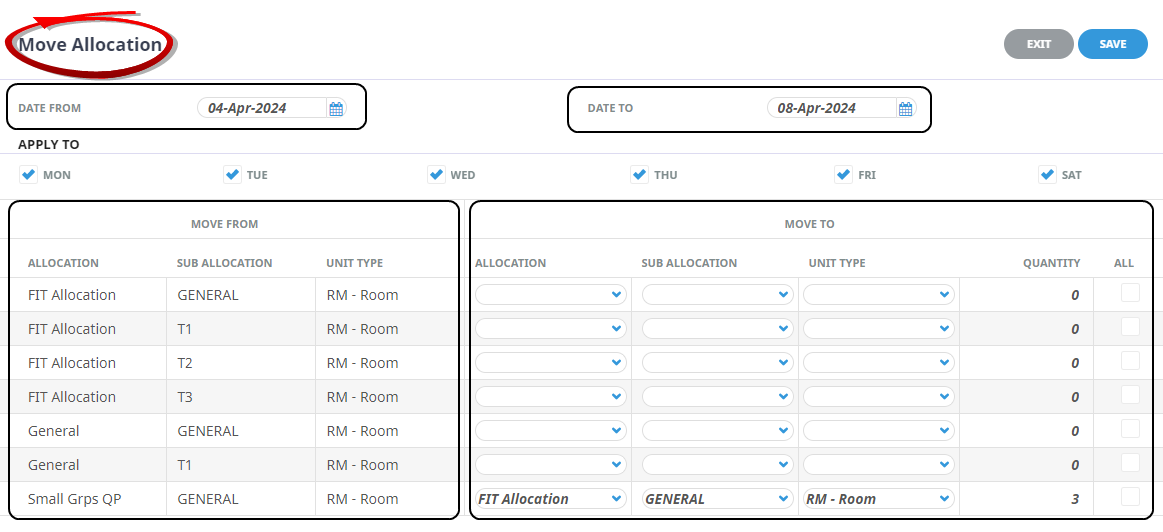
NOTE: The system will not move rooms that it does not have. If one of the days in the date range specified if fully booked, no availability, then none will be transferred. Likewise selecting the ‘All’ checkbox will move all the available rooms for the dates selected.
-
In the 'Move To' section, click in the row of the Allocation Name in the Move From section (Small Grps QP row) that the allocation is to be taken from and select the Allocation Name that the rooms are to be moved to (FIT Allocation). Click in the Sub-Allocation and Unit Type fields to reveal the drop downs and select Sub-Allocation name and Unit type to move to. Enter the quantity to be moved (or if it is All available to be moved, click the 'All' check box)
-
ClickSave to keep the changes.
-
ClickExit to discard any changes.
Delete Allocations
There are several methods to do this, depending on the deletion that is required:
- Delete one Date only.
- Delete a range of dates and/or Splits (Sub Allocations).
- Delete the Allocation completely.
Example 1 – Delete Individual Date
To delete one date only, click on the on the left of the ‘Date’ column. Using this method will delete all Split Code (Sub Allocations) for the date selected.
Confirmation of deletion is required.
Example 2 – Delete Range of Dates and Sub Allocations
For the purposes of the example, the T2 and T3 Splits are to be deleted for the period 30 April - 11 May for Mondays and Fridays only.
-
Set the date filters and click theDelete Days button.
-
Set theDate From and Date To fields as required.
If only specific days are to be deleted, uncheck the days that are not to be deleted.
Date From and Date To fields as required.
NOTE: If only specific days are to be deleted, uncheck the days that are not to be deleted.
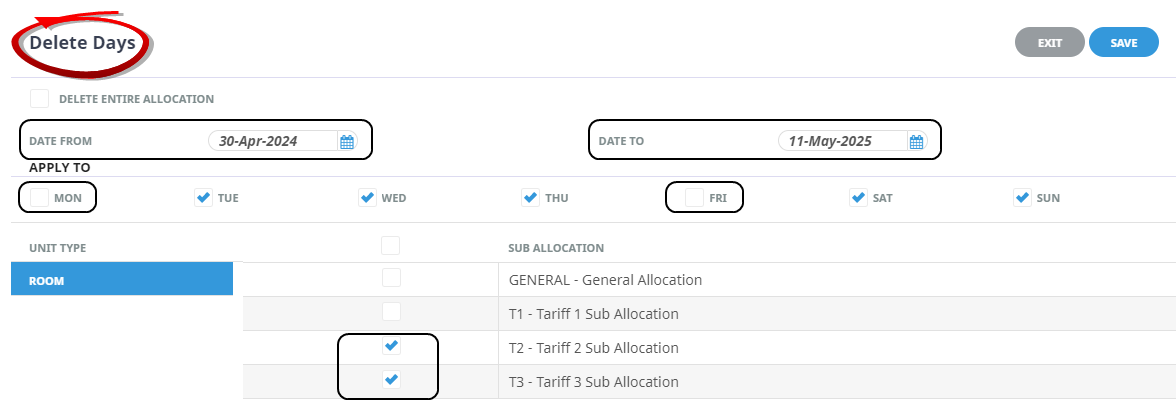
- Check the check-box(es) on the rows of the Sub-Allocation(s) to be deleted.
-
ClickSave to keep the changes.
-
ClickExit to discard any changes.
Example 3 – Delete Complete Allocation
-
Set the date filters and click theDelete Days button.
-
Click theDelete Entire Allocations checkbox.

-
ClickSave to keep the changes.
-
ClickExit to discard any changes.
NOTE: Only unused allocations will be deleted. Any dates where allocation has been used will remain. If the Unit Type still displays in the side bar after the deletion has completed, it means that there are used allocations for the unit type remaining. The date criteria may need to be widened to locate them.
NOTE: This deletion process ignores any dates which may be in the Date From/Date To fields
Set Agent Allocations
In order to use allocations in bookings, one or more Sub Allocations/Splits needs to be applied against agents who are entitled to use the Allocation. These are applied in the Debtors application.
- Click menu Home > Financials > Debtors.
- On the Debtors screen, search for the Debtor to which the allocation/split will be applied.
- Click the Allocations tab.
NOTE: By default, any agent that does not have an Allocation Split attached will not be able to take allocations in bookings.
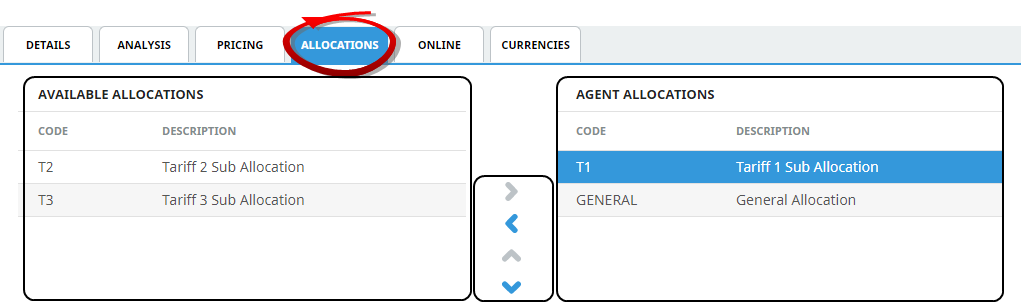
Available Allocation Splits display in the left hand column, attached Allocation Splits display in the right hand column.
To attach allocation split(s) to an agent, highlight the split to be attached in the left hand column and click the right arrow  .
.
To detach allocation split(s) from an agent, highlight the split to be removed in the right hand column and click the left arrow .
NOTE: The order in which these are listed in the Agent Allocations box is important. During the booking process NX will take allocation first from the T1 sub-allocation and if there is not sufficient availability will then take from the GENERAL sub-allocation.
To adjust the priority order of the Agent allocations highlight the sub-allocation to be moved and click either the Up  or Down
  arrows.