
This is the second of five tasks in this section of the user manual that describe miscellaneous functions under the PCM Quotes > Operation menu.
NOTE: The numbering is simply for reference - there is no particular order in which tasks need to be completed and, depending on the PCM, they might not all be needed.
The full list is:
- Package Setup
- Documentation (this task)
- Price Analysis
- Queue Entries
- Contacts
The Documentation screen is where you generate, download and send documentation relating to the PCM.
NOTE: The setting up of message templates and the technical aspects of messaging are not discussed here. This section simply describes generating and outputting messages. The assumption is that message formats have been defined. The Messaging sub-system is covered in the System Setup User Manual.
Generate Documentation
- Search for and retrieve a booking to work with. If you haven't done this already, see
-
Select menu
 PCM Quotes > Operation > Documentation.
- Click the PCM Quotes menu to expand it:
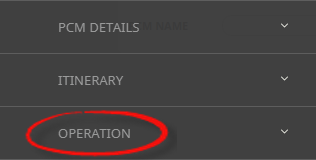
- Click the Operation menu option to expand it:

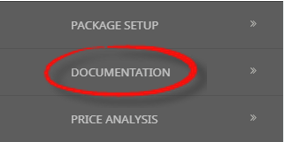
- Click Documentation to view and generate documentation for this PCM:

- Click the PCM Quotes menu to expand it:
-
To generate a new message, clickGenerate Message.

-
In theNew Document screen select a Document Type and a Document Format. (If there are multiple itineraries, select the required itineraries for this message)

-
ClickOK to keep the changes and save or update the entry.

-
ClickExit to discard any changes.

-
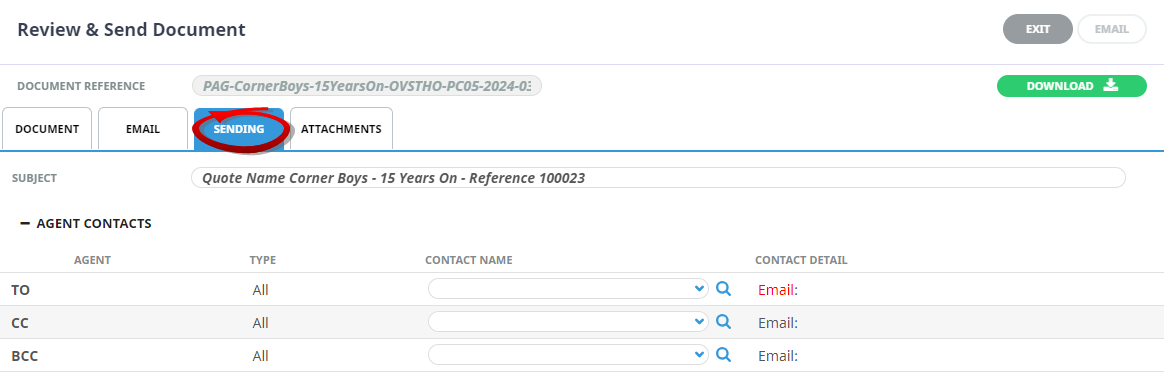
The sending Tab will open if the Email and Sending tabs were activated when the message template was setup to send as an email. TheEmail and Sending tabs allow you to view the email text that will be sent and the contact name and address the email is sending to.
NOTE: A contact will default from the coding in the message template, however an alternative contact name can be selected using the drop down arrow. The options for CC, and BCC are also available. A list of Contact names attached to the Agent will display in a dropdown, or an alternative (or manual contact) email address can be entered using the search button.
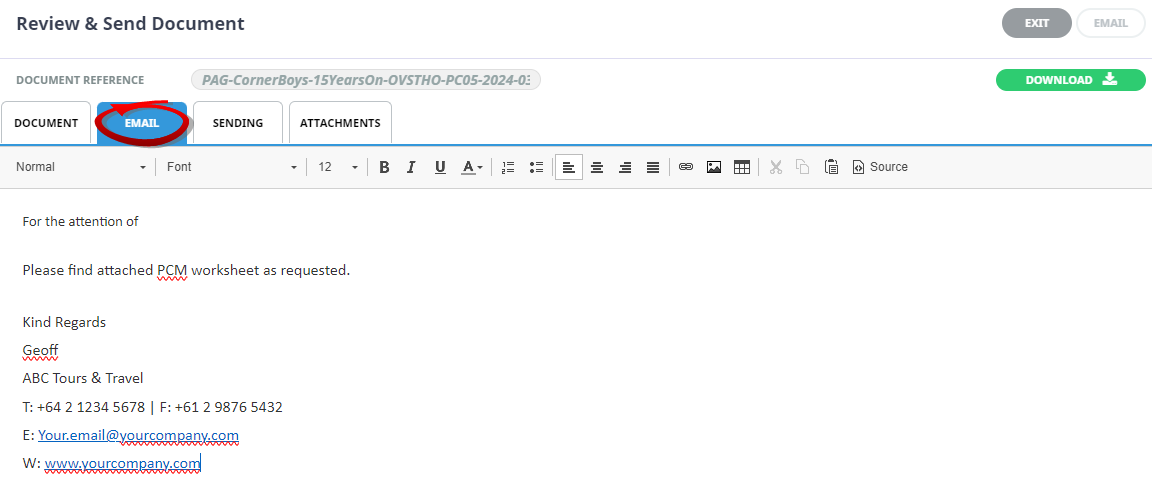
The email tab displays the body of the email coded within the Message Template. This can be viewed, and edited if required.
-
On theReview & Send Document screen, you can examine the generated document, download it (using the green Download button) or email (using the blue Email button).Download will open the document in Microsoft Word. Any amendments made to the document in Word will not be saved unless the document is uploaded back into Tourplan.
This example shows the Review and Send Document screen for an Agent Message selection.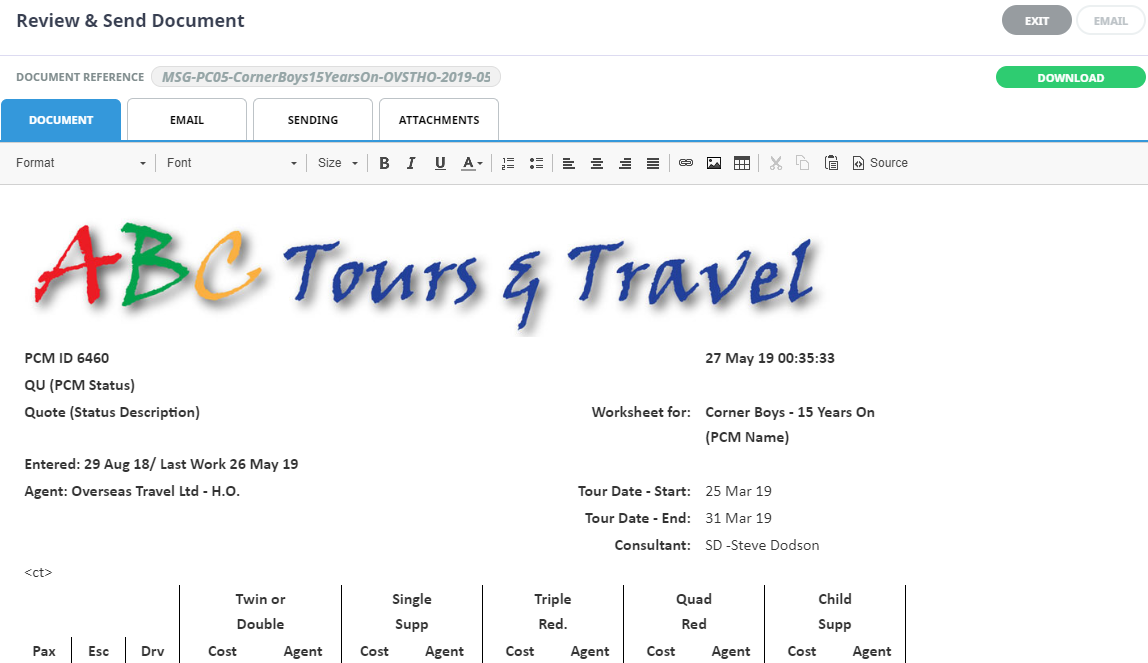
-
On theAttachments tab, click Add to add additional attachments to send with your email. - Optional Task. If the Message Template has been configured to send attachments, a list of attachments will show on screen.
-
ClickEmail to send the document.

-
ClickExit to discard any changes.

View an Existing Message
- Search for and retrieve a booking to work with. If you haven't done this already, see Retrieve an Existing PCM.
-
Select menuPCM Quotes > Operation > Documentation.
- Click the PCM Quotes menu to expand it:
- Click the Operation menu option to expand it:
- Click Documentation to view and generate documentation for this PCM:
- Click the PCM Quotes menu to expand it:
-
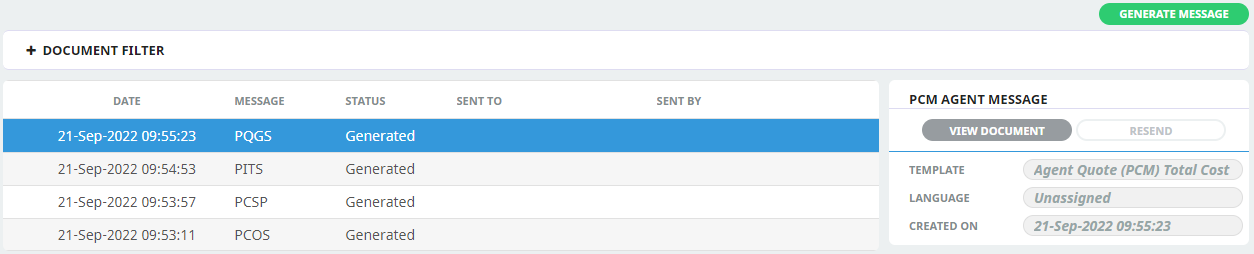
Examine thelist of documentation messages, if any. The top (and most recently worked on) messages highlighted.
The example messages were generated, however were not sent via an email. If an email was sent from Tourplan, the Sent To, and Sent By data would have recorded who the message was sent to and by whom.
-
To view an existing message, select it and clickView Document.

-
If the document can be edited, anEdit Document button will display.

-
-
On theReview & Send Document screen, you can examine the generated document, download it (using the green Download button) and email.
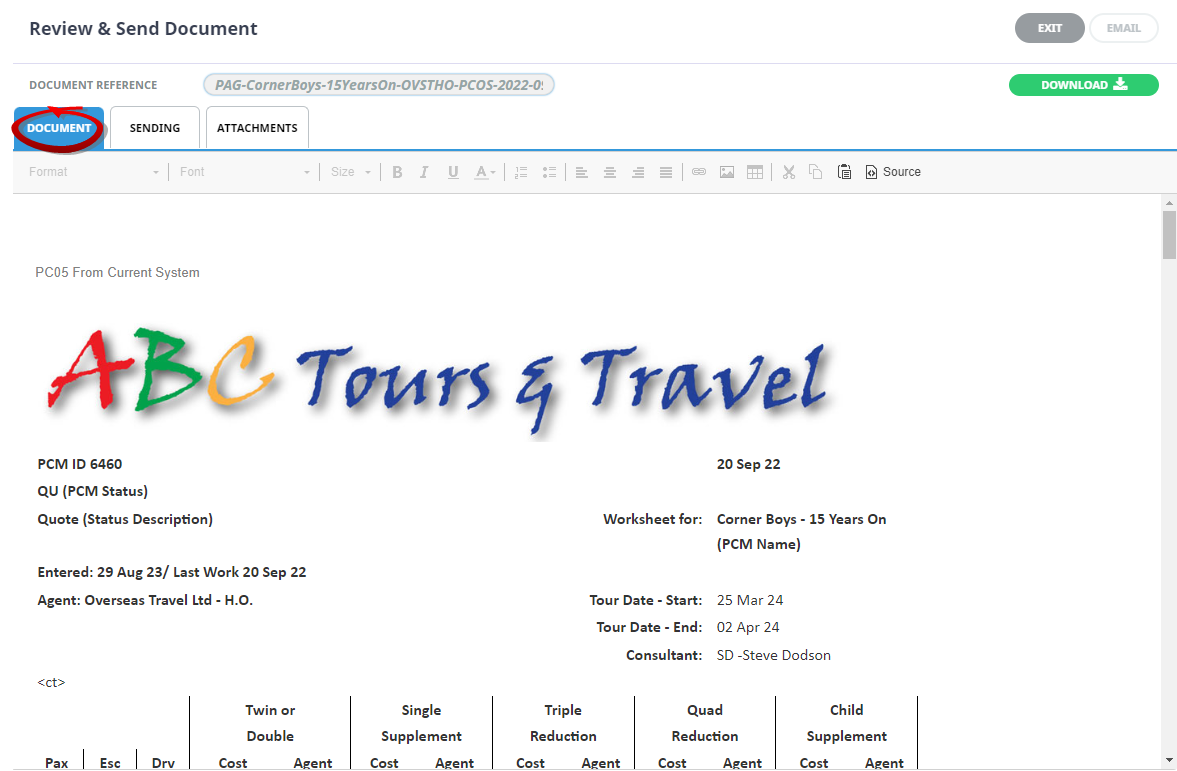
NOTE: You can scroll the document in the Document tab even if no scroll bars are visible.
- Click Download to download the document into Microsoft Word.
- To email a document:
- Click the Sending tab.
- Enter one or more email addresses (click the Search icon to enter email addresses).
- Add a Subject.
- Click Email to send the email or click Exit to return to the list of documentation messages.
- As with View Document, from here you can examine the generated document, download it or email it.
- As with generating a new document Attachments can be selected to send with the re-generated message.
NOTE: Filters can be used categorise the messages. Select the + next to the Document Filter heading to see the search filters available.

Document Filter Fields
Supplier
Selection for a specific supplier code, or supplier name will narrow the search to return messages for this supplier only.
Date From / To
If you know the approximate date the message was sent or generated. Enter a from and to date range to filter messages generated during this time. Otherwise the from date will automatically default to 3 months before todays date.
Addressed To
The filtered results will return for the email address.
Sent By
The name of the Tourplan User who sent the message.
Message Type
Message Type selection allows results to return based on the message type checked.
Options available include: PCM Agent Messages, PCM Supplier Messages.
Message Status
Selection for all, individual or multiple message statuses allow the system to filter by; Filed, Generated, Printed, Sent and/or Uploaded Messages.