
Bulk updates to pick up and drop off times for services can be achieved when using the PCM Operations function Update Pickup and Drop off. Some organisations may need the facility to locate or update a number of PCMs at once.
The Update Pick up/Drop off menu option allows users to set filter options to return required results, and amendment to pick up/drop off points or times can be performed to multiple services across multiple PCMs.
Updating (PCM) Pick Up & Drop Off Ddetails
-
From the Home menu, select
 Home > Operations > PCM Operations > Update Pickup and Dropoff.
- Click the Home Menu to expand it:

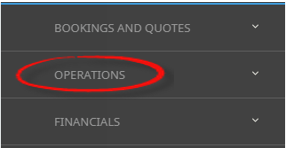
- Click the Operations menu option to expand it:

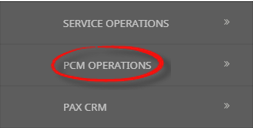
- Click PCM Operations menu option to expand it:

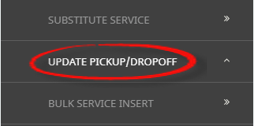
- Click Update Pickup/Dropoff to open the Update Pickup/Dropoff screen:

- Click the Home Menu to expand it:
-
On the blankUpdate Pickup/Dropoff screen, the Service Tab will open, select fields to narrow the search filter results.
NOTE: 'Search' will enable when the Service From/To fields have dates are selected. Further filter selections are available from the following tabs PCM Tab, Analysis Tab (PCM), Service Tab and Analysis Tab (Product).
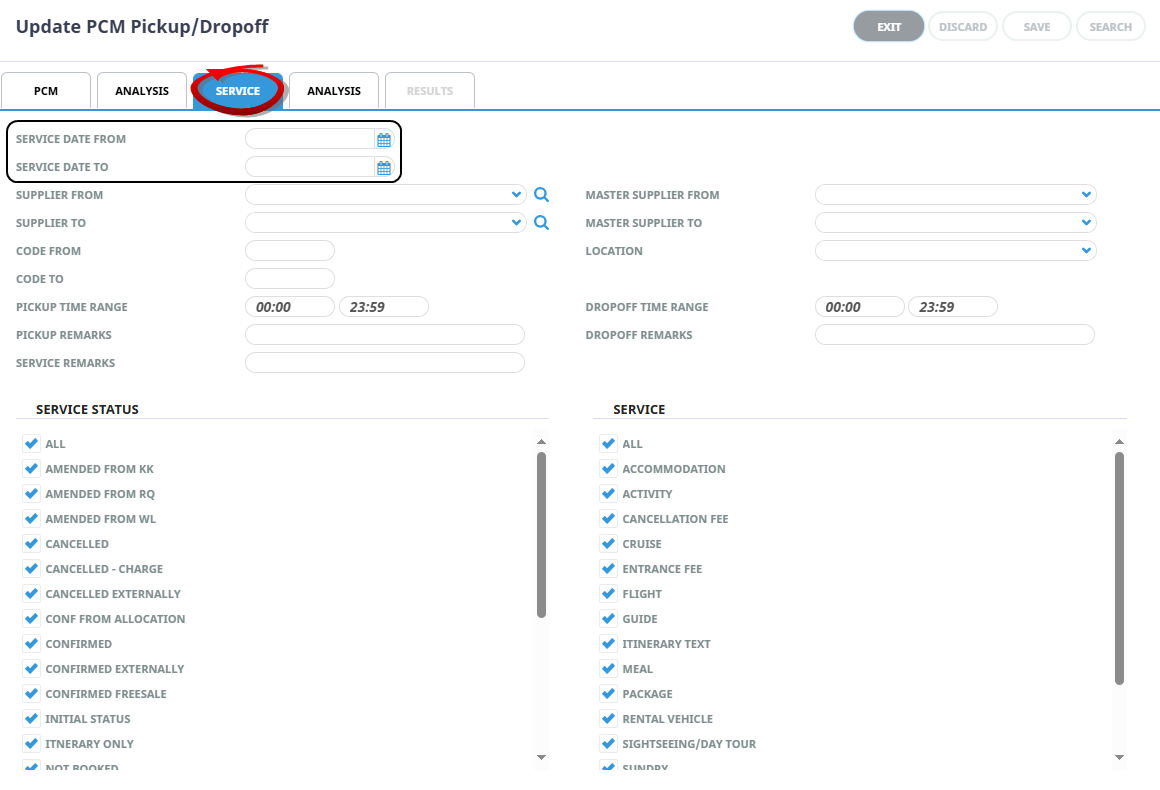
- Check the completed screens.
-
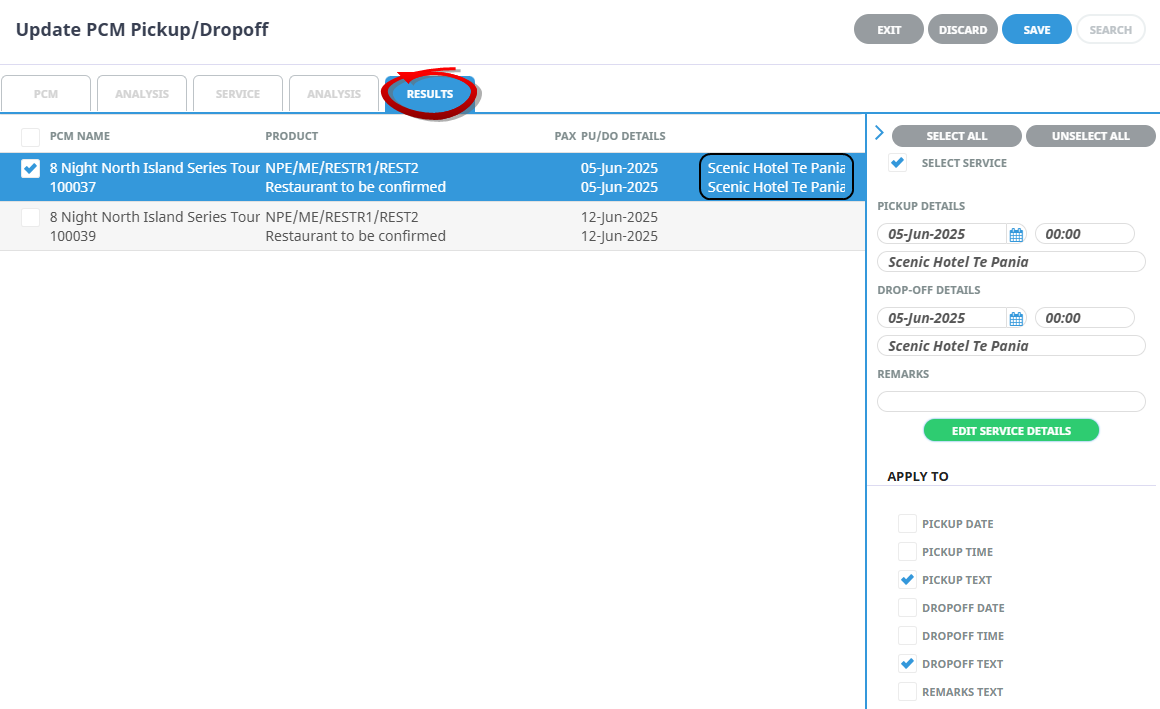
Click Save, or click on theResults Tab. Select the services to update. There are three ways to select:
- Using the check-box.
- Or clicking on the PCM Service.
- If all PCM services listed are to be updated, use Select All for bulk selection.
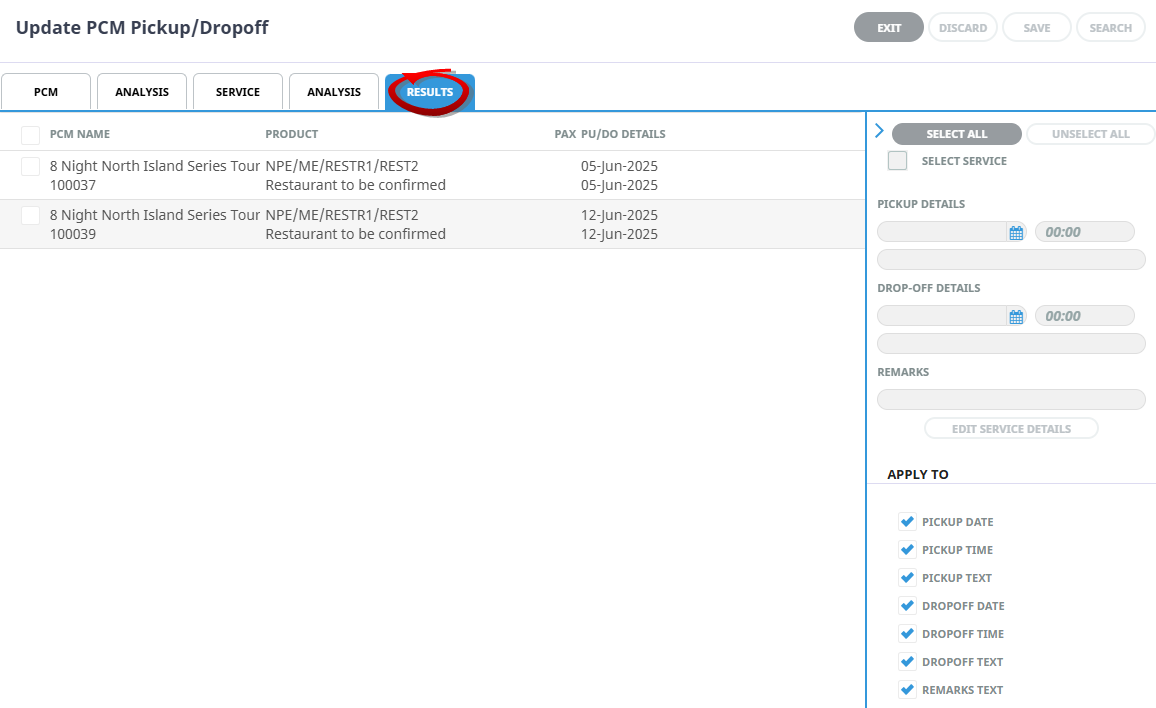
-
Update thePick Up/Drop Off details on the right of the screen, and select the Applies To check box(s) to update specific fields.
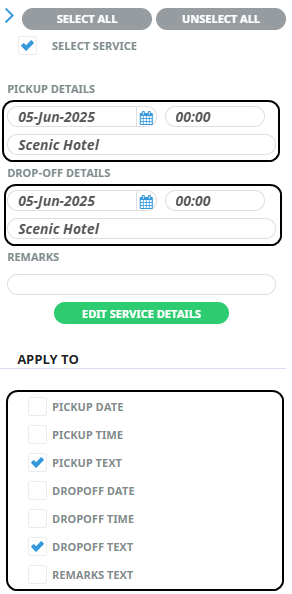
-
Or clickEdit Service Details, to enter the Pickup and drop off details.

-
Edit the requiredPick up/Drop off fields.
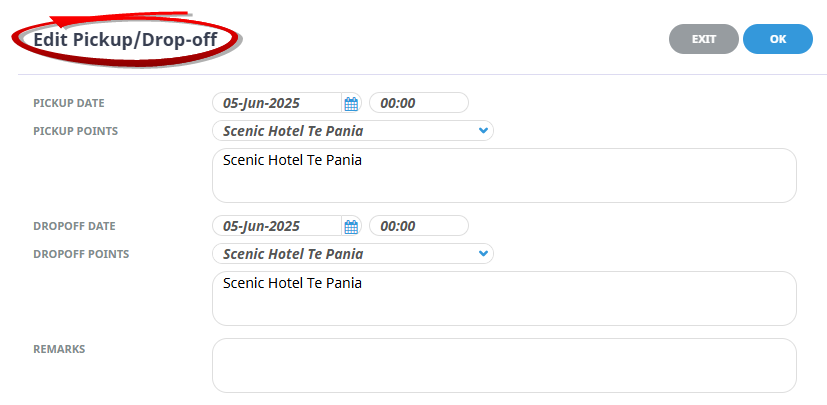
-
ClickOK to keep the changes and save or update the entry.

-
-
ClickSave to keep the changes.

-
ClickExit to discard any changes.

-
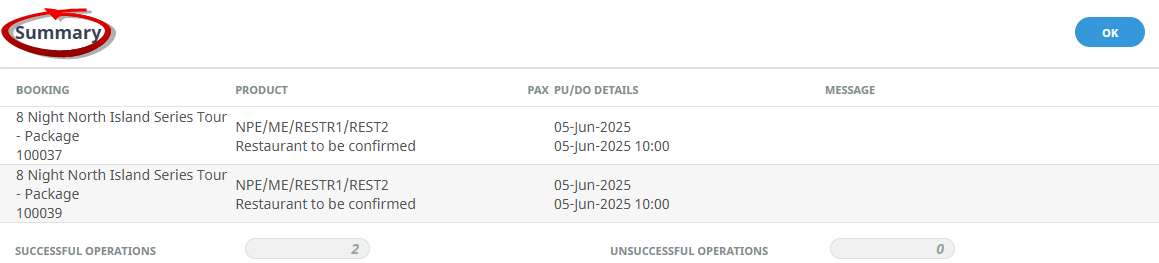
IfSave was selected a Summary will appear with the number of successful PCMs to be updated.
-
ClickOK to keep the changes and save or update the entry.
-
TheUpdate Pick Up and Drop Off Results tab will re-display, the service details will have updated and can be viewed from here.
-
ClickSave to keep the changes.

About the Service Tab
Service Date From/To
NOTE: Mandatory field selection to trigger the Save button activation.
This is the date of the service within a PCM. Selection for a range of dates is entered and Pick Up and Drop off details for services that fall within the date range provided will display in the results screen.
Supplier From/To
Used to select Pick up and Drop off details with a specific, or range of, supplier(s) codes matching the selection.
Code From/To
Selection of a specific service code or range of service codes.
Pick up Time Range
Used to select a range of pick up times for services that fall within the time period provided.
Pick up Text
Used to select specific pick up points selected in the PCM.
Service Remarks
This selection is used to filter by specific remarks stored within the PCM service.
Master Supplier From/To
Used to select specific Master Suppliers, or range of, Master Supplier code(s) matching the selection.
Location
Select to filter by a service location.
Drop off Time Range
Used to select a range of drop off times for services that fall within the time period provided.
Drop off Text
Used to filter by specific drop off points selected within the PCM.
Service Status
By default, all PCM Service Statuses are checked. Un-check statuses that are not required.
Service Type
By default, all Service (Types) are checked. Un-check service types that are not required.
Analysis Tab (PCM and Agent Analysis)
PCM Analysis
The top two rows of this tab are the 6 PCM Analysis codes. These are PCM header level selections.
Agent Analysis
The bottom two rows of this tab are the 6 Agent Analysis codes. These are Agent Analysis codes attached to the PCM.
Analysis fields can be expanded or minimised by using the + or - function.
PCM Tab
Base Date From/To
Base Date for PCMs is the date that appears in the header of a PCM Quote or PCM Package this is generally the date of the first service. This date range field is used to select PCMs with a specific date, or Pick up and Drop off details for PCMs that fall within a range of Base Dates.
PCM Name
This is the name of the PCM that appears in the header of a PCM Quote or PCM Package.
PCM Ref From/To
Used to select a specific PCM reference or range of references.
Agent From/To
Used to select Pick up and Drop off Details with a specific, or range of, agent(s) codes in the PCM header matching the selection.
Consultant
Selecting this field will filter PCMs by the consultant code attached to the PCM Quote or PCM Package.
Date Entered From/To
This is the date the PCM Quote or PCM Package was created. If selection for a range of dates is entered here Pick up and Drop off details for PCMs that were created within the date range provided will be display in the results screen.
Master Agent From/To
Used to select Pick up and Drop off details with a specific, or range of, Master Agent code(s) in the PCM Quote or PCM Package header matching the selection.
Currency
Used to select PCM with a particular currency.
PCM Status
By default, all PCM statuses are checked and services in PCM Quotes or PCM Packages that have those statuses will display in the results screen. Un-check statuses that are not required.
Branch
By default, all PCM branches are checked and services in PCMs that have those branches will be selected.
Department
By default all PCM Departments are checked, services in PCMs that have those branches will be selected.
Analysis Tab (Supplier and Product Analysis)
Supplier Analysis
The top two rows of this tab are the 6 Supplier Analysis codes.
Service Analysis
The bottom two rows of this tab are the 6 Product (Service) Analysis codes. These are Product Analysis codes attached to the Service.
Analysis fields can be expanded or minimised by using the + or - function.