
Bulk Messaging allows messages to be sent in bulk to suppliers, and messages selected can be sent from multiple bookings. Concurrently, the status of the services where messages have been sent can be updated.
NOTE: Bulk Messaging will not suit all companies. This function is typically used where supplier messaging is consolidated (either by user or company) to output at specific times or at the end of day.
The selection criteria of frequently sent messages can be saved and recalled. If saved, a list will display when the Supplier Messaging menu is selected. Frequently used filters can be copied and saved from within the Bulk Supplier Messaging screen.
For example, with this supplier message we wanted to send bulk messages for a selection of bookings that have a service status of 'NB' New Booking, and a Booking Status of 'KK' Confirmed Travelling. The system has filtered the bookings that meet the requirements of service status and booking status. Now individual selection or select all can be chosen. You will see in the screen capture that the Bulk Supplier Messaging Title is called Accommodation NB Service Status for KK Bookings. In this example we have selected an existing filter selection called Bulk Supplier Messaging.
NOTE: The service status and booking status used in this example may differ from your company's service status and booking status codes.
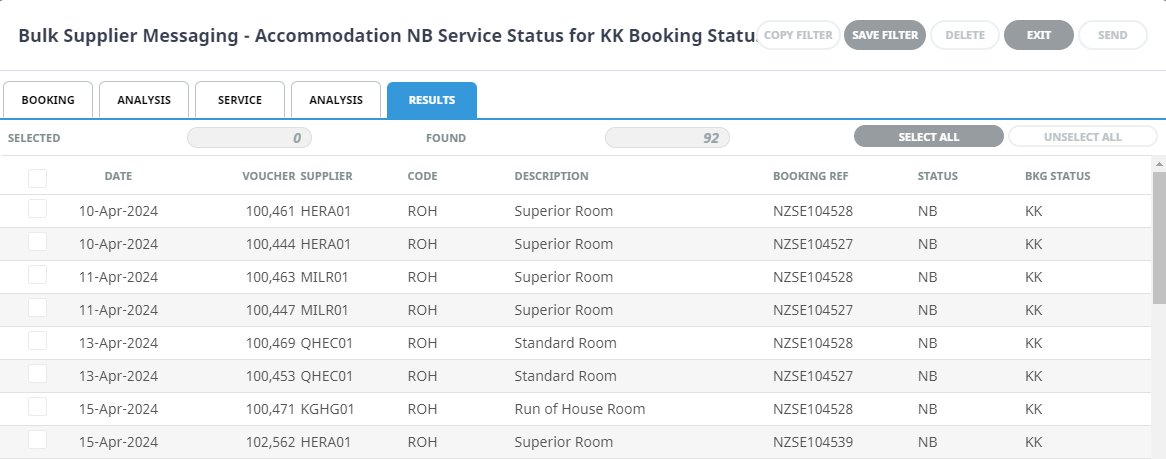
After the user has selected the services the supplier requests are to be sent to, a document message format can be selected. Bulk supplier messages are generated and a status can be selected for the services to be updated to.
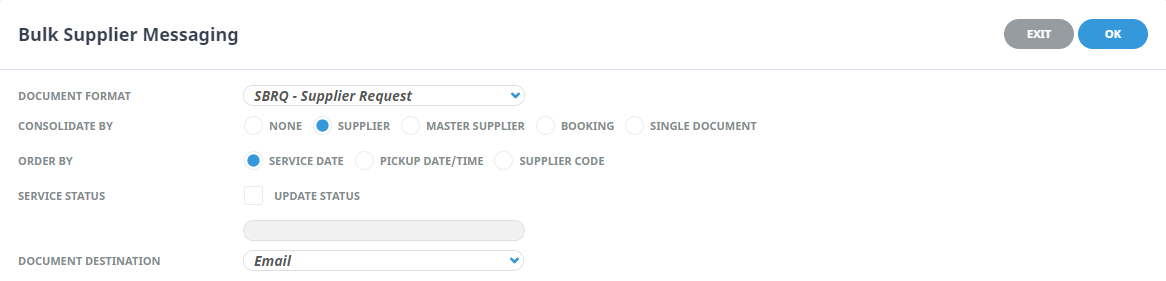
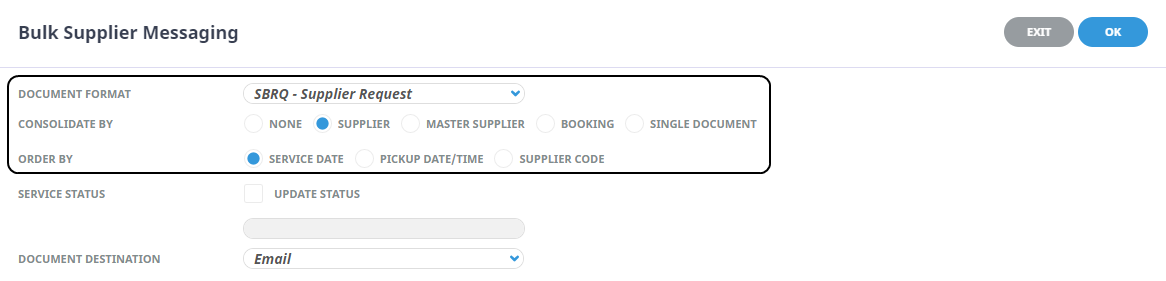
Field selections also allow the message content to be consolidated by Supplier, Master Supplier, Booking, Single Document or no consolidation.
Create Manual Supplier Messaging Filters and Send Messages
-
From the Home menu, select
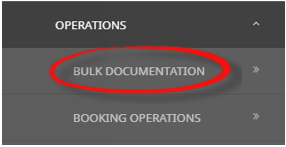
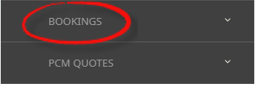
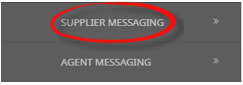
 Home > Operations > Bulk Documentation > Bookings > Supplier Messaging.
- Click the Home Menu to expand it:

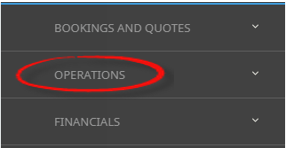
- Click the Operations menu option to expand it:

- Click Bulk Documentation menu option to expand it:

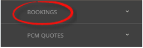
- Click Bookings menu option to expand it:
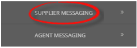
- Click Supplier Messaging to open the Supplier Messaging screen:
- Click the Home Menu to expand it:
-
ClickManual.

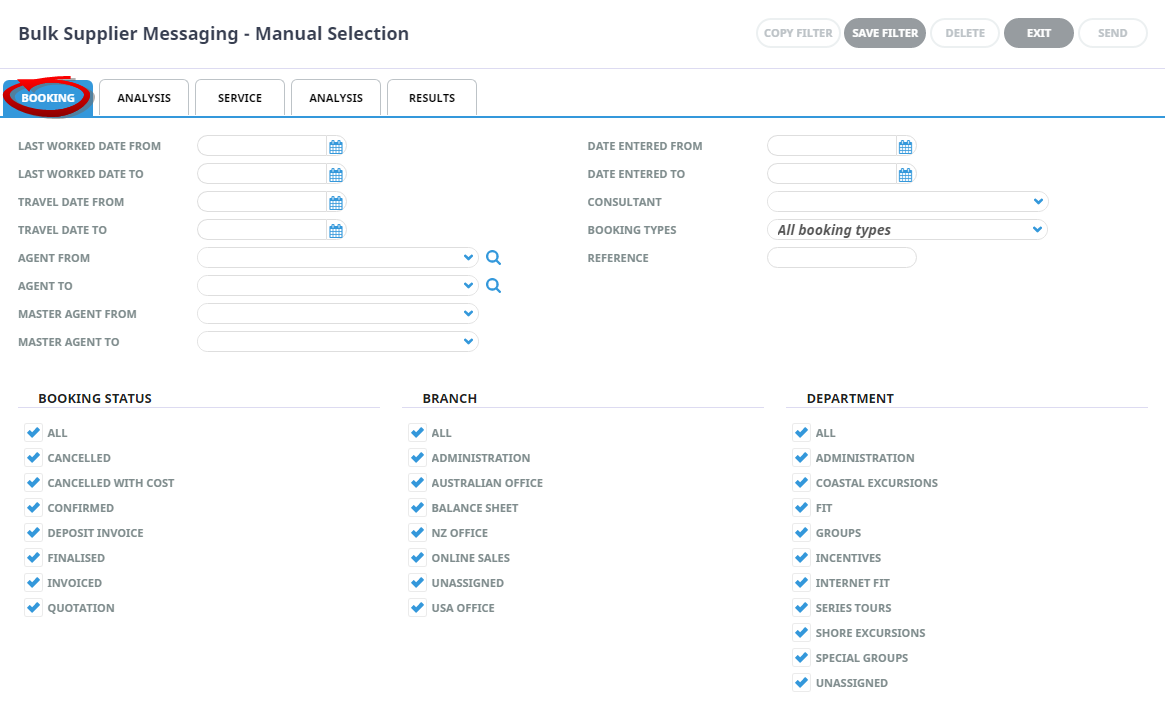
- On the blank Bulk Supplier Messaging - Manual Selection screen, the Bookings Tab will open, select the required filters from the field selections available within the Booking Tab, Analysis Tab (Booking and Agent), Service Tab and the Analysis Tab (Supplier and Product).
View Supplier Messaging Filter Selections to learn more about all the field selections available, or view the individual tab filters: Booking Tab, Analysis (Booking and Agent), Service, Analysis (Supplier and Product), Results.
NOTE: There are two tabs with the heading Analysis, the Analysis Tab on the left refers to the Booking or Agent Analysis field selections, whereas the Analysis Tab on the right refers to Supplier and Service Analysis field selections.
-
Check thecompleted screens.
Booking Tab
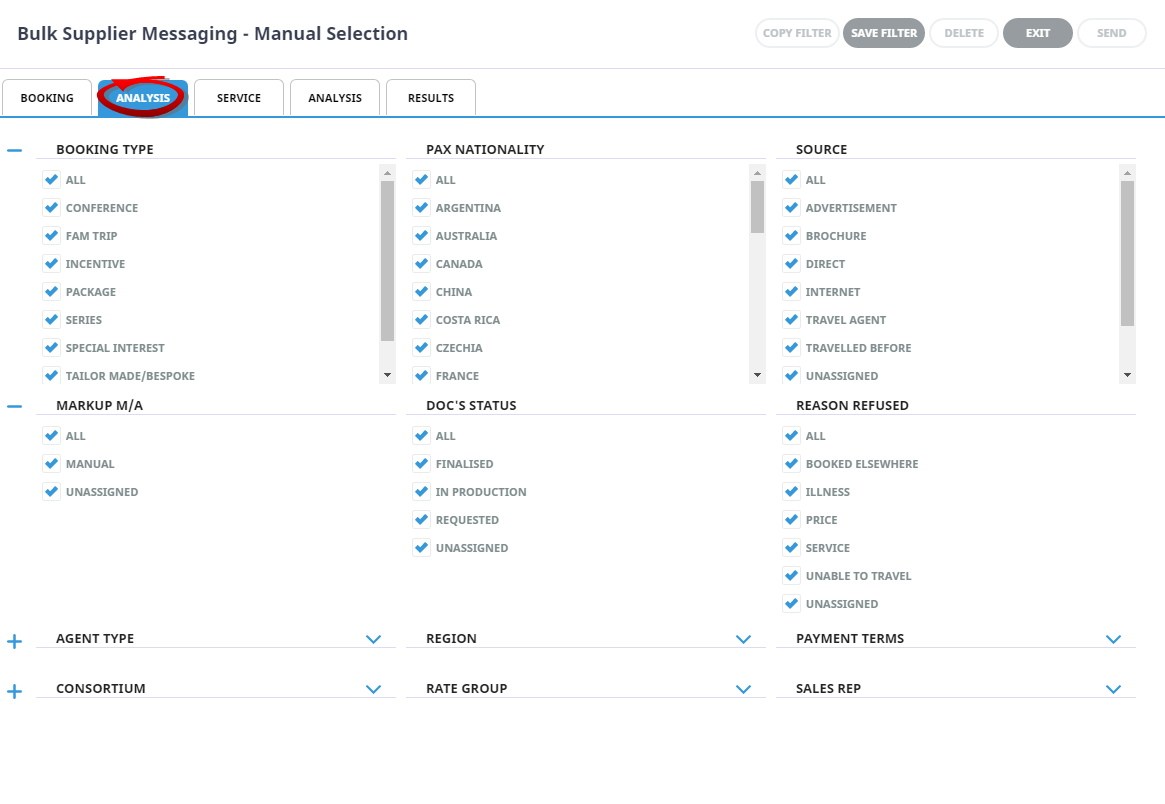
Analysis Tab (Booking and Agent Analysis)
In this example the Booking Analysis fields have been expanded using +. Where as the Agent Analysis fields have been left minimised. Your company's Analysis Fields and codes will be different to those shown in this User Manual and will reflect your organisations analysis requirements.
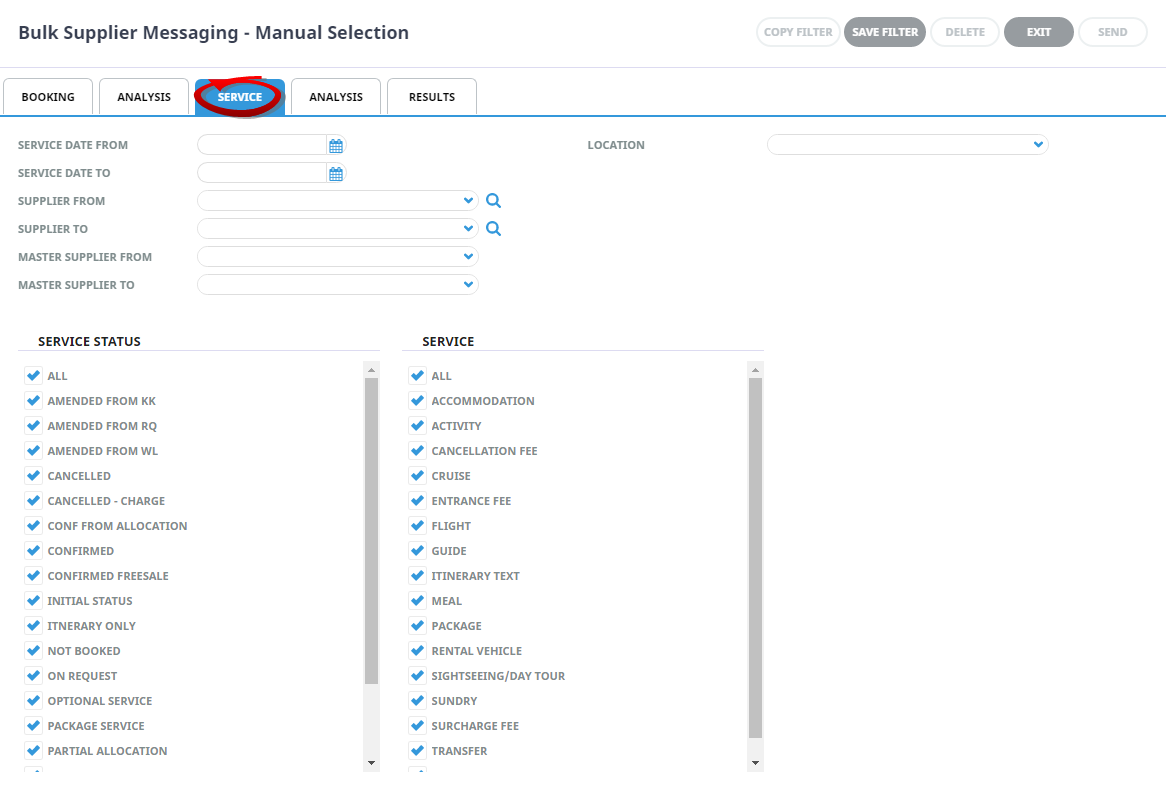
Service Tab
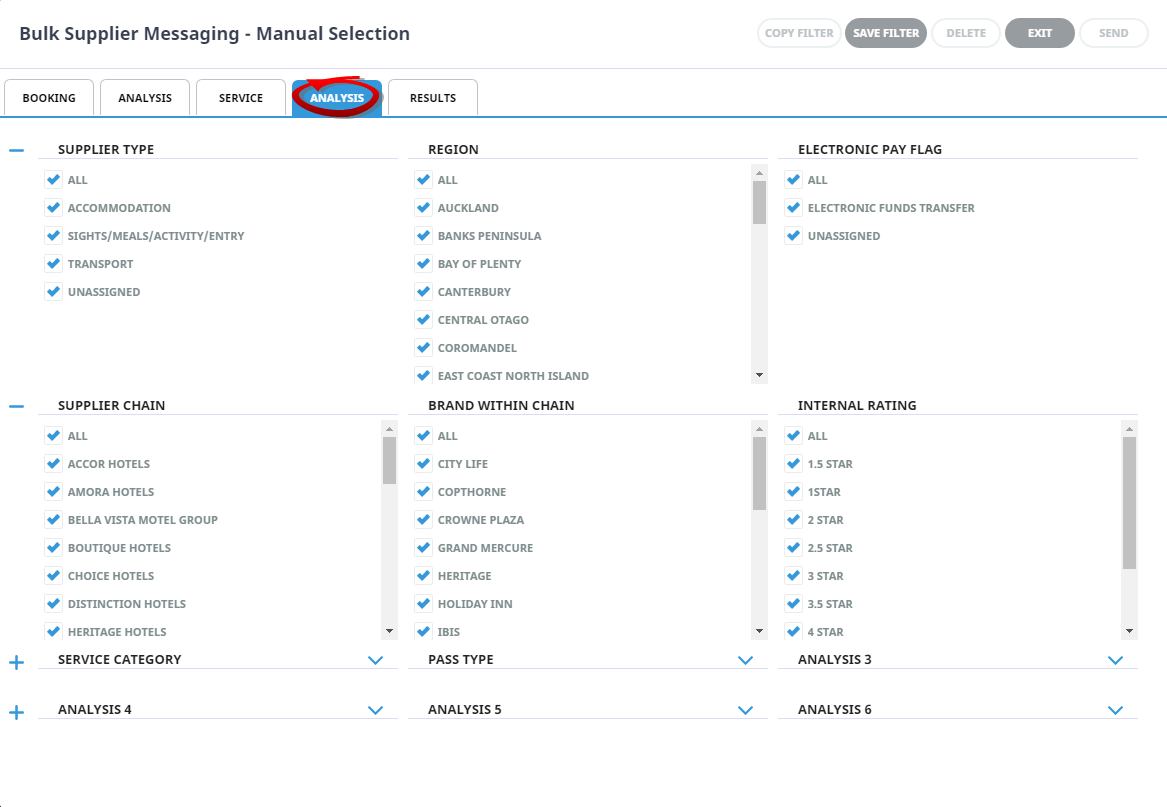
Analysis Tab (Supplier and Service Analysis)
In this example the Supplier Analysis fields have been expanded using +. Where as the Product Analysis fields have been left minimised. Your company's Analysis Fields and codes will be different to those shown in this User Manual and will reflect your organisations analysis requirements.
-
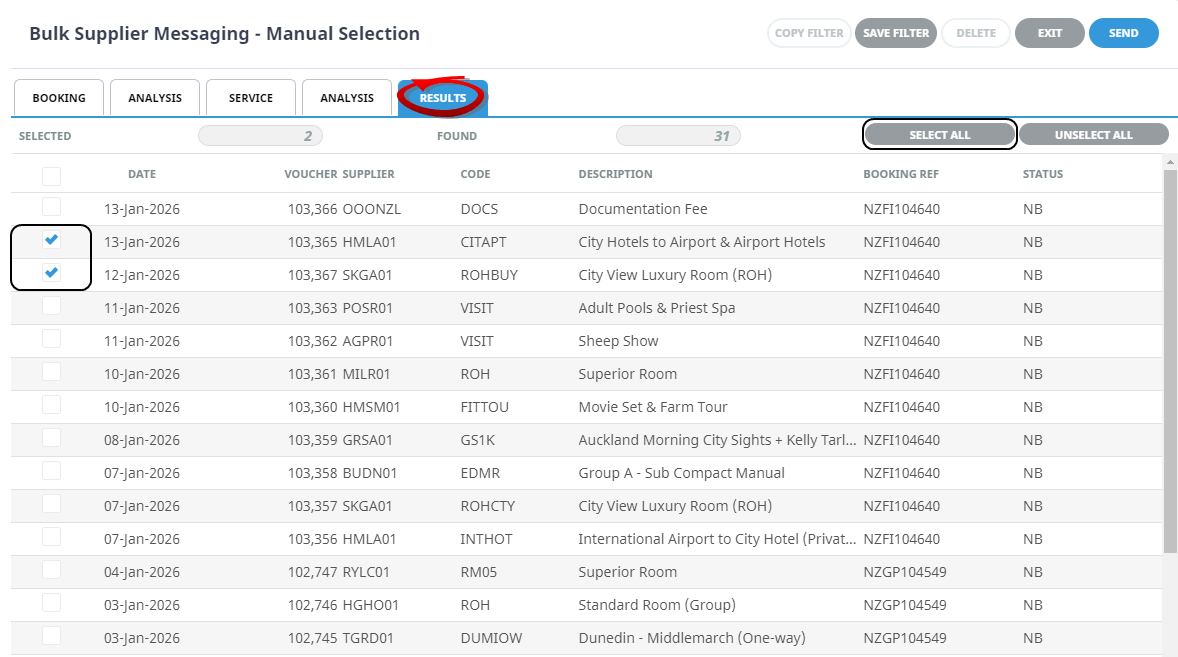
Click on theResults Tab. Select the services using the Selected check boxes next to each service, or use Select All.
-
To send the messages, clickSend.

-
ClickExit to discard any changes.

-
If Send is clicked, theBulk Supplier Messaging screen will display. Select the Document Format, the Consolidate By option (if any) and how the messages will be ordered.
-
To updated Service Status, click theUpdate Status check box, and select the required status code from the drop-down.
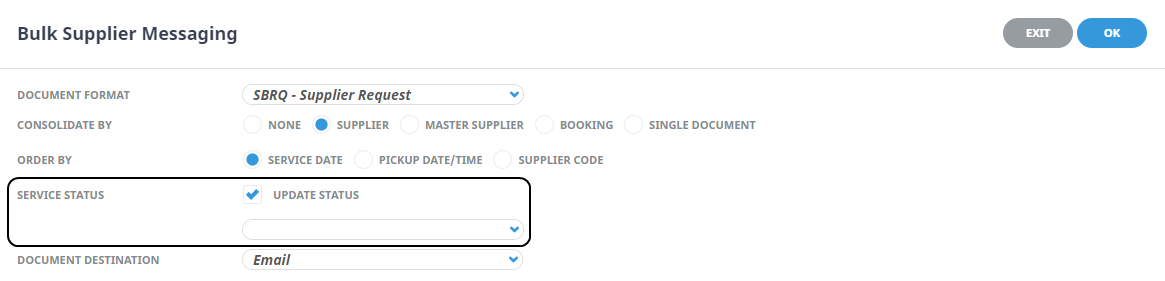
NOTE: This messaging example has been configured to use email as a Document Destination.
-
ClickOK to keep the changes and save or update the entry.

-
ClickExit to discard any changes.
-
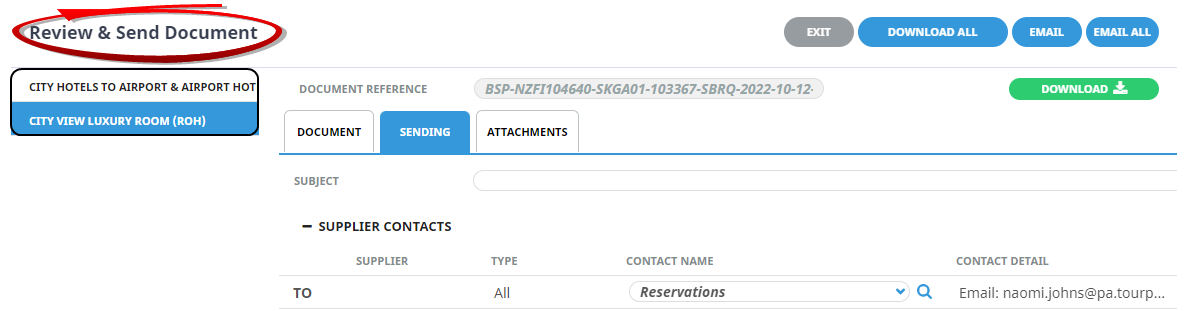
If OK is clicked, theSend & Review Document screen displays and a full list of the services selected will show on the left of the screen.
-
TheSending Tab will open if the Email and Sending tabs were activated when the message template was setup to send as an email. The sending tab allows you to view the email text that will be sent and the contact name and address the email is sending to.
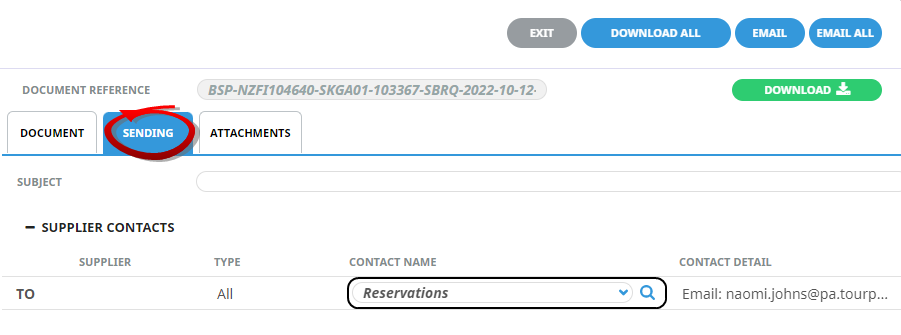
NOTE: A contact will default from the coding in the message template, however an alternative contact name can be selected using the drop down arrow. The options for CC, and BCC are also available. A list of Contact names attached to the Agent will display in a dropdown, or an alternative (or manual contact) email address can be entered using the search button.
-
On theDocument Tab, you can examine the generated document or Download it.
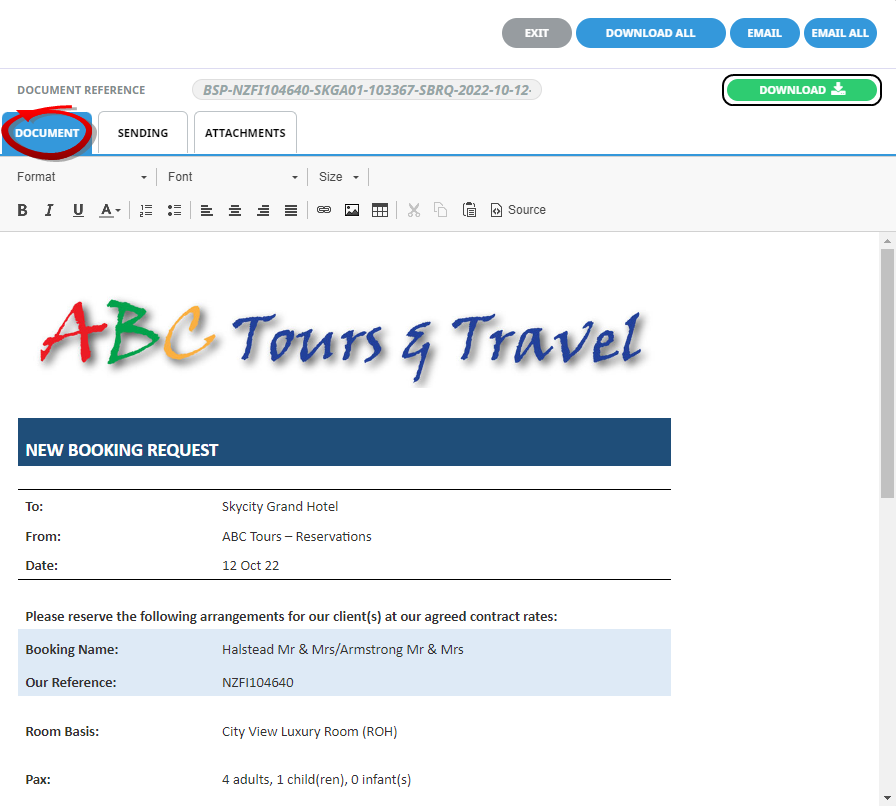
NOTE: A document can be downloaded from any of the tabs within Review & Send Documents.
Download will open the document in Microsoft Word. Any amendments made to the document in Word will not be saved unless the document is uploaded back into Tourplan. -
On theAttachments Tab, click Add to add additional attachments to send with your email.
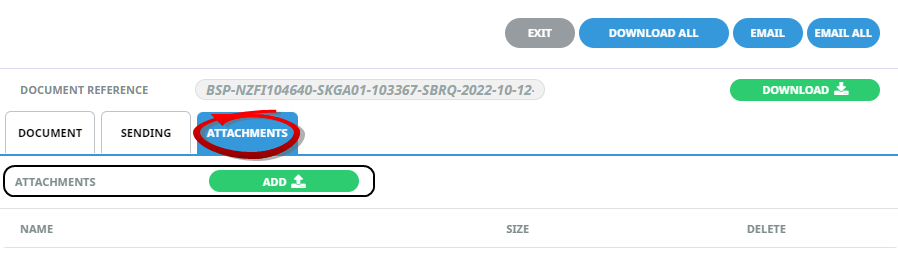
NOTE: If the Message Template has been configured to send attachments, a list of attachments will show on screen.
-
ClickEmail to send the document.

NOTE: 'Email All' will only be available if each listed service has an email address allocated.
-
ClickExit to discard any changes.

About Bulk Supplier Messaging Filters
Filter selection combinations are dependent on user's company's requirements. Selection of any filter combinations will return results in the Results Tab.
There are 4 Tabs that include field filter selections:
- Booking Tab.
- Analysis Tab (Booking and Agent).
- Service Tab.
- Analysis Tab (Supplier and Product).
Booking Tab
Last Worked Date From/To
The last worked date(s) of the services to be selected.
Travel Date From/To
Used to select services with a specific, or range of, travel dates of the services to be selected.
Agent From/To
Used to select services with a specific, or range of, agent(s) codes in the booking header matching the selection.
Master Agent From/To
Used to select services with a specific, or range of, Master Agent code(s) in the booking header matching the selection.
NOTE: When a Master Agent (or range of Master Agents) is entered in these fields, Tourplan will find services in those bookings where the Agent(s) have the Master Agents attached to them. When searching on the Master Agent field, the Agent field should be left blank.
Date Entered From/To
The booking entered date(s) of the services to be selected.
Consultant
The consultant code attached to the bookings whose services are to be output.
Booking Types
The type of bookings that services are to be output from.
Booking Type selection includes:
- All booking types - services from either FIT bookings or Group bookings will be selected.
- FIT's - those services that are attached to FIT bookings will be selected.
- Groups - those services that are attached to Group bookings will be selected.
Reference
The reference attached to the booking that services are to be output from. This field will only accept the actual reference number if the Branch/Department components of the booking reference are selected from the Booking Branch and Booking Department multi select boxes.
Booking Status
By default, all booking statuses are checked and services in bookings that have that status will be selected. Un-check statuses that are not required.
Branch
By default, all branches are checked and services in bookings that have those branches will be selected.
Department
By default all departments are checked, services in bookings that have those branches will be selected.
Analysis Tab (Booking and Agent Analysis)
Booking Analysis
The top two rows of this tab are the 6 Booking Analysis codes. These are booking level selections.
Agent Analysis
The bottom two rows of this tab are the 6 Agent Analysis codes. These are Agent Analysis codes attached to the booking.
Analysis fields can be expanded or minimised by using the + or - function.
NOTE: The label descriptions and analysis selections used within this User Manual will vary and will display what has been setup in each user's company's system.
Service Tab
Service Date From/To
The service date(s) of the services to be selected.
Supplier From/To
Used to select services with a specific, or range of, supplier code(s) matching the selection.
Master Suppler From/To
Used to select services with a specific, (or range of ) Master Supplier code(s) matching the selection.
NOTE: When a Master Supplier (or range of) Master Suppliers is entered in these fields, Tourplan will find those services whose supplier(s) have the Master Suppliers attached to them. When searching on the Master Supplier fields, the Supplier fields should be left blank.
Location
Used to select services in a specific location.
Service Status
By default, all service statuses are checked and services that are this status will be selected. Un-check those statuses that are not required.
Service
Used to select services with a specific, (or range of) service code(s) matching the selection.
Analysis Tab (Supplier and Product Analysis)
Supplier Analysis
The top two rows of this tab are the 6 Supplier Analysis codes. These are Supplier level selections attached to the service.
Product Analysis
The bottom two rows of this tab are the 6 Product Analysis codes. These are Product Analysis codes attached to the booking services.
Analysis fields can be expanded or minimised by using the + or - function.
NOTE: The label descriptions and analysis selections used within this User Manual will vary and will display what has been setup in each user company's system.
Results Tab
Selected
The cell to the right of this heading will provide you with the number of services that have been selected.
Found
The system will provide you with the number of services found, matching the filter criteria.
Select All/Unselect All
Select all services found, or un-select all services selected.
Column Headings
Users can customise their column headings by clicking on the header row, or can amend the order of results by clicking on the field heading, see About Changing Default Column Headings.
To view the available column headings in Supplier Messaging, see Bulk Documentation.
NOTE: The data can be sorted by any column by double clicking the column header. The order can then be reversed by double clicking the column header again.
Selected check boxes
Services can be individually selected.