
The allocation tab enables available allocations to be viewed prior to selecting the service. If an allocation is not available, then the system will provide buttons to search for services that do have allocations available. Allocation searches can be performed for the same supplier or the same location.
The procedure that follows assumes that an automated 'take from allocation' is configured. Instruction on taking allocations manually is provided in the procedure Sell an Accommodation Service from Allocation
Sell an Accommodation Service from Allocation
- Services are added from the Itinerary menu:
- Select menu
 FITs > Itinerary to show the itinerary for the Booking.
- Click the FITs hamburger menu to open it:
- Click the Itinerary menu option to show the itinerary for this booking:

- Click the FITs hamburger menu to open it:
- ClickInsert New Service.

NOTE: If there are no products yet added to the Booking, the list of services will be empty.
-
From theService Line Insert screen (Selection tab), select the appropriate accommodation service type from the All Service Types (e.g. Accommodation). In the Location drop-down field, select the relevant location (e.g. AKL - Auckland) and in the Supplier drop-down field, select the supplier providing the accommodation (e.g. CRPA01 - Crowne Plaza Auckland).
You can also enter other search criteria to reduce the number of results returned.
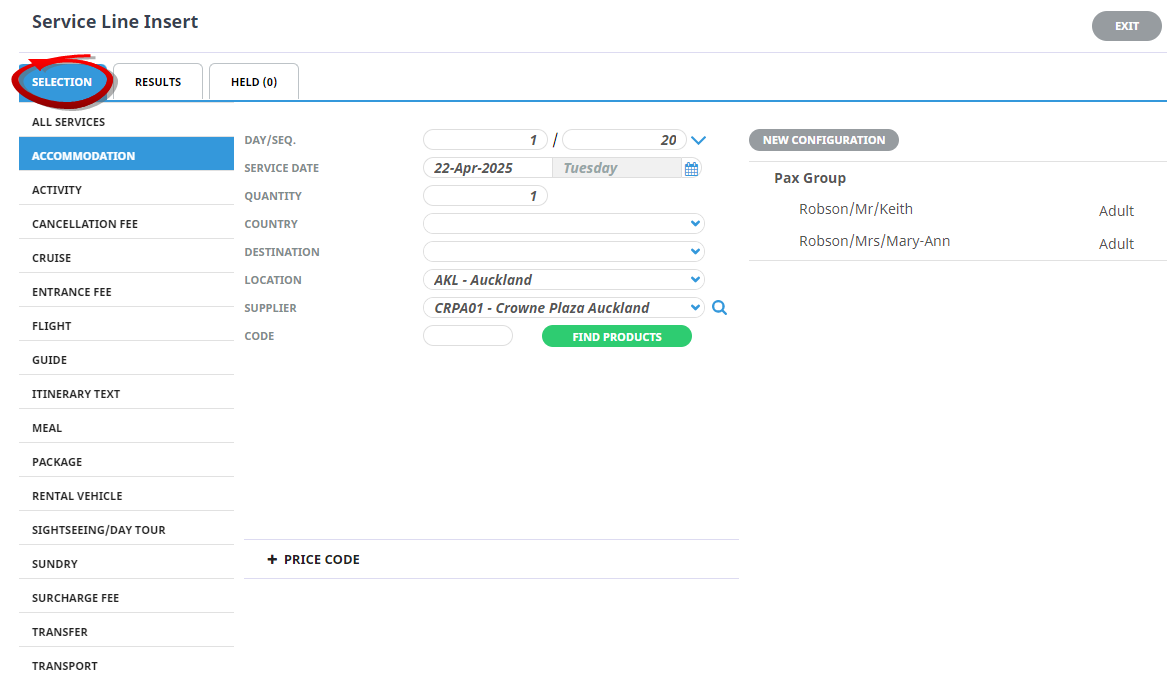
NOTE: Fields and selections available on this screen are described fully in About the Service Line Insert Fields (Selection Tab).
-
ClickFind Products.

-
Products matching the Service Type and location are returned in theResults tab. Find the product to add and click Book or Hold as required.
 NOTE:
NOTE:- Clicking Hold will 'tag' and hold the product until it is formally booked. For example, multiple products for a particular location can be tagged as held and then all held products can be booked in one step.
- Additional fields and selections available on this screen are described in About the Service Line Insert Fields (Results Tab)
-
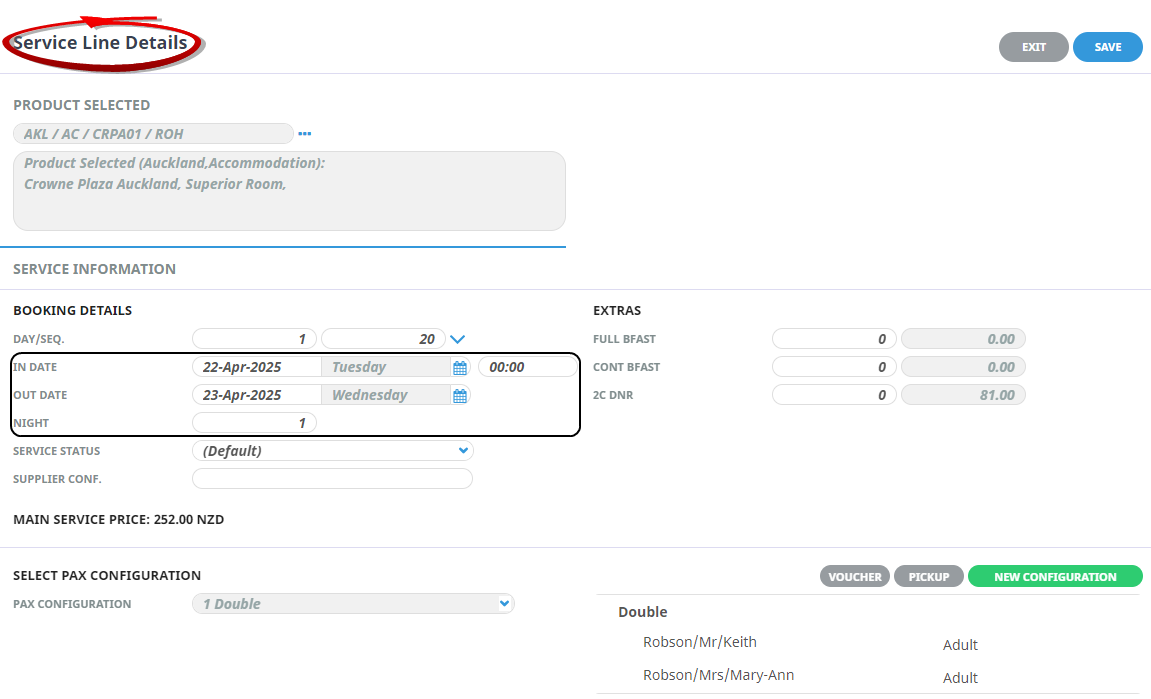
Go back to the Results tab and click Book beside a product to show full details of theaccommodation product
selected (there is still one more opportunity to exit before the service is actually saved).
Adjust the Day/Seq fields to show the correct values. In this example, they show 1 and 20. Also check that the In Date and Out Date are correct.
 NOTE:
NOTE:- If you don't need to examine a product's details, or there are multiple Held products to book, you can stay on the Held tab and click Book Held Services.
- Additional fields and selections available on this screen are described in Service Line Insert Fields (Booked).
-
ClickSave to keep the changes.

-
ClickExit to discard any changes.

-
Once you click Save, the service is saved and theItinerary view of the Booking is displayed.

-
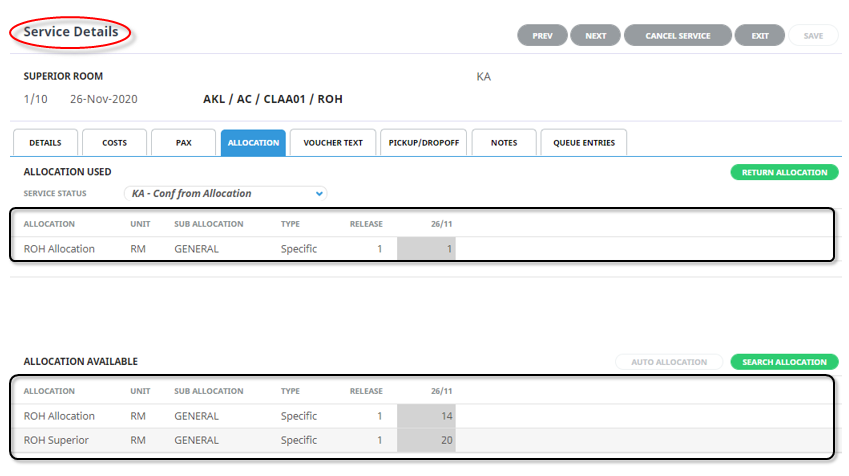
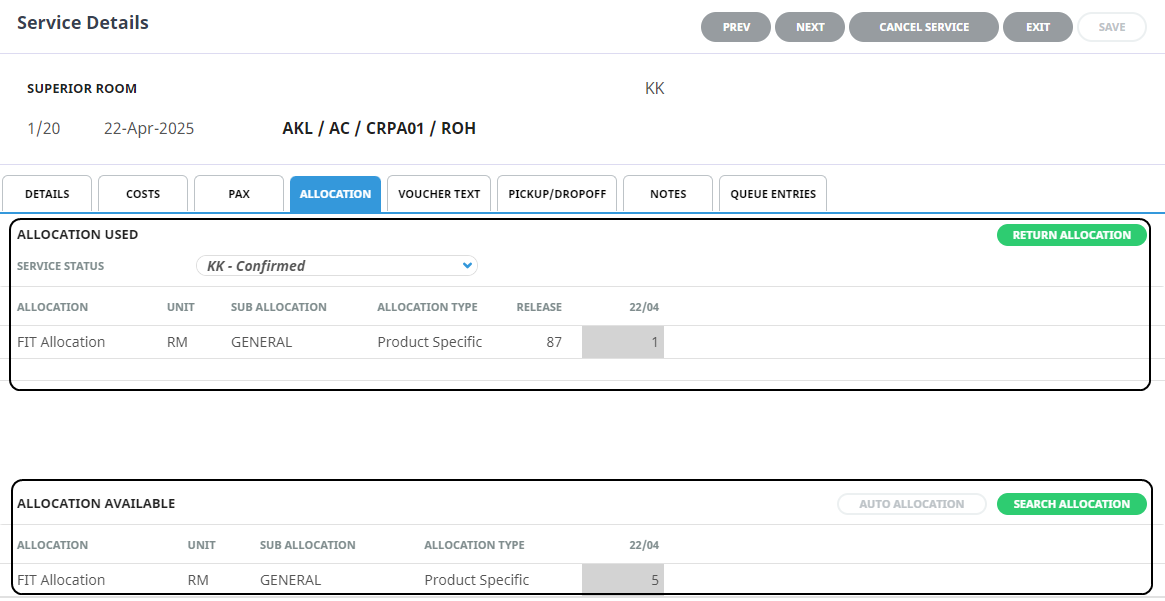
Click on the service and select theAllocation Tab. The Allocation Used will display the number of rooms holding an allocation, and the Allocation Available heading shows the number of rooms available.

-
Select a Service Status.
-
Click Auto Allocation, or click on the Allocation Line to take from allocation.
-
ClickSave to keep the changes.
-
The Allocation Tab now displays the number of used allocations for each used allocation date.

Allocation Tab Columns
The procedure above assumes that Tourplan has been configured to take the service from allocation on service insert. The system in this instance will be split into to categories Allocation Used and Allocation Available.
Allocation Used
Allocation
The allocation name.
Unit
The allocation unit / type e.g. Room or Seat etc.
Sub Allocation
The sub allocation is the (allocation split) name.
Type
The indicator for whether the allocation is either General or Specific to the service.
Release
The number of days from today's date to the Release Date of the allocation.
Date(s) - (of service)
The number of rooms available on this date.
Return Allocation Button
Allocations can be returned by clicking the Returned Allocations button. Once selected the system will display the Allocation Used date column with the number of rooms used-returned.

The Save button will then return the used allocation to the available allocation grid.
Allocation Available
The columns are replicated under the allocation available headings.
In this example you can see one allocation used for the 22/04 (the date of service). There are 5 rooms available for the FIT Allocation, and there is 86 days until the release period as this booking was made on the 24 Jan and the allocations had a 10 day release period.
Search Allocation
The button Search Allocation provides an additional product search used to view availability for alternative products.
Date From/To
Users can select the existing date range, or insert new availability dates allowing a broader availability search.
Search Mode
The additional search also offers users the option of searching for the same supplier or for the same location.
Supplier - will return availability results for all products linked to this supplier.
Location - will return availability results for all products with the same location.
Booking/Agent Allocations Only
A checkbox is pre-selected to ensure that the system searches for allocations available to the booking agent. Deselecting this check box will return results for 'all' allocations (not just the allocations assigned to the agent).
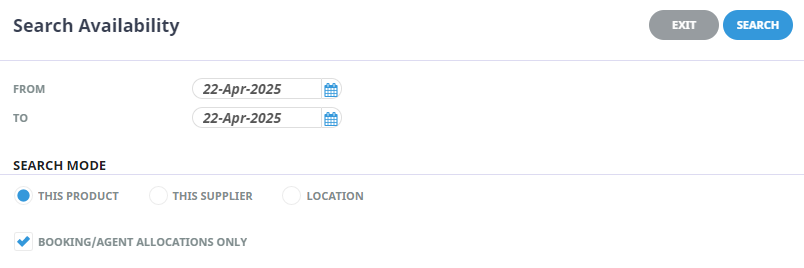
Once the field entries have been entered, check the screen and select search.
Auto Allocation
The Auto Allocation button allows the system to look to the booking details screen for the first date required and the product option selected, and to the costs screen for the quantity of nights. From here the system will automatically allocate the service if there is allocation availability.
Manually Take From Allocation
There are times when allocations will require manual selection to take from allocations. These instances are generally when Tourplan has not been configured to automatically take from allocations or if the allocation has been returned and manual selection of an alternative allocation is required.
Taking from Allocation Manually
- Open the Allocation Tab.
- Click on the Date cell (with the number of rooms available) for the allocation you wish to take from.
- The cell will change to the number of rooms available on this date (


-
ClickSave to keep the changes.
-
ClickExit to discard any changes.