
Creditor Payments With Unallocated Cash
Unallocated cash can only be accessed from within the Debtors application. If you need to pay a Deposit/Pre-payment to a Supplier, you must first enter a Zero Invoice, then allocate a payment against it. This article will explain how to record 'Unallocated Cash' within the Creditors application.
Create a Zero Invoice
-
Open Creditor > Transactions.
-
Click
 Insert to add a new entry.

-
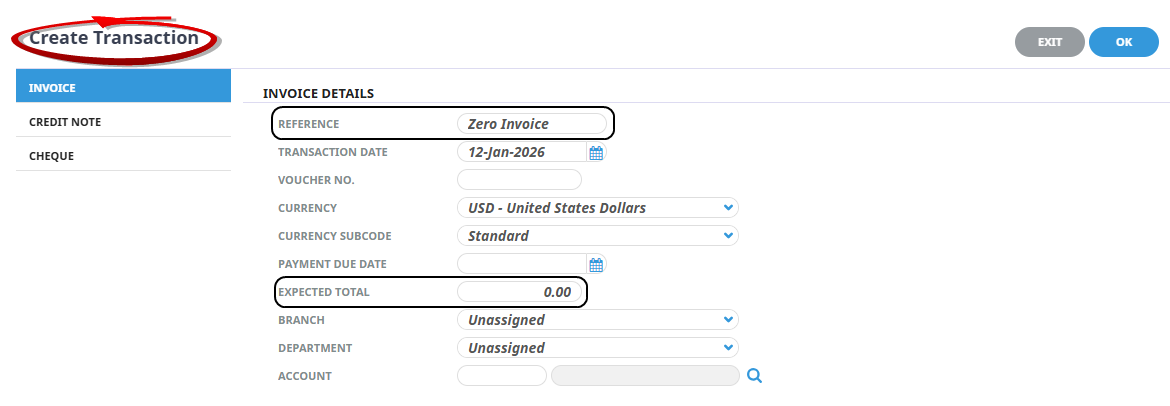
On theCreate Transaction screen, select Invoice, insert a Reference, leave the Expected Total as 0.00.
-
ClickOK to keep the changes and save or update the entry.

-
On the
Invoice Line screen, select Debit Posting: Branch, Department, and Account.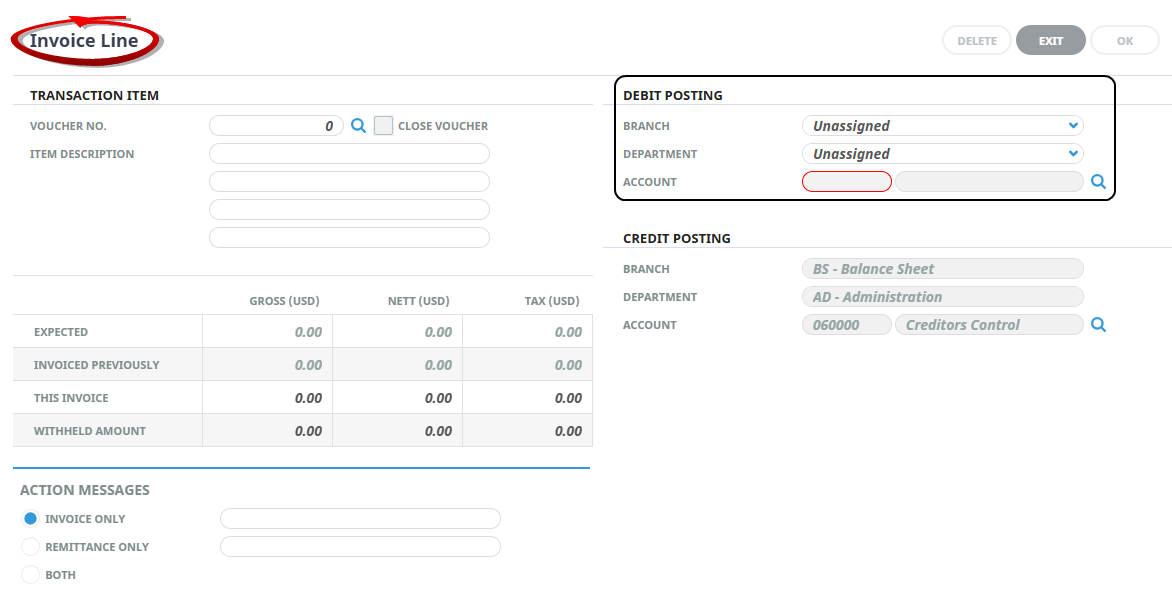
-
Click OK to view the Zero Invoice.
-
Click Save.
Insert a cheque payment to apply to Zero Invoice
-
Open the Creditor Transaction screen.
-
ClickInsert to add a new entry.
-
The Create Transaction screen opens, select Cheque and enter the Cheque Total and Payment Type.
-
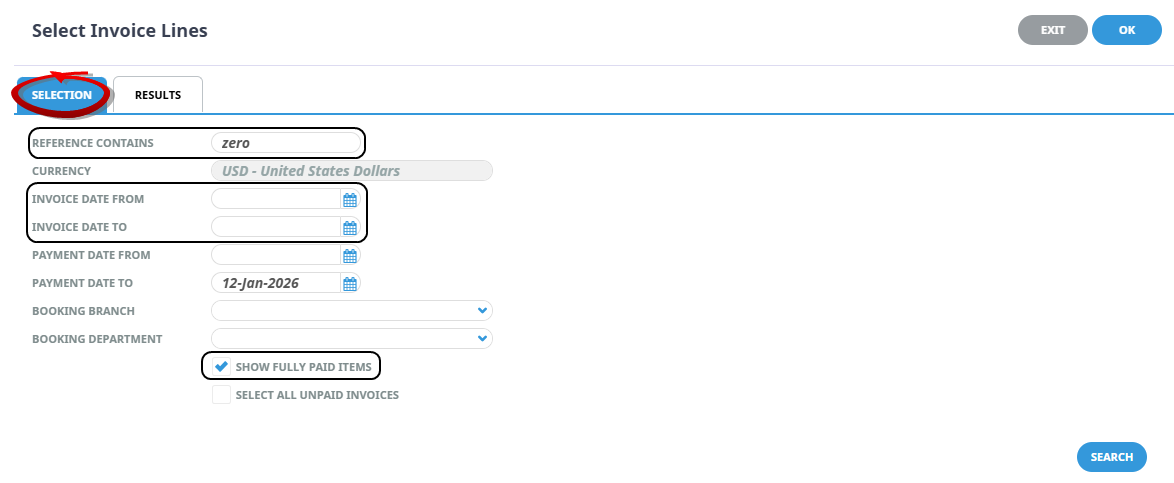
Outstanding invoices display in the Results tab, open the Selection tab, enter the Reference From, Invoice Date From/To and tick 'Show Fully Paid Items'.
-
Click Search.
-
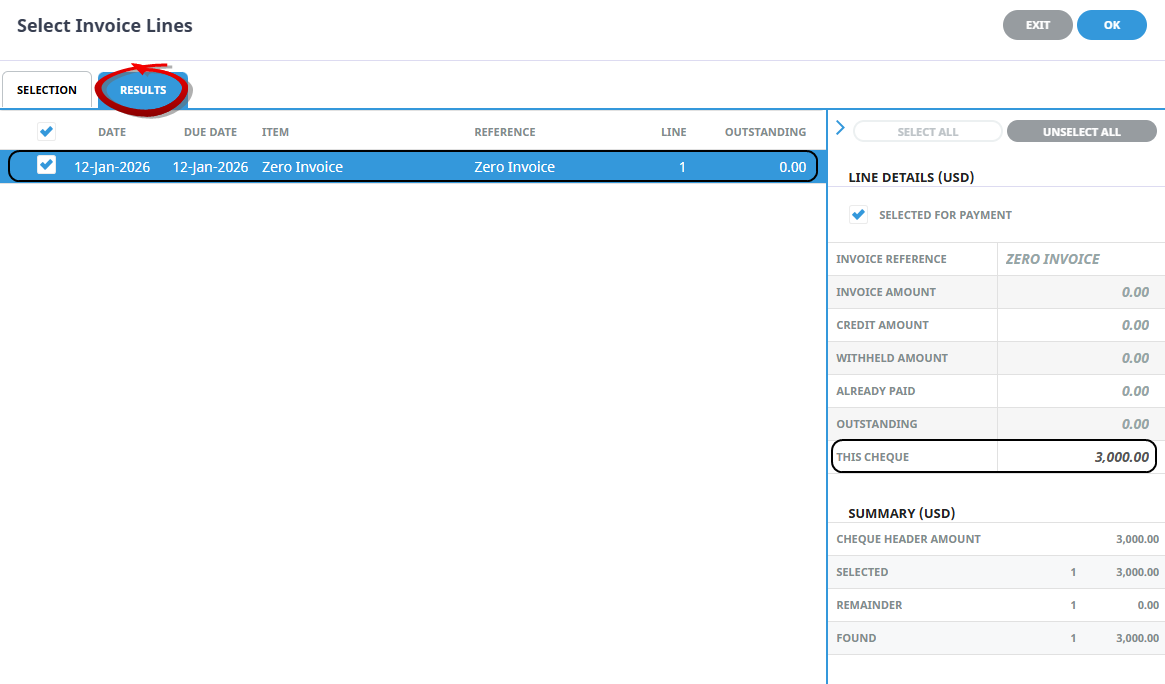
Select the Invoice Line from the Results tab, enter This Cheque value.
-
ClickOK to keep the changes and save or update the entry.
-
ClickSave to keep the changes.
